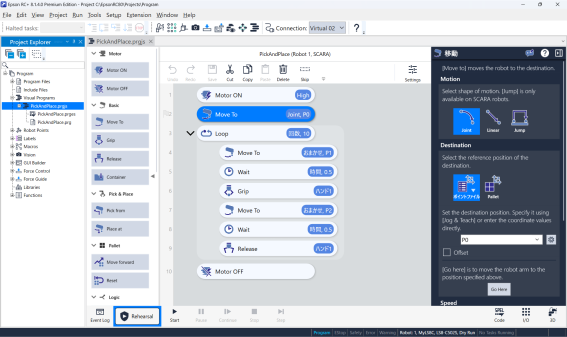
Creating a Visual Program
Tap the  in the Tools menu.
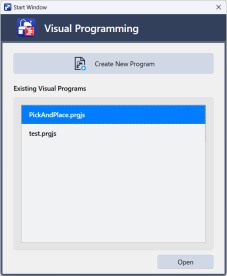
A list of visual programs for the current project will be displayed.
To add a project, tap the [Create New Project] button.
To edit a program you've already created, select it from the list and tap the [Open] button.
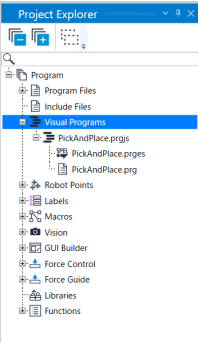
Visual programs added to a project can be opened from the Visual Programs node in the Project Explorer.
- Program name.prgjs: Main visual program
- Program name.prges: SPEL program converted from a visual program (read only)
- Program name.prg: Function definition for calling from a SPEL program (read only)
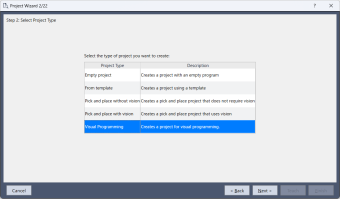
Furthermore, if you want to create a new SPEL project that includes a visual program, you can easily do so by selecting the Visual Program template from the Project Wizard.
The method for editing visual programs is the same as in visual programming mode.
Refer to Editing a Program.