Custom Vision Object
In Epson RC+ 8.0 Ver.8.1.3.0 and latter versions, the custom vision object is available in the PC vision. It can be used by installing Extension “Custom Vision Object (PV)” from the Extensions Manager.
The object that is installed in the “Custom Vision Object” at the top menu of the vision guide screen will be displayed. Here, you will be able to place objects in sequence in the same way as regular objects.
KEY POINTS
The custom vision object can only be used in Epson RC+ Premium Edition and higher.
Custom Vision Object
Overview of Custom Vision Object
The custom vision object converts images and detects models based on each object’s image processing logic. Set the custom vision object using the following description as a reference.
The displayed property and operation will vary depending on each object’s function and features. Refer to RC+ Extensions 8.0 "RC+ Custom Object’s Development" and each document about the custom object.
Custom Vision Object Layout
The custom vision object has a search window and a model window, as shown below.
However, the model window will not be displayed depending on the custom object.
The model window will not be displayed if the custom object is one that converts images or one that does not need to be taught.
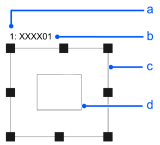
| Symbol | Description |
|---|---|
| a | Step Number in Sequence |
| b | Object Name |
| c | Search Window |
| d | Model Window |
Properties for Custom Vision Object
The following list is a summary of properties for custom vision objects with brief descriptions. For details on each property, refer to the following.
"Vision Guide 8.0 Properties & Result Reference"
The displayed properties will vary depending on the custom objects. Only the necessary property will be displayed according to the custom object’s feature.
| Property | Description |
|---|---|
| AbortSeqOnFail | Allows the user to specify that if the object fails (not passed), then the entire sequence is aborted at that point and no further objects in the sequence are processed. Default: False |
| Accept | Specifies the shape score value to determine that the feature has been detected. It detects objects that scores exceed the set value. If the value is small, it may result in false detection. Default: 700 |
| Caption | Assigns a headline to the custom vision object |
| CurrentResult | Defines which result to display in the Results list (on the Object window) or which result to return data for when the system is requested to find more than one of a like feature within a single search window. |
| Description | Sets a user description Default: Empty |
| Enabled | Specifies whether to execute the object. Default: True |
| FailColor | Selects the color of an object when it is not accepted. |
| Graphics | Specifies which graphics to display. |
| LabelBackColor | Sets the background color for the object's label. |
| ModelWin | Runtime only. Sets or returns the model window left, top, height, width parameters in one call. |
| ModelWinCenterX | Defines the X coordinate value of the center of the model window. |
| ModelWinCenterY | Defines the Y coordinate value of the center of the model window. |
| ModelWinHeight | Defines the height of the model window. |
| ModelWinLeft | Defines the left most position of the model window. |
| ModelWinTop | Defines the top most position of the model window. |
| ModelWinWidth | Defines the width of the model window. |
| Name | Assigns a unique name to the custom vision object. Default: Geom01 |
| NumberToFind | Defines the number of objects to find in the current search window. (Custom vision objects can find more than 1 object at once.) |
| PassColor | Selects the color for passed objects. |
| PassType | Selects the rule that determines if the object passed. Default: SomeFound |
| SearchWin | Runtime only. Sets or returns the following parameters in one call. Search window left, top, height, width, X coordinate of the center, Y coordinate of the center, radius size of inner circumference, radius size of outer circumference |
| SearchWinCenterX | Defines the X coordinate value of the center of the area to be searched. |
| SearchWinCenterY | Defines the Y coordinate value of the center of the area to be searched. |
| SearchWinHeight | Defines the height of the area to be searched. (unit: pixel) |
| SearchWinLeft | Defines the left most position of the area to be searched. (unit: pixel) |
| SearchWinTop | Defines the upper most position of the area to be searched. (unit: pixel) |
| SearchWinWidth | Defines the width of the area to be searched. (unit: pixel) |
| Sort | Selects the sort order used for the results of an object. |
| ThresholdHigh | Works with the ThresholdLow property to define the gray level regions that represent the feature (or object), the background, and the edges of the image. Default: 128 |
| ThresholdLow | Works with the ThresholdHigh property to define the gray level regions that represent the feature (or object), the background, and the edges of the image. Default: 0 |
Custom Vision Object Results
The following list is a summary of the custom vision object results. For details on each result, refer to the following.
"Vision Guide 8.0 Properties & Result Reference"
The results displayed will vary depending on the custom object. Only the necessary results will be displayed according to the custom object’s feature.
| Results | Description |
|---|---|
| Angle | Returns the amount of rotation associated with a part that was found. This defines the amount of rotation a part may have in relation to the originally taught orientation. |
| CameraX | Returns the X coordinate position of the found part's position (referenced by model origin) in the camera coordinate system. |
| CameraY | Returns the Y coordinate position of the found part's position (referenced by model origin) in the camera coordinate system. |
| CameraXYU | Runtime only. Returns the CameraX, CameraY, and CameraU coordinates of the found part's position in the camera coordinate system. |
| Found | Returns whether the object was found. (i.e. whether the feature or part have a shape score which is above the Accept property's current setting.) |
| NumberFound | Returns the number of objects found. (The detected number can be from 0 up to the number set with the NumberToFind property.) |
| Passed | Returns whether an object detection result was accepted. |
| PixelX | Returns the X coordinate position of the found part's position (referenced by model origin) in pixels. |
| PixelY | Returns the Y coordinate position of the found part's position (referenced by model origin) in pixels. |
| PixelXYU | Runtime only. Returns the PixelX, PixelY, and PixelU coordinates of the found part's position in pixels. |
| RobotX | Returns the X coordinate position of the found part's position (referenced by model origin) with respect to the Robot's Coordinate System. |
| RobotY | Returns the Y coordinate position of the found part's position (referenced by model origin) with respect to the Robot's Coordinate System. |
| RobotU | Returns the U coordinate of the detected object in the robot coordinate system. |
| RobotXYU | Runtime only. Returns the RobotX, RobotY, and RobotU coordinates of the detected object in the robot coordinate system. |
| Scale | Returns the scale factor. |
| Score | Returns an Integer value which represents the level at which the feature found at runtime matches the model for which custom vision object is searching. |
| ShowAllResults | Displays a dialog box which allows you to see all results for a specified vision object in a table form. This makes it easy to compare results. |
| Time | Returns the amount of time required to process the object (unit: millisecond). |
How to use the Custom Vision Object
It can generally be used in the same way as other objects.
For details, refer to each custom vision object’s documents.