Group Management
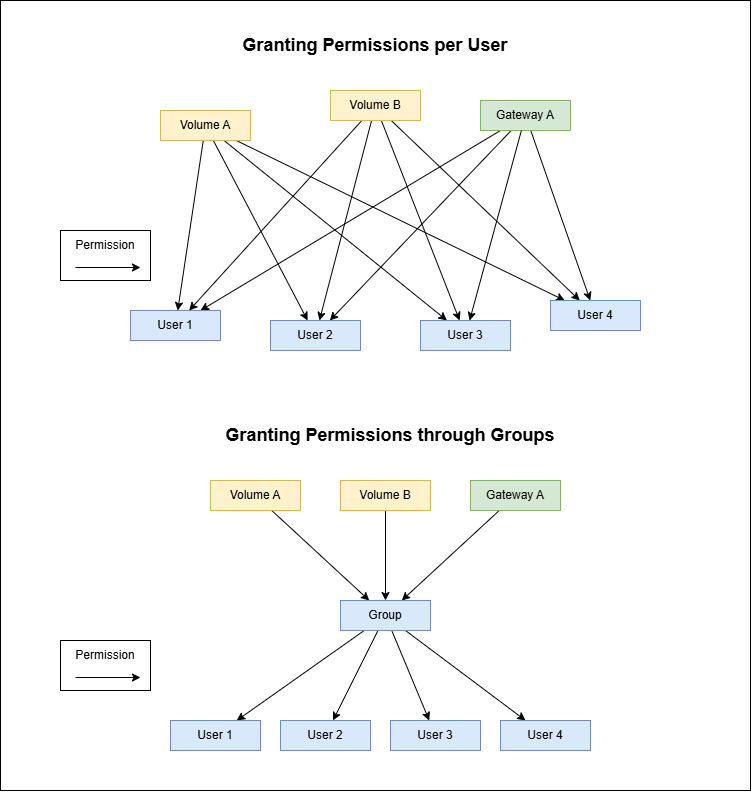
In RC+ Cloud, a "group" is a collection of users.
For data sharing and remote connection, permissions can be granted by group.
This makes permission management more efficient.
Creating a Group
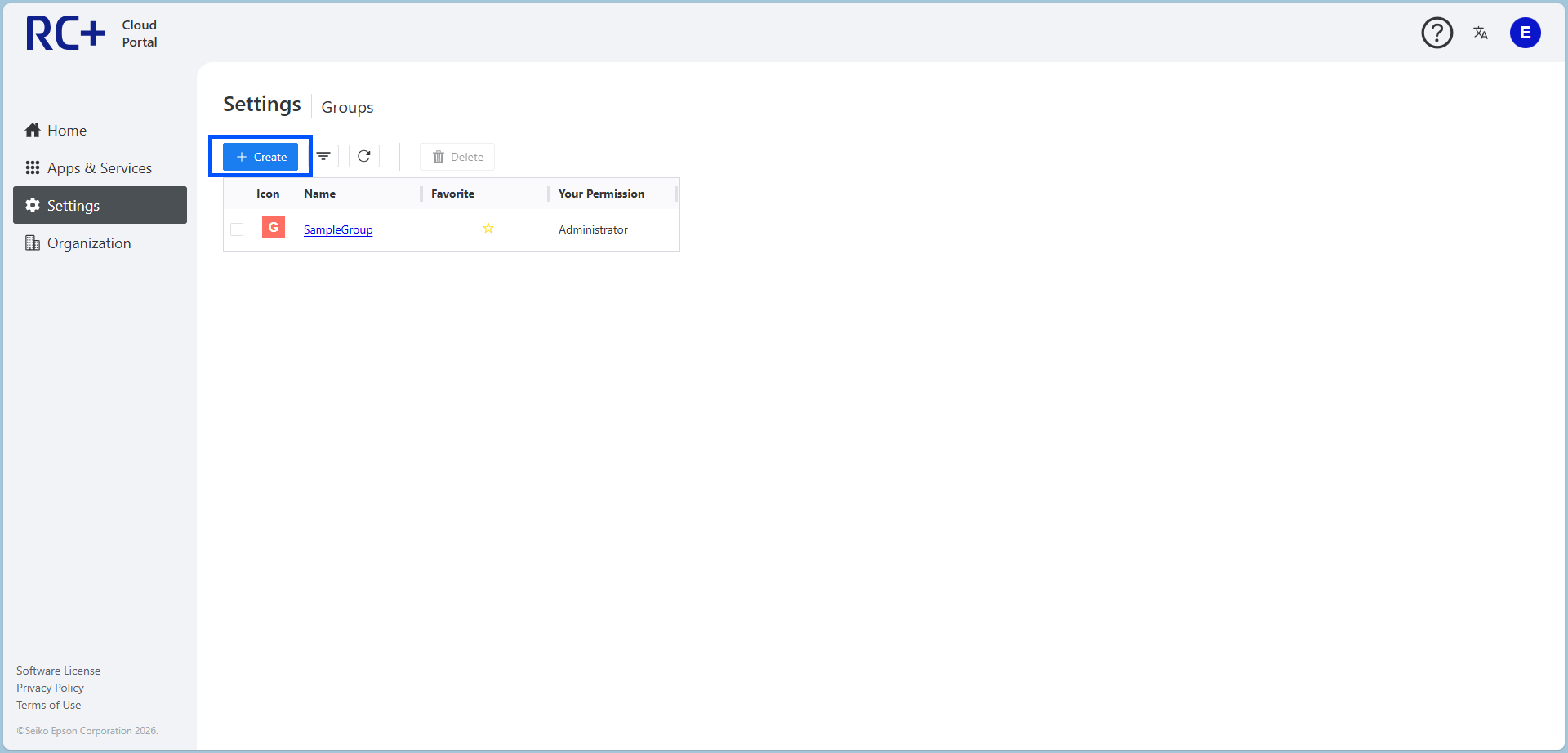
You can create a new group from the RC+ Cloud Portal.
Open the [Groups] page and click [Create].
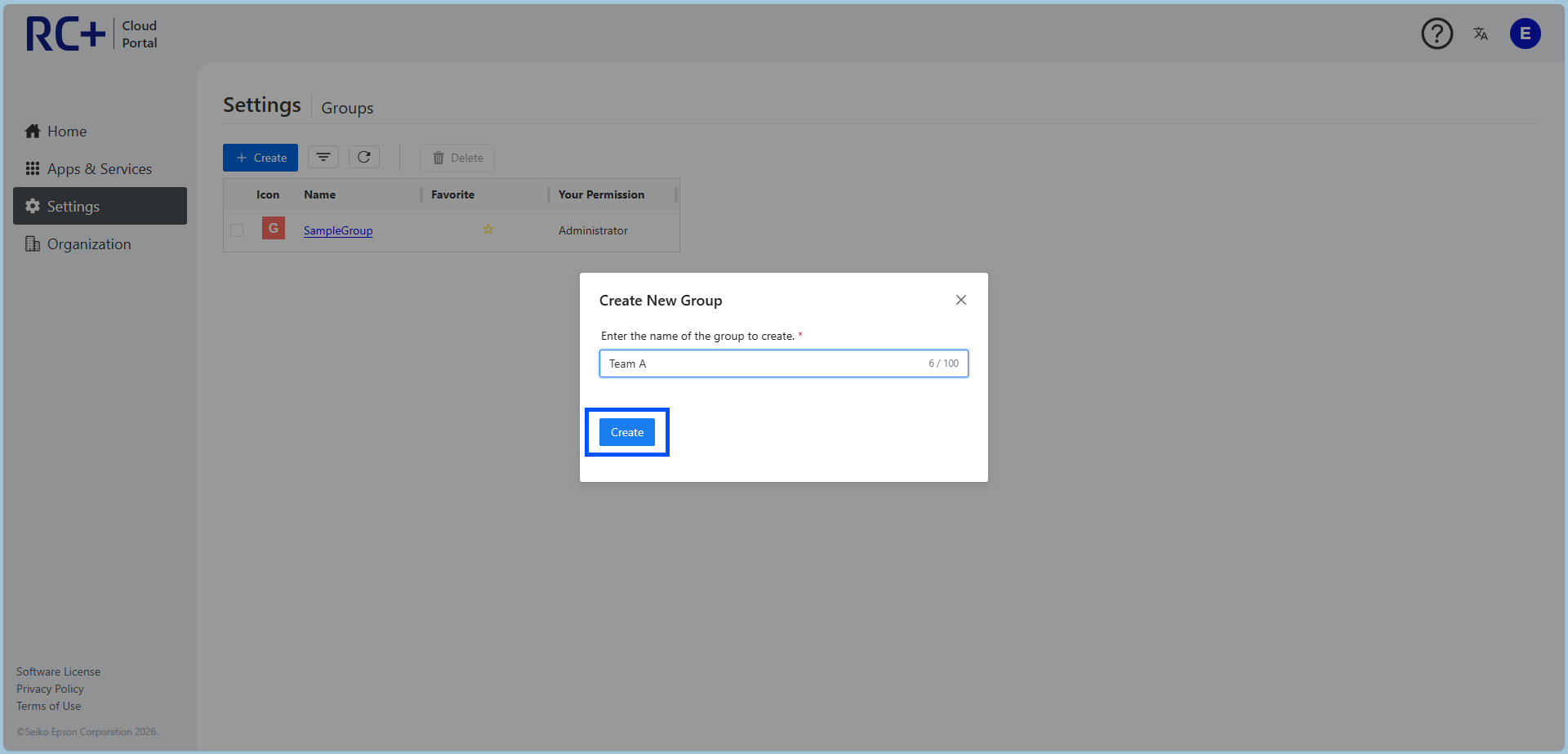
Enter the name of the group to create and click [Create] to create the group. (The group name can be changed later.)
Managing Users in a Group
The following operations are available.
- Add users to a group
- Change user permissions in a group
- Remove users from a group
KEY POINTS
Only users with administrative privileges for the group or owners can perform this operation.
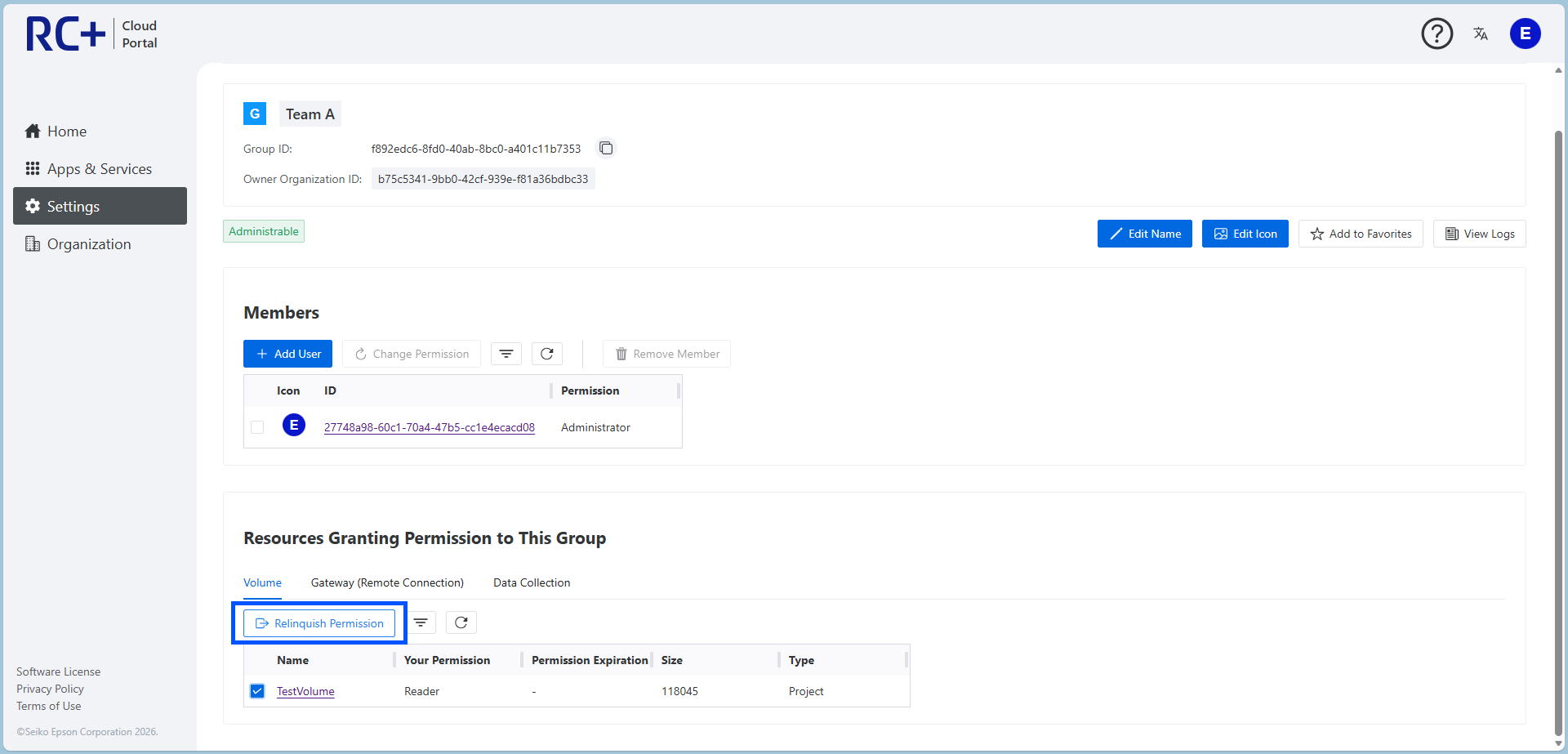
Before performing these operations, first open the page for the applicable group in the RC+ Cloud Portal.
To add a user to a group, click [Add User].
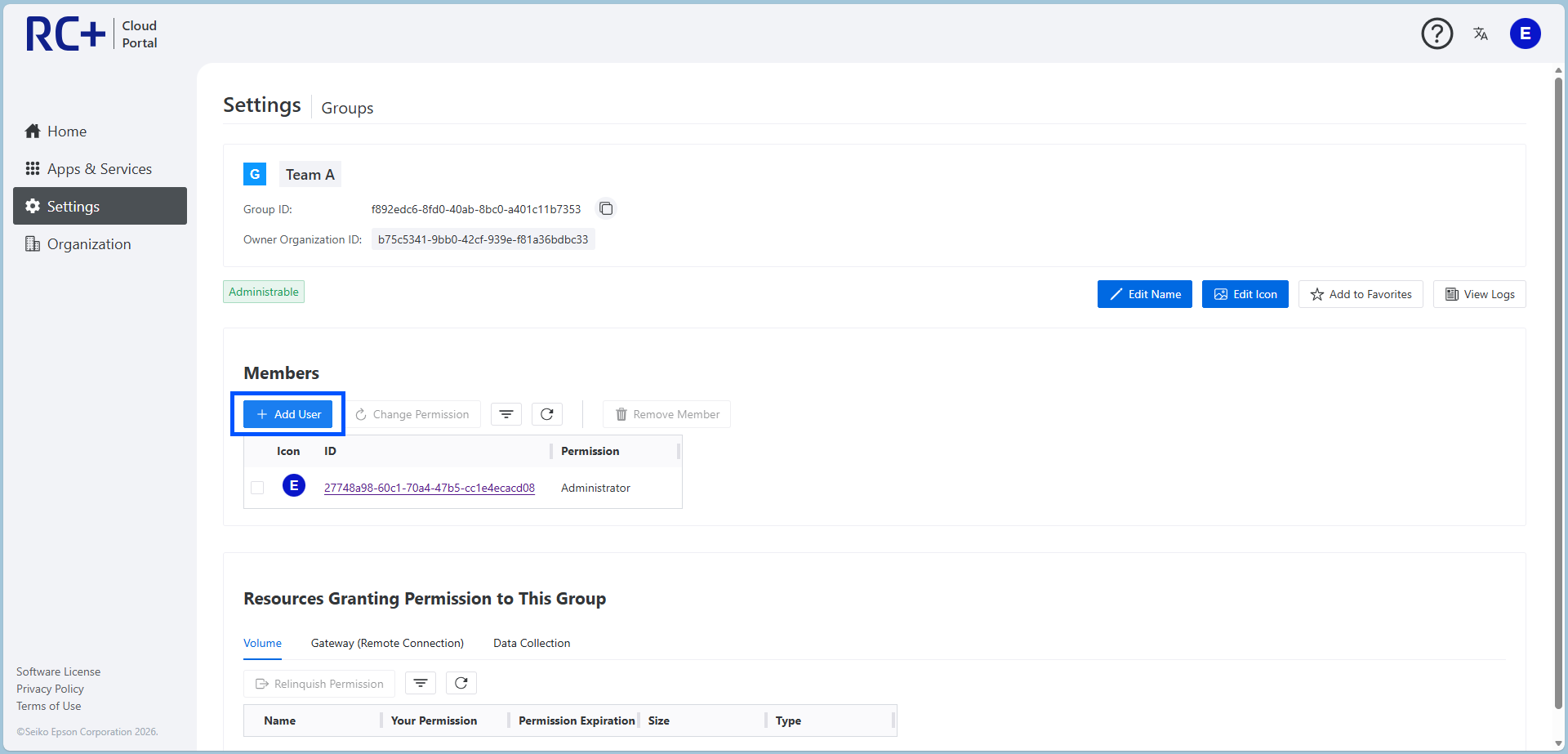
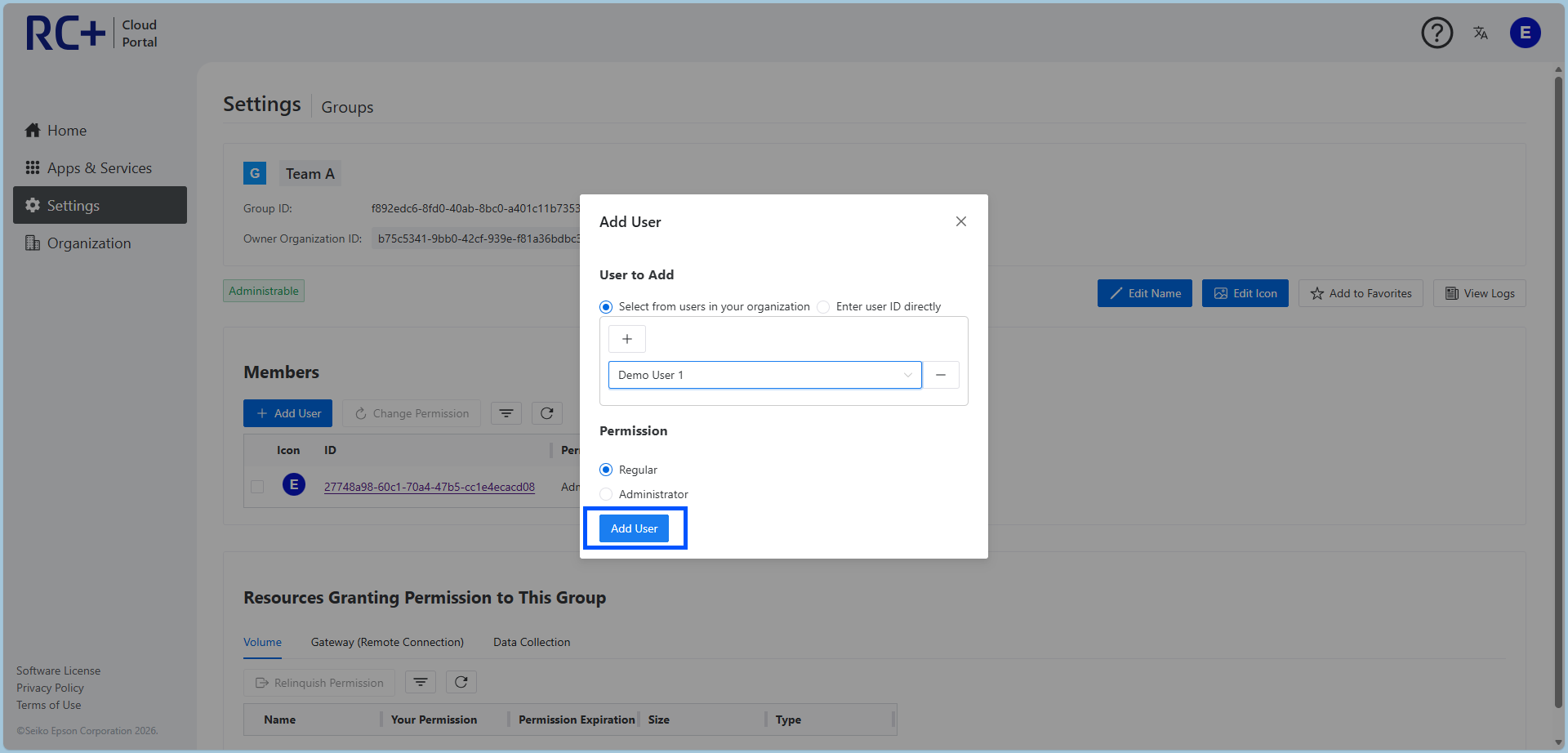
On the displayed screen, specify the user to add using one of the following methods.
- Select a user from the organization
- Enter the user ID directly
Select [Administrator] or [Regular] as the permission for the user to add.
Click [Add User] to add the specified user to the group.
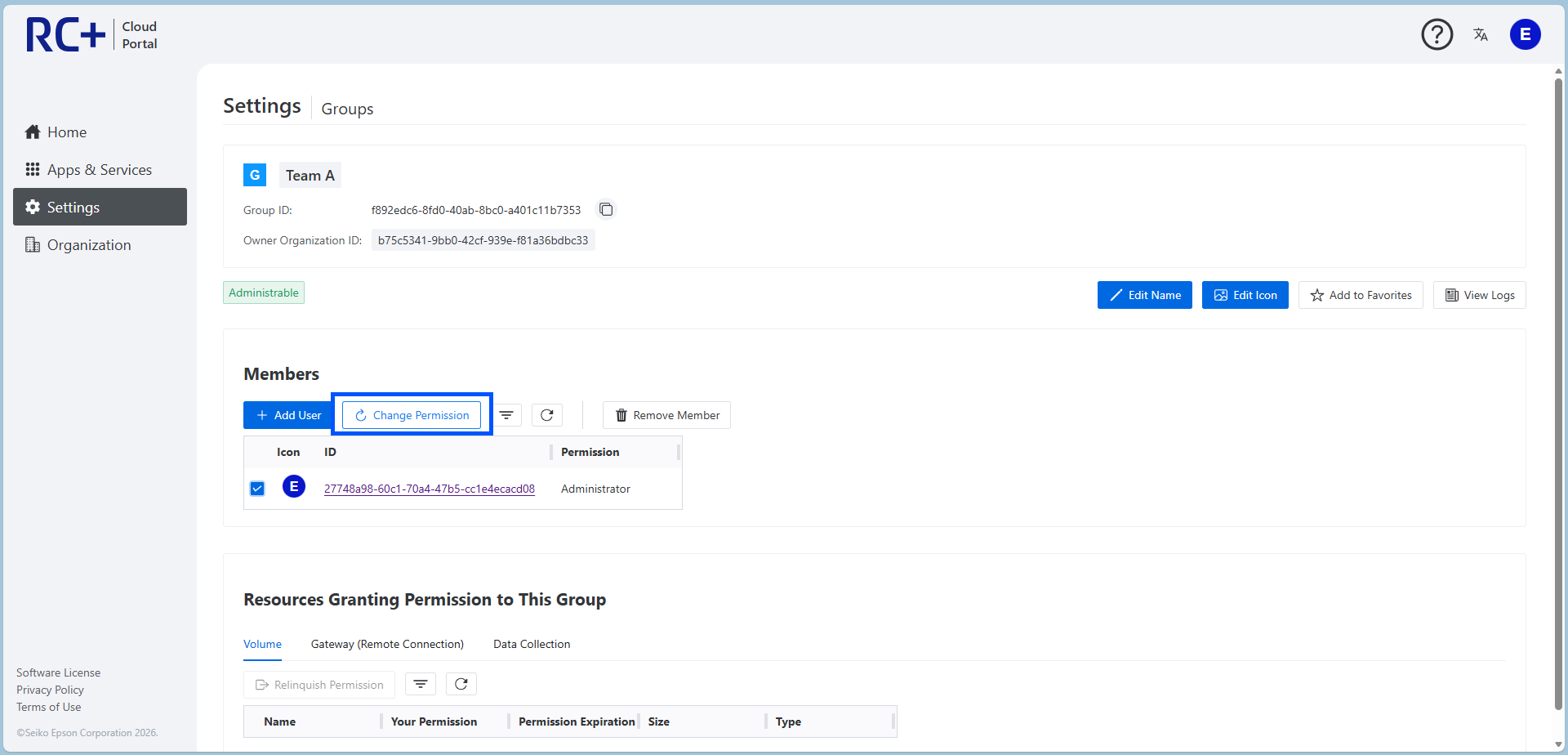
To change a user's permission in the group, select the user whose permission you want to change and click [Change Permission].
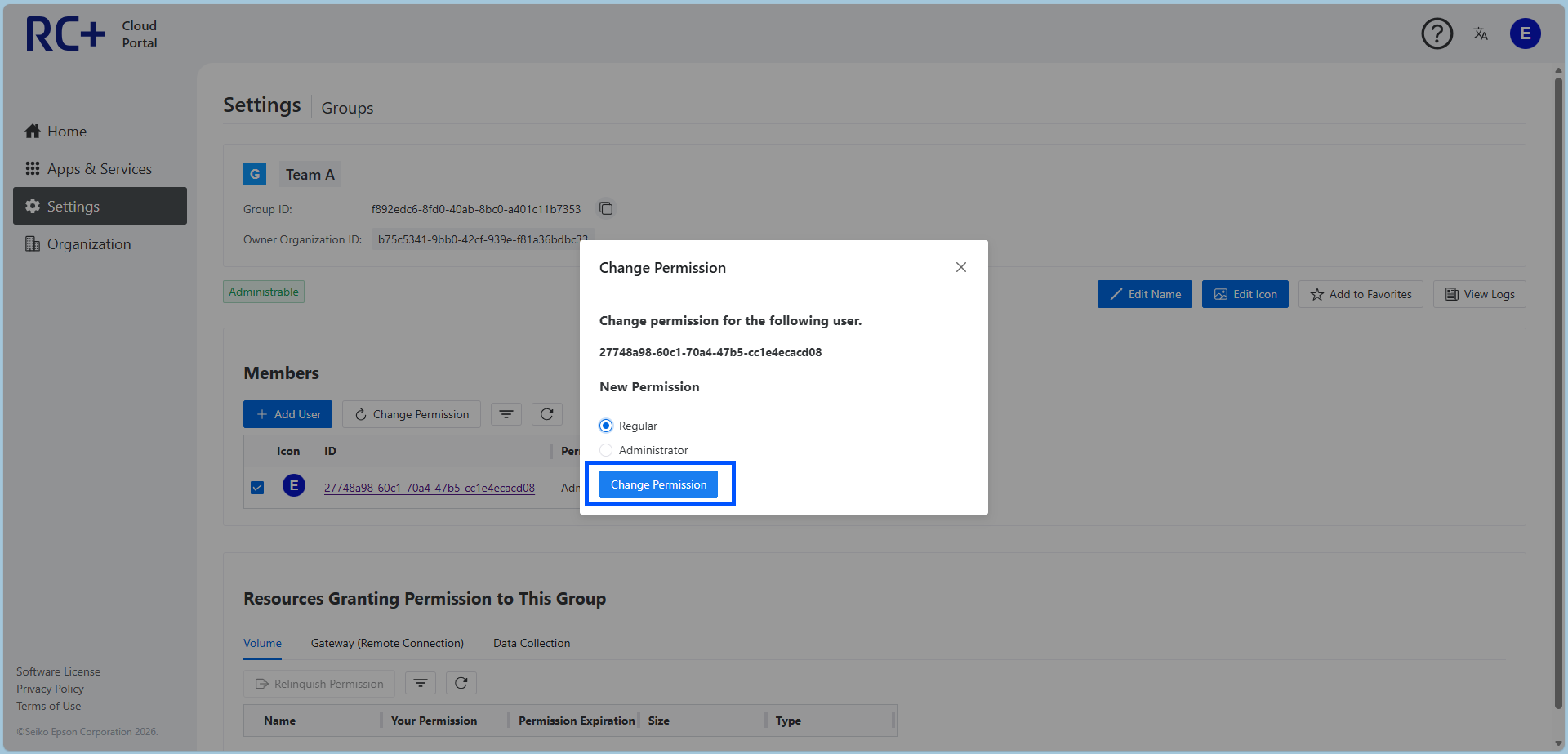
On the displayed screen, select [Administrator] or [Regular], and click [Change Permission] to change the user's permission to the selected permission.
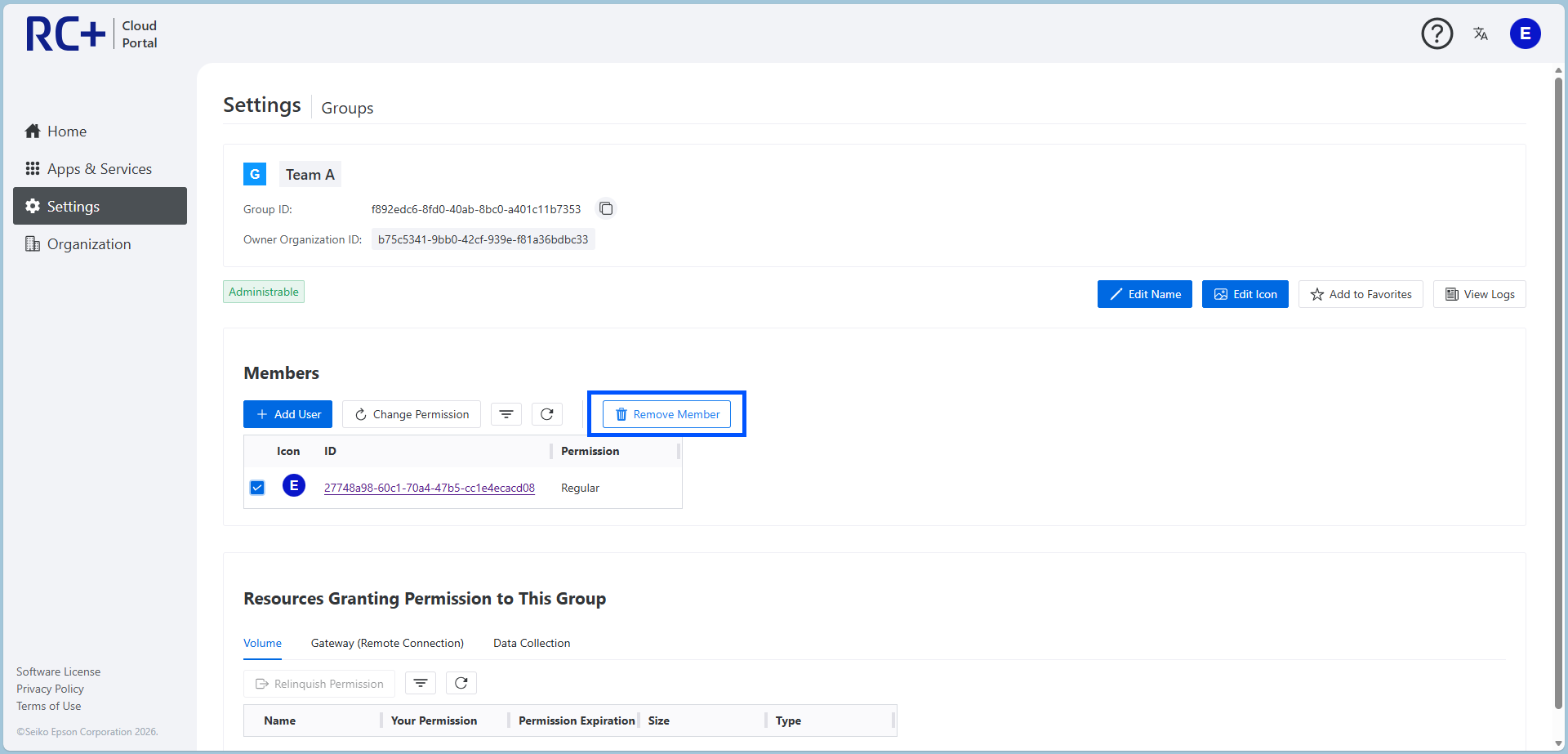
To remove a user from a group, select the user to remove and click [Remove User]. A confirmation screen appears. Review it before proceeding.
Deleting a Group
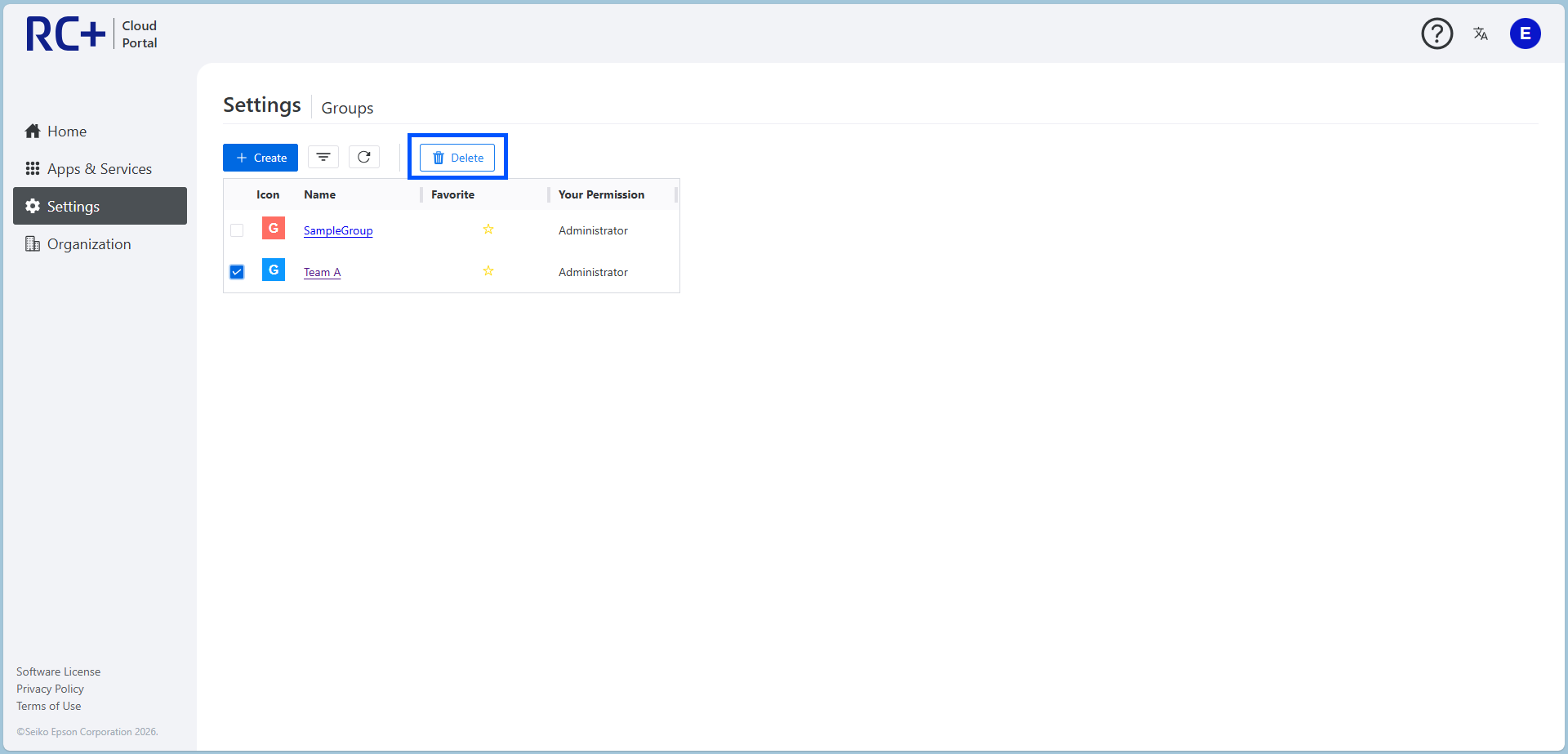
You can delete a group from the [Groups] page of the RC+ Cloud Portal.
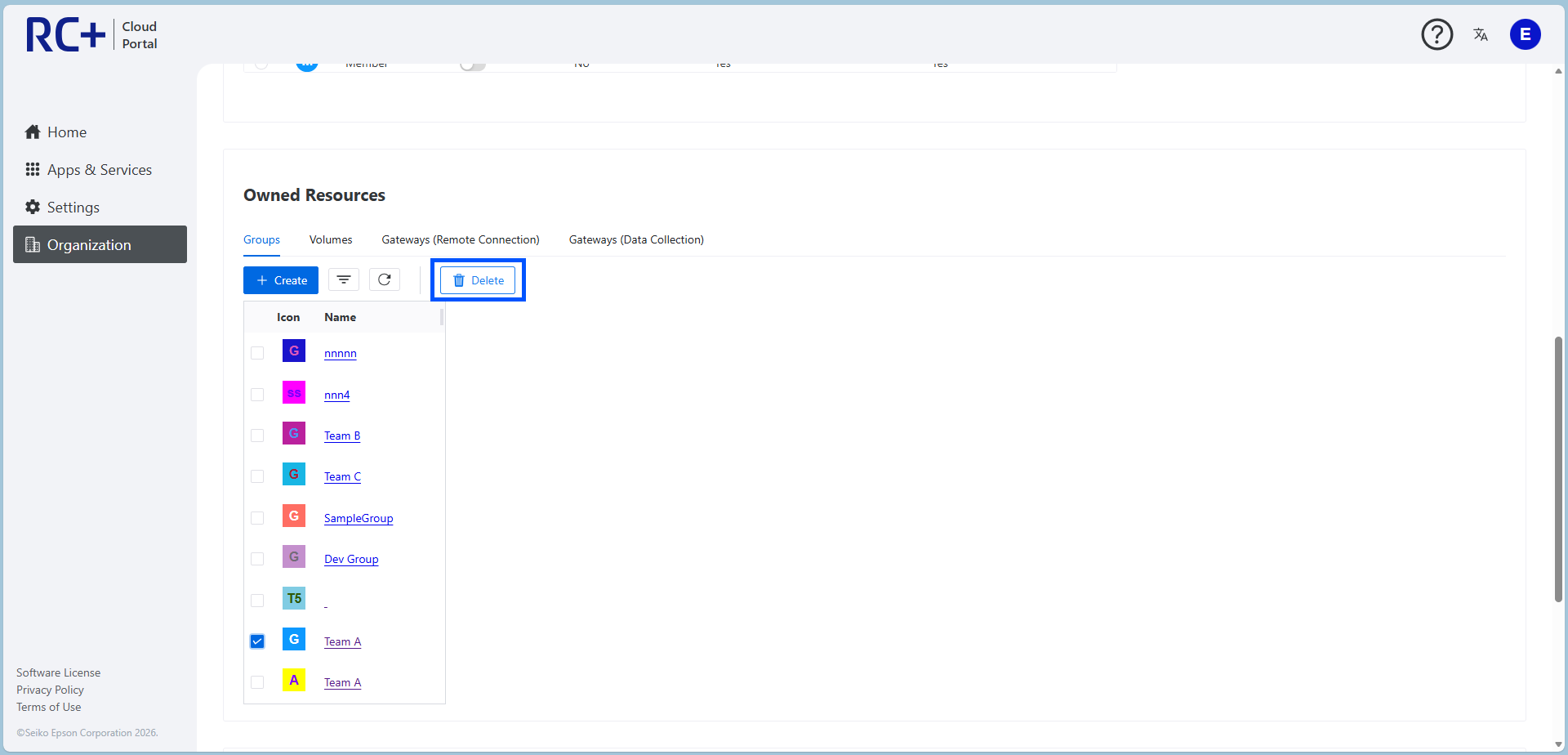
An organization owner can delete a group from the [Organization] page.
Revoking Permissions Granted to a Group
You can revoke permissions granted to a group from the RC+ Cloud Portal.
KEY POINTS
Only users with administrative privileges for the group or owners can perform this operation.
The following figure shows how to revoke permissions for a data sharing volume. The same procedure applies when revoking permissions for a remote connection gateway.