Installing a Purge Actuator Kit
CAUTION
- The [Purge gate installed] setting influences vibration parameters. It is critical that you check the [Purge gate installed] checkbox prior to adding new parts in the Part Feeding dialog. If the checkbox is checked after adding new parts, the default vibration parameters will be incorrect. Also, the feeder will not perform properly.
- CAUTION: When the purge flap is open, do not use any vibrations other than left or right. If this precaution is not followed, the mechanism could be irreparably damaged.
- CAUTION: Installing the purge kit and enabling the purge option will modify the vibration behavior. Do not forget to deactivate the purge option when your remove the purge kit.
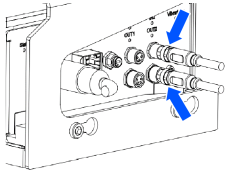
- When connecting the purge kit, connect the hopper to Output 1 and the purge kit to Input2 and Output2.
Unscrew the two bolts (I5) on the connector side of the feeder.

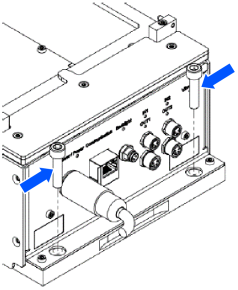
Position the support and secure the feeder and support with bolts (I5).
At this time, carefully push the support onto the surface of the feeder.
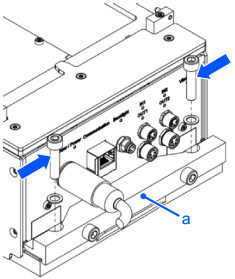
| Symbols | Meaning |
|---|---|
| a | Support |
Loosen the 2 bolts (I5) of the sensor holder.
Loosen the bolts of the support to ensure a distance: d > 3mm, between the surface of the support and the head of the bolts.
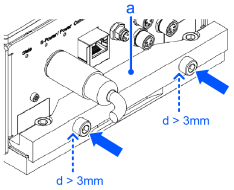
| Symbols | Meaning |
|---|---|
| a | Support |
Position the purge actuator kit using the movements of arrows (1) and (2), and tighten the bolts of the support.
Tighten the two bolts (I5) with a tightening torque of 4.5 Nm. Slide the purge actuator kit as shown in (3) -(4) in the figure below.
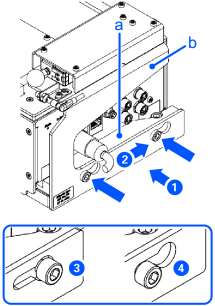
| Symbols | Meaning |
|---|---|
| a | Support |
| b | Purge Actuator Kit |
Connect the cable of the purge actuator kit to the feeder.
Use the outputs: IN2 / OUT2.
For information on connecting the cable, refer to the following:
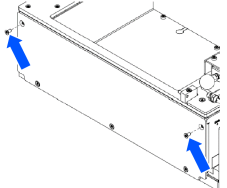
Remove the two screws from the side plate.
Two screws Tx10

Screw the purge spout (discharge plate) onto the feeder.
Two bolts I2.5 - 1.2 Nm
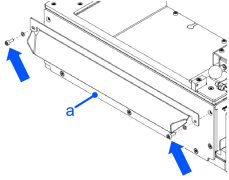
| Symbols | Meaning |
|---|---|
| a | Purge spout |
Position the platform on the feeder. For more information, refer to the following:
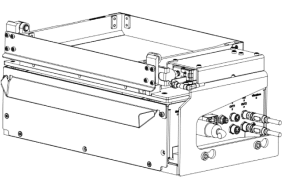
Loosen the sensor holder's two bolts.
Set the sensor to a distance between 1 mm to 1.5 mm from the sensor plate.
Tighten the sensor holder's two bolts.
Two bolts I2.5 - 1.2 Nm
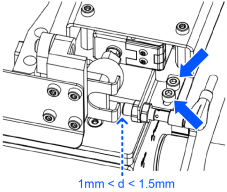
A red light comes on when the sensor picks up the detection plate.
Turn on the feeder and Controller. Open Epson RC+ and connect to the Controller.
If you have not already done so, configure the settings to connect the feeder to the Controller in the Epson RC+ 8.0-Menu-[Setup]-[System Configuration].
For more details, refer to following:
"Epson RC+ 8.0 Option Part Feeding 8.0 Introduction & Software - System Configuration"
Check the [Purge gate installed] checkbox and click [Apply].
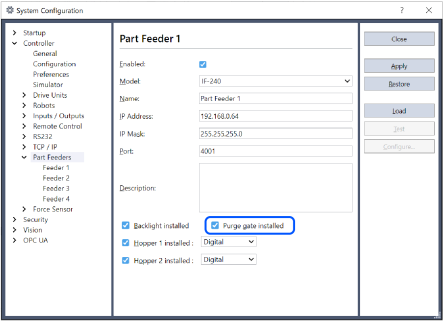
New parts now can be added using Epson RC+ 8.0-Menu-[Tools]-[Part Feeding].