Multiple Cameras
This section describes how improve pick accuracy by using multiple cameras.
Program Example 7.1
Example Type:
Using Multiple Fixed Downward Cameras for Improved Pick Region Accuracy
Configuration
- Number of Robots: 1
- Number of Feeders: 1
- Number of Parts Types on the Feeder: 1
- Number of Placement Positions: 1
- Platform Type: Flat
- Pick Area: Pick Region B
- Camera Orientations:
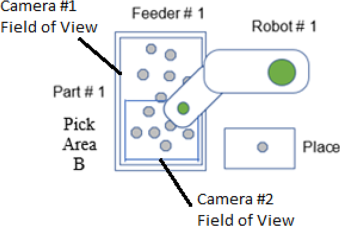
- Camera# 1: Fixed Downward. Field of View is the size of the entire feeder tray. Used by the Part Blob Sequence.
- Camera# 2: Fixed Downward. Field of View is the same size as Pick Region B (1/2 of the feeder tray). Used by the Part Sequence.
Description
Camera#1 has a field of view that covers the entire feeder tray. The Part Blob sequence uses Camera#1. The Part Blob sequence determines how to vibrate the feeder based upon the number of parts and the distribution of parts on the entire tray. Camera #2’s field of view is the same area as Pick Region B. To fill as much of the field of view as possible, Camera#2 should be rotated 90 degrees relative to Camera#1 (i.e., the cameras are orthogonal to each other). Camera#2 is used for the Part Sequence.
The parts that are found by the Part Sequence are used to load the part feeding queue. Because the field of view is half the size of Camera’s#1 field of view, the mm/pixel resolution can be significantly improved.
Additionally, since Camera#1 is only used for making a judgement on how to vibrate the feeder, it can have a lower resolution than Camera#1. For example, Camera#1 could have a 640 x 480 resolution and Camera#2 could have a 5472 x 3648 resolution.
By reducing the field of view and increasing the camera resolution, the robot’s pick accuracy will be improved.
Flip & Separate Auto Calibration uses the Part Sequence to verify that an acceptable number of pickable parts were found. If a small field of view camera is used for the Part Sequence, then the Flip & Separate Auto Calibration will not work properly without additional setup steps.
You can do one of the following.
Skip the Auto Calibration and manually adjust the Flip & Separate calibration parameters.
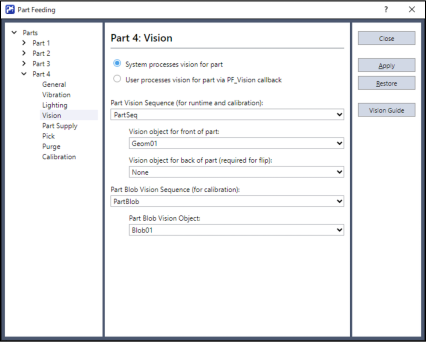
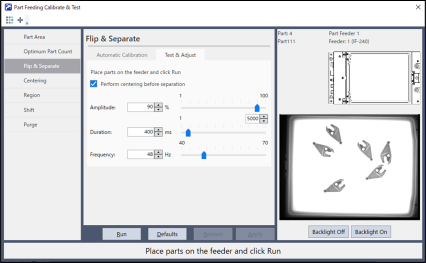
Make a Part Sequence that uses Camera#1 (large field of view) just for the Auto Calibration.
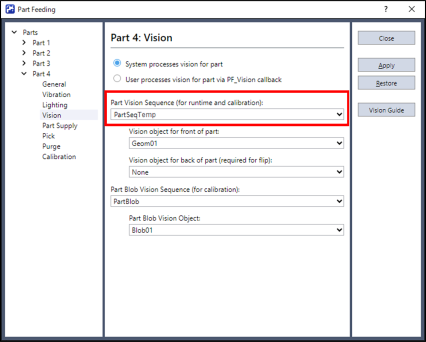
For this example, the Part Sequence that uses Camera#2 (small field of view) is called "PartSeq". The temporary Part Sequence that uses Camera#1 (large field of view) is called "PartSeqTemp". "PartSeqTemp" uses a Geometric object to find the part.
"PartSeqTemp" will only be used temporary to calibrate the feeder. Select "PartSeqTemp" as the Part Vision Sequence (shown below).
Go to the Part Feeding Calibration page and Run the Automatic Calibration for Separation.
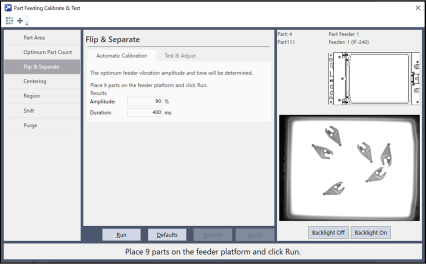
After all the desired calibrations have been completed, close the Calibration & Test dialog. Change the Part Vision Sequence to "PartSeq" (which uses the small field of view Camera#2). At runtime, the vision results from "PartSeq" will be used to load the part feeding queue.
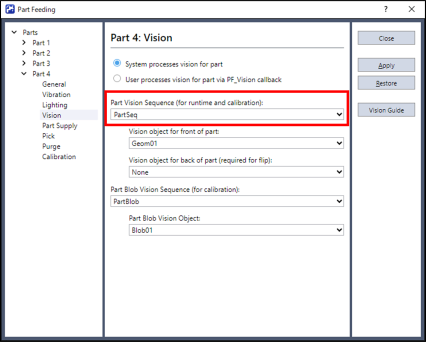
No special part feeding code is required.
Sample Code
Main.prg
Function main
    If Motor = Off Then
        Motor On
    EndIf
    Power Low
    Jump Park
    PF_Start 1
Fend
PartFeeding.prg
Function PF_Robot(PartID As Integer) As Integer
    Do While PF_QueLen(PartID) > 0
        P0 = PF_QueGet(PartID)
        Jump P0
        On Gripper; Wait 0.2
        Jump Place
        Off Gripper; Wait 0.2
        PF_QueRemove PartID
        If PF_IsStopRequested(PartID) = True Then
            Exit Do
        EndIf
    Loop
    PF_Robot = PF_CALLBACK_SUCCESS

Fend
Program Example 7.2
Example Type:
Using both a Fixed Downward Camera and a Mobile Mounted Camera to Improve Pick Accuracy
Configuration
- Number of Robots: 1
- Number of Feeders: 1
- Number of Parts Types on the Feeder: 1
- Number of Placement Positions: 1
- Platform Type: Flat
- Pick Area: Anywhere
- Camera Orientations:
- Camera# 1: Fixed Downward. Field of View is the size of the entire feeder tray. Camera #1 is used by the Part Blob Sequence and the Part Sequence.
- Camera# 2: Mobile Mounted onto Joint 2. Field of View is slightly larger than the part itself. Camera #2 acquires a secondary image of the part prior to pick up.
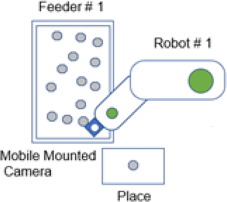
Description
An "Arm" will be defined for the Mobile Joint #2 camera (SCARA robot only). If you are using a Six Axis robot then a Tool (rather than an Arm) can be defined for a Mobile Joint #6 camera.
Instead of commanding the gripper to go directly to the part queue location, Camera#2 will be driven over the top of the part. An additional vision sequence will be run to determine a more precise pick position for the part.
The Mobile camera has a much smaller field of view than the Fixed Downward camera and as a result, the pick accuracy will be improved. Because of the additional motion required to position the camera over the part and the additional vision acquisition, the overall cycle time will be longer.
To automatically define the Arm, go to the Epson RC+ - Tools - Robot Manager. Select the [Arms] tab in the Robot Manager. For this example, select Arm 1 and click the Arm Wizard button. Go through each step of the Arm Wizard.
For more details of the wizard, refer to the following manual.
Vision Guide 8.0 Software - "Arm Setting of Camera Installation Position"
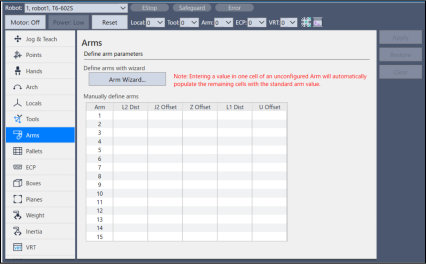
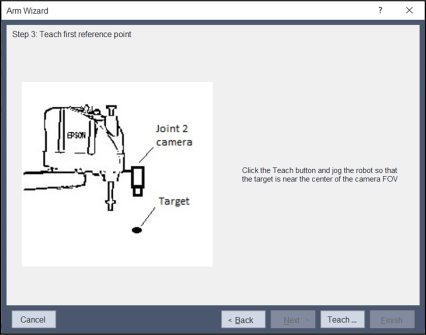
Calibrate the mobile mounted camera and create a vision sequence that can locate a single part on the feeder. This sequence will be VRun from within the PF_Robot callback. For this example, the sequence is called "MobileCam". "MobileCam" will not be selected in the Part Feeding dialog. The Part Blob Sequence and Part Sequence use Camera#1 and are selected in the Part Feeding dialog as normal.
Sample Code
Main.prg
Function main
    If Motor = Off Then
        Motor On
    EndIf
    Power Low
    Jump Park
    PF_Start 1
Fend
PartFeeding.prg
Function PF_Robot(PartID As Integer) As Integer

    Boolean found
    Real x, y, u

    Do While PF_QueLen(PartID) > 0
        P0 = PF_QueGet(PartID)
        Arm 1 'Select the Arm that is defined for the Mobile Camera
        Jump P0 :Z(0) 'Position the Mobile camera over the part
        VRun MobileCam
        VGet MobileCam.Geom01.RobotXYU, found, x, y, u
        Arm 0 'Select default robot arm
        If found Then
            Jump XY(x, y, PICKZ, u) /R
            On Gripper; Wait 0.2
            Jump Place
            Off Gripper; Wait 0.2
        EndIf
        PF_QueRemove PartID
        If PF_IsStopRequested(PartID) = True Then
            Exit Do
        EndIf
    Loop
    PF_Robot = PF_CALLBACK_SUCCESS

Fend
Program Example 7.3
Example Type:
Using Multiple Fixed Cameras for Improved Pick Accuracy
Configuration
- Number of Robots: 1
- Number of Feeders: 1
- Number of Parts Types on the Feeder: 1
- Number of Placement Positions: 1
- Platform Type: Flat
- Pick Area: Anywhere
- Camera Orientations:
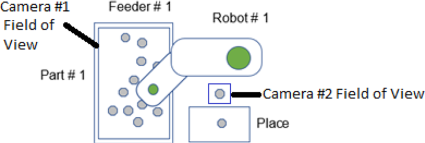
- Camera# 1: Fixed Downward. Field of View is the size of the entire feeder tray. Used by the Part Blob Sequence and the Part Sequence
- Camera# 2: Fixed Upward. Field of View is slightly larger than the part. This camera is used to create a tool offset for the part held in the robot’s gripper.
Description
Camera#1 is Fixed Downward over the feeder tray. Camera#2 is Fixed Upward. Camera#1 has a field of view that covers the entire feeder tray. The Part Blob Sequence and Part Sequence uses Camera#1.
Camera#2’s field of view should slightly larger than the part itself. After the robot picks up the part from the feeder, the robot will hold the part over the Camera#2. The Camera#2 is used to dynamically create a Tool for the part being held in the gripper. The robot will then place the part in the newly defined Tool. The Tool offsets compensate for inaccuracy in the pick-up from the feeder.
Camera#2 is only used in the PF_Robot callback code. Do not set the vision sequence for Camera #2 in Epson RC+ 8.0 Menu - [Tools] - [Part Feeding] - [Vision]. The sample code uses the RobotToolXYU result from the Camera#2 to determine the tool offsets.
The PF_Robot function first runs a sequence to locate the part in the gripper. Then the tool offsets are retrieved using VGet RobotToolXYU, and the tool is defined using TLSet. The robot then places the part using the new Tool.
This example requires the Fixed Upward camera to be calibrated. For details on how to calibrate a Fixed Upward camera, refer to following manual.
Vision Guide 8.0 Software "Calibration Procedure: Fixed Upward Camera"
Sample Code
Main.prg
Function main
    If Motor = Off Then
        Motor On
    EndIf
    Power Low
    Jump Park
    PF_Start 1
Fend
PartFeeding.prg
Function PF_Robot(PartID As Integer) As Integer
   Boolean found
   Real xTool, yTool, uTool

   Do While PF_QueLen(PartID) > 0
       P0 = PF_QueGet(PartID)
       Tool 0 ' Select the correct Tool number for the Gripper
       Jump P0
       On Gripper; Wait 0.2
       Jump upCam
       VRun findPartInGripper
       VGet findPartInGripper.Geom01.RobotToolXYU, found, xTool, yTool, uTool
       If found Then
           TLSet 1, XY(xTool, yTool, 0, 0)
           Tool 1
           Jump Place
       Else
            Jump reject ' Part not found in gripper - reject part
       EndIf
       Off Gripper; Wait 0.2
       PF_QueRemove PartID
       If PF_IsStopRequested(PartID) = True Then
           Exit Do
       EndIf
   Loop
   PF_Robot = PF_CALLBACK_SUCCESS
Fend