[General] tab
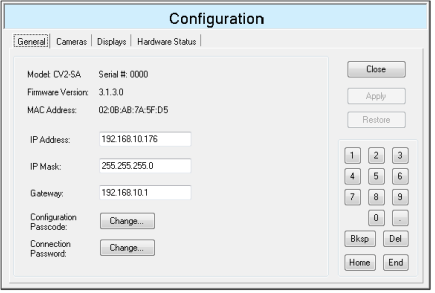
The General page shows the model, firmware version and MAC address of the CV unit.
The following settings can be changed:
Network configuration: IP address, subnet mask, and gateway
Configuration passcode
Connection password
Network Configuration
Enter the IP address, IP mask, and Gateway. If using a global IP address, then there must be a connection password configured. When you change the IP address, subnet mask, or gateway, the CV2 may restart.Configuration Passcode
The Configuration Passcode is used to allow only users with the passcode to change the CV configuration settings.
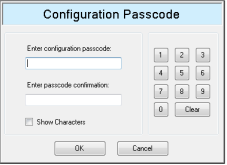
Clicking the Configuration Passcode [Change...] button of the [Configuration] dialog box displays the following dialog box.
The assignable number of digits for the passcode is from 1 to 8 digits. You can use the mouse to click on the numbers in the keypad buttons on the dialog, or you can use a keyboard connected to the CV. Use the [Show Characters] checkbox to show the password digits or only asterisks.
To clear the passcode, click the [OK] button while leaving the passcode fields empty.
Connection Password
The Connection Password is used to prevent unauthorized connections to the CV unit.
When using a public (global) IP address, you must provide a connection password. When using a private (local) IP address, the connection password is optional.
If a password is configured, then all RC+ clients must be configured with the same connection password. Controllers connecting to the CV will also be provided with the CV connection password when the project in RC+ is built.
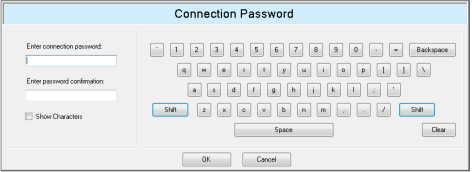
Private (local) IP address ranges are shown below. All other IP address ranges are public (global) and require a connection password.Private IP Address Ranges 10.0.0.1 to 10.255.255.254 172.16.0.1 to 172.31.255.254 192.168.0.1 to 192.168.255.254 Clicking the Configuration Password [Change...] button of the [Configuration] dialog box displays the following dialog box.
Assignable passcode is 8 to 32 characters.
You can use the mouse to click on the characters in the keypad buttons on the dialog, or you can use a keyboard connected to the CV. Click either Shift key to change between lower and uppercase, and numbers or symbols.
Use the [Show Characters] checkbox to show the password characters or only asterisks.
To clear the password, click the [OK] button while leaving the password fields empty.
When you click the [OK] button and the current IP address is public and the password fields are empty, you will see a message stating that the password cannot be empty for a public (global) IP address.