How to Use [Project Wizard] Command
Start project wizard by one of three ways.
Click the Epson RC+ toolbar - [Project Wizard]

On the Epson RC+ 8.0 menu, select [Project]-[Project Wizard].

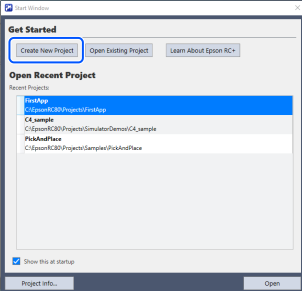
Select [Create New Project] in [Start Window] that displayed when Epson RC+ 8.0 started.
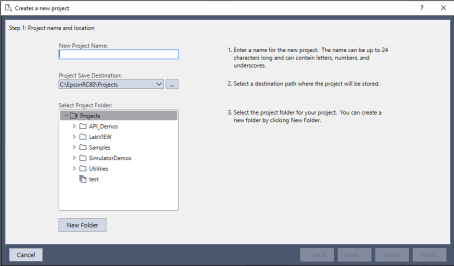
Enter a name and select the save destination for the new project.
TIP
When specifying a new destination, click the [...] button to set the save destination. Set the destination in advance in the Epson RC+ menu, [Setup]-[Preferences]-[Workspace]-[Project Save Destination].
KEY POINTS
In the Windows file system, if a folder has the read-only or encrypted attribute set, the projects and folders contained in that folder are not displayed in the list on the screen. To display them, clear these attributes.
Select a project type you want to create, described in next page.
- A: Empty project
- B: From template
- C: Pick and place without vision
- D: Pick and place with vision
Next steps vary according to the selected project type.