[Open] Command (Project Menu)
Ctrl+Shift+O
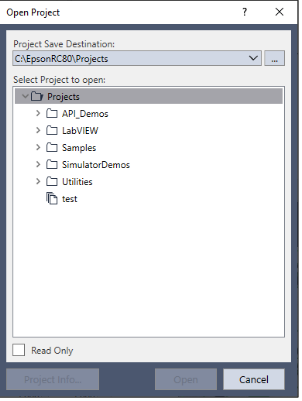
Use this command to open an Epson RC+ 8.0 project. When the project is opened, the previous project is closed. You will be prompted to save changes.
| Item | Description |
|---|---|
| Project save destination | Select the save destination for the project you want to open. When specifying a new destination, click the [...] button to set the save destination. Set the destination in advance in the Epson RC+ menu, [Setup]-[Preferences]-[Workspace]-[Project Save Destination]. |
| Select Project to open | Select a project name from the list box. To open a folder, double click on the folder or click ">" located to the left of the folder. |
| Read Only | If you set this checkbox and open a project, you cannot edit the program file, include file, point file, force file, I/O label, and user error. |
| Open | Opens the selected project. |
| Cancel | Cancels the operation and closes the dialog. |
| Project Info | Displays general project properties for the selected project. To view project information, first select a project in the list, then click the [Project Info] button. 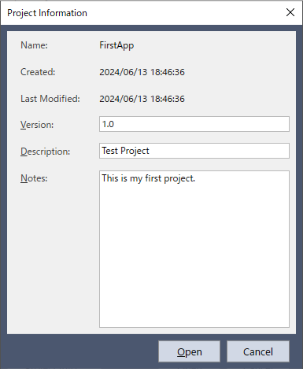 |
KEY POINTS
In the Windows file system, if a folder has the read-only or encrypted attribute set, the projects and folders contained in that folder are not displayed in the list on the screen. To display them, clear these attributes.
KEY POINTS
Project information for a project can be changed by selecting [Properties] from the [Project] menu after opening the project.