Web-based RC+
This function allows you to use RC+ in a browser without installing RC+.
Before use, review the precautions below [Open RC+] in the RC+ Cloud Portal.
System Requirements
Web Browser
The latest three versions of the following web browsers are supported.
- Microsoft Edge
- Google Chrome
No browser extensions or plug-ins are required.
Display
Screen resolutions of 1024 × 768 or higher are supported.
Input Devices
Mouse and keyboard operations are supported.
Touch panel operation is not supported.
Function
Web-based RC+ provides the same functions as the conventional RC+, except for the following functions.
- USB connection, RS-232C communication (using a PC port), FieldBus Master, PC Vision, RC+ API
- Communication functions that use PC ports and functions that require a separate application to be installed on the PC
The following describes operations specific to Web-based RC+.
Worldwide Environment
File Upload/Download
Files can be uploaded and downloaded between the browser-based RC+ execution environment and the PC's local environment.
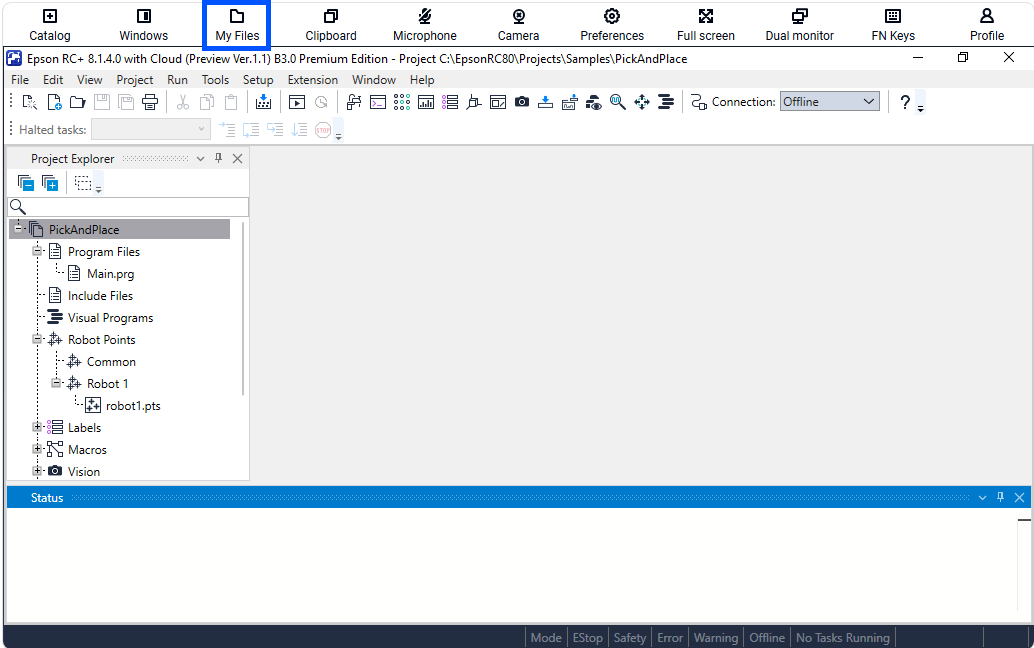
Select [My Files] from the menu at the top of the browser screen to display the [My Files] screen.
The following folders are displayed on the [My Files] screen.
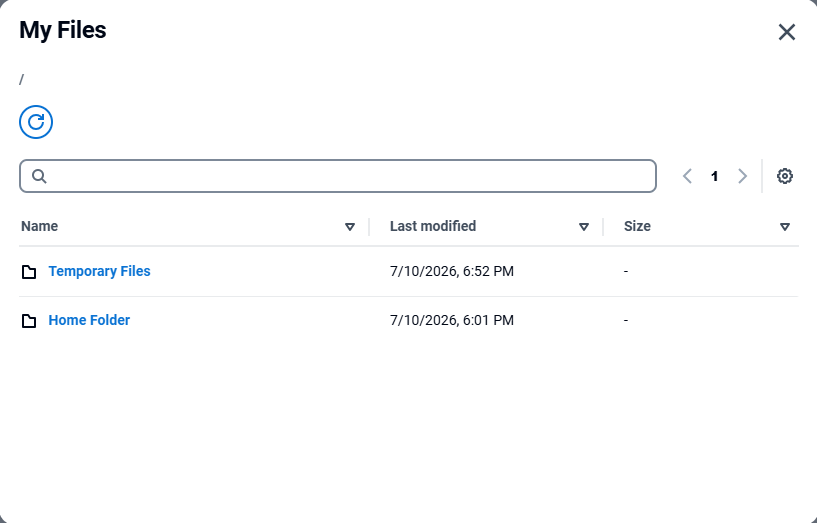
| Folder Name | Description |
|---|---|
| Temporary Files | A temporary folder retained only during the current session |
| Home Folder | A persistent folder retained after the current session ends |
Upload
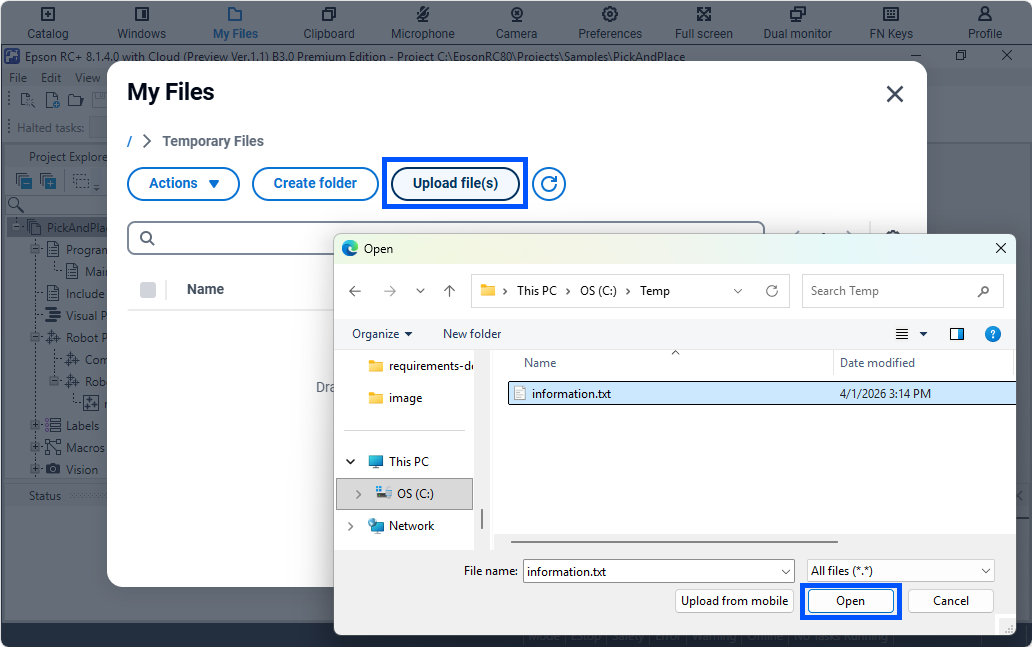
On the [My Files] screen, open the upload destination folder and click [Upload file(s)].
In the file selection dialog box, select the file to upload from the local environment and click [Open].
KEY POINTS
When adding the destination to save a project or setting a local source for the extension manager, create a folder under Home Folder, and specify that folder.
Download
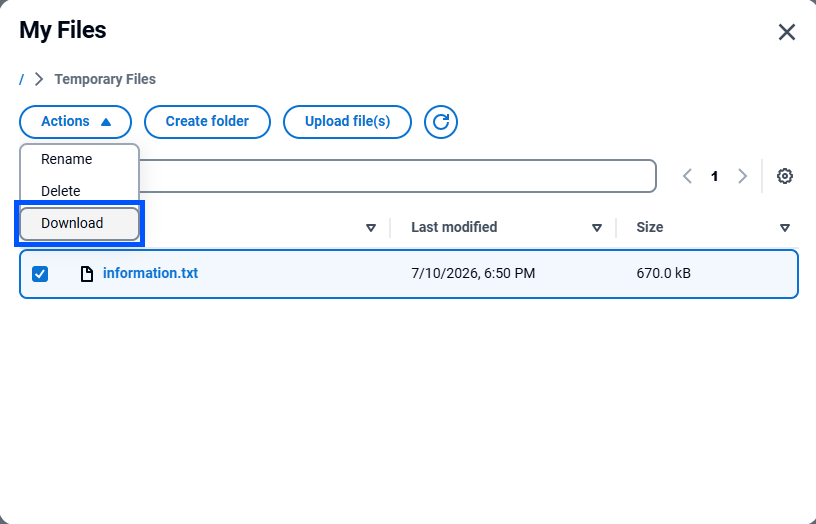
On the [My Files] screen, select the file to download, and click [Download] on the [Actions] menu.
The target file is downloaded to the Downloads folder in the local environment.
Redisplaying RC+
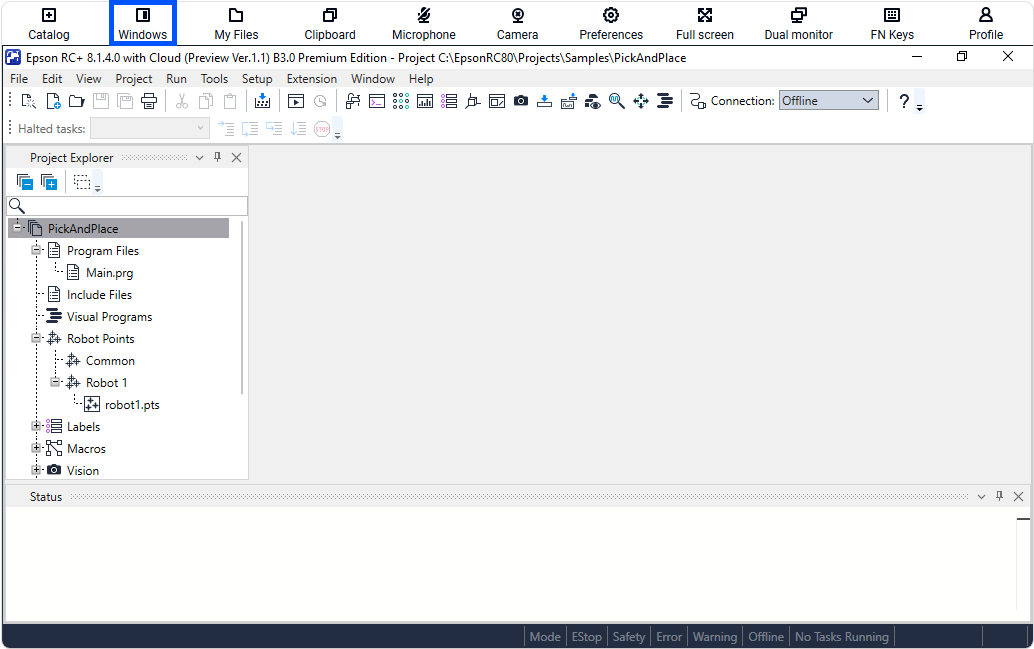
If the RC+ window is minimized, select [Windows] from the menu at the top of the browser screen to redisplay it.
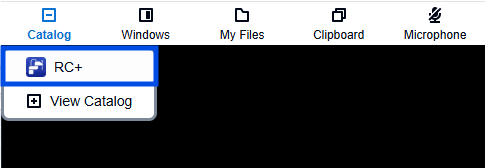
If RC+ is closed, select [erc80] from the [Catalog] menu at the top of the browser screen to restart RC+.
Language Settings
The display language of Web-based RC+ is not linked to the regional settings of the PC. The default language is English.
Therefore, use the following procedure to change the display language of Web-based RC+.
- Change the locale setting of the execution environment
- Change the RC+ language setting
1. Change the Locale Setting of the Execution Environment
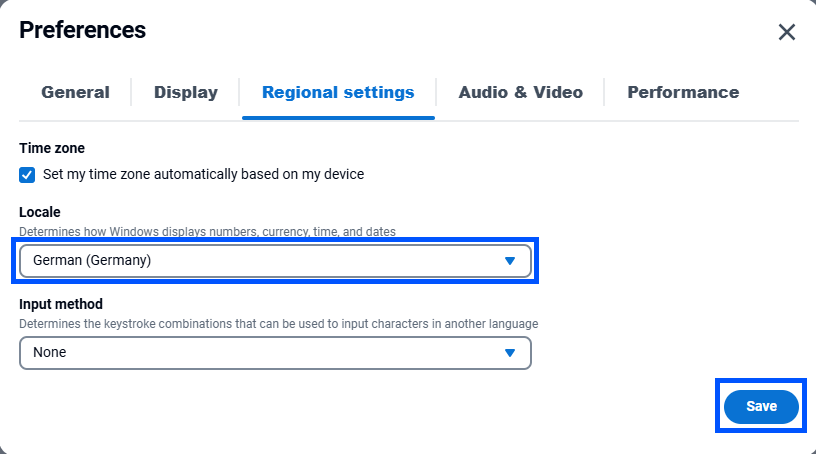
Select [Preferences] from the menu at the top of the browser screen to display the [Preferences] screen.
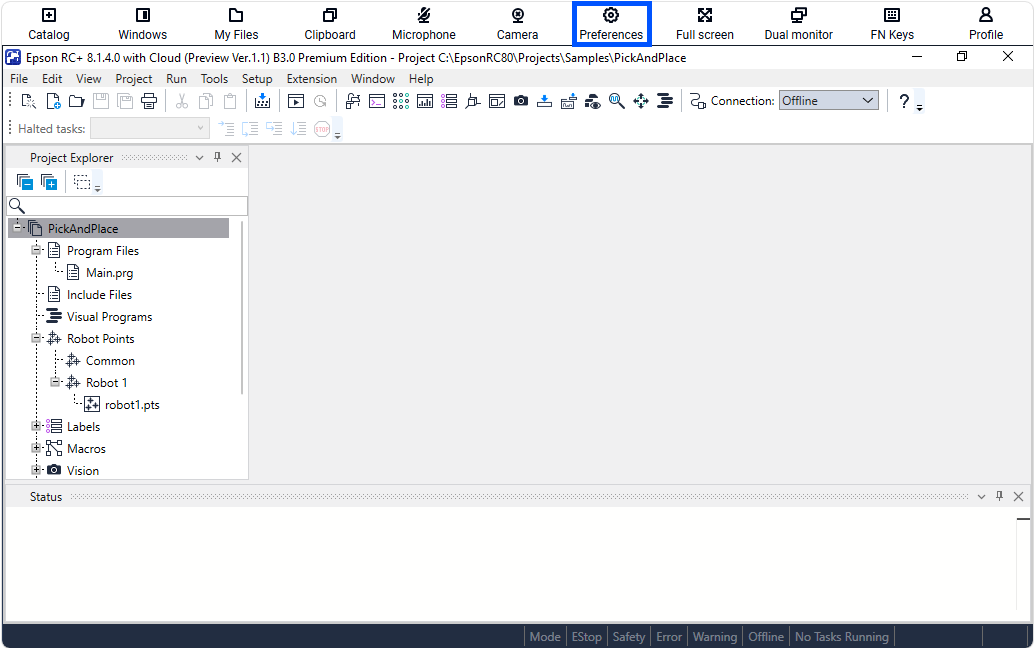
On the [Preferences] screen, open the [Regional Settings] tab, change [Locale] to the language to display, and click [Save].
2. Change the RC+ Language Setting
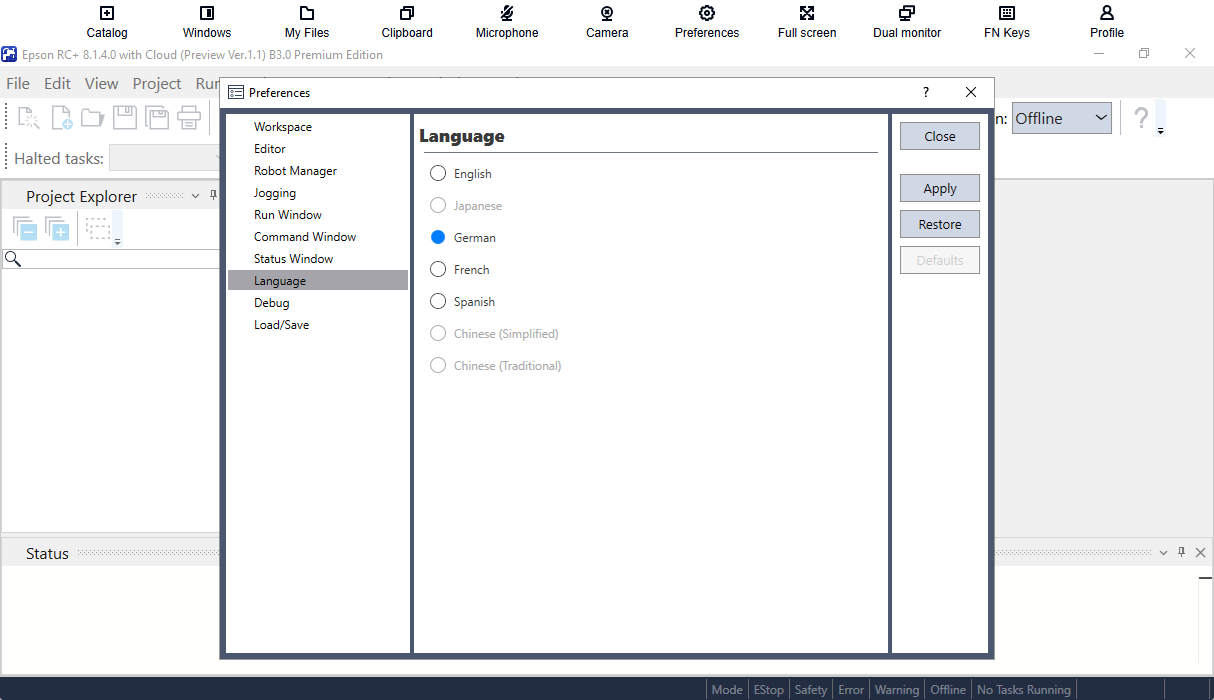
To reflect the locale settings of the execution environment to RC+, exit RC+ from the [File]-[Exit] menu.
Select [erc80] from the [Catalog] menu at the top of the browser screen to restart RC+.
After RC+ starts, open the development environment screen and set the language to display.
Input Method
The input method for Web-based RC+ can be changed.
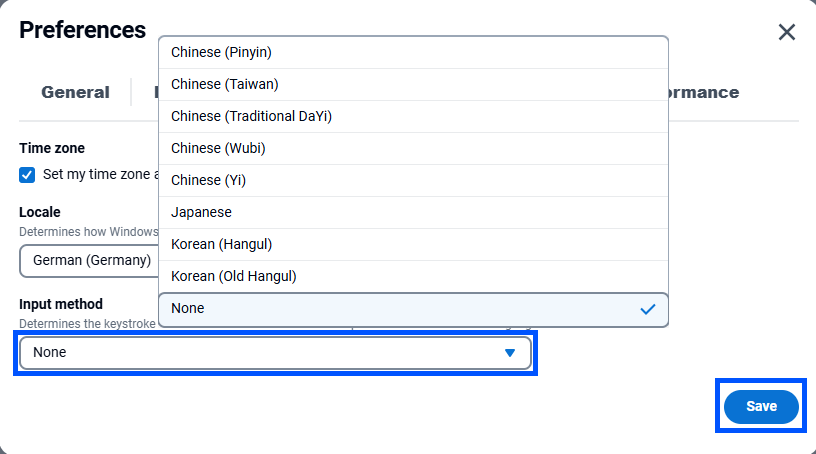
Select [Preferences] from the menu at the top of the browser screen to display the [Preferences] screen.
On the [Preferences] screen, open the [Regional Settings] tab, change [Input method] to the input method to use, and click [Save].
KEY POINTS
If the input method you want to use is displayed in the [Input method] list, be sure to select it.
Example: To use Japanese input, select [Japanese].
If the input method you want to use is not in the list, select [None].
Environment for China
File Upload/Download
Files can be uploaded and downloaded between the browser-based RC+ execution environment and the PC's local environment.
Upload
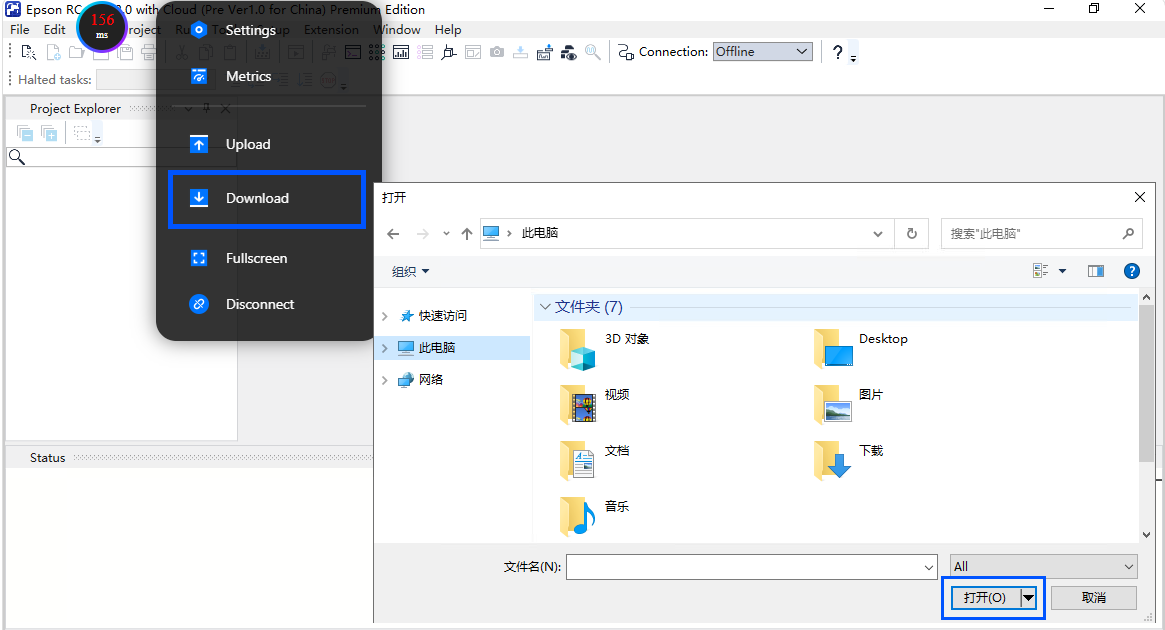
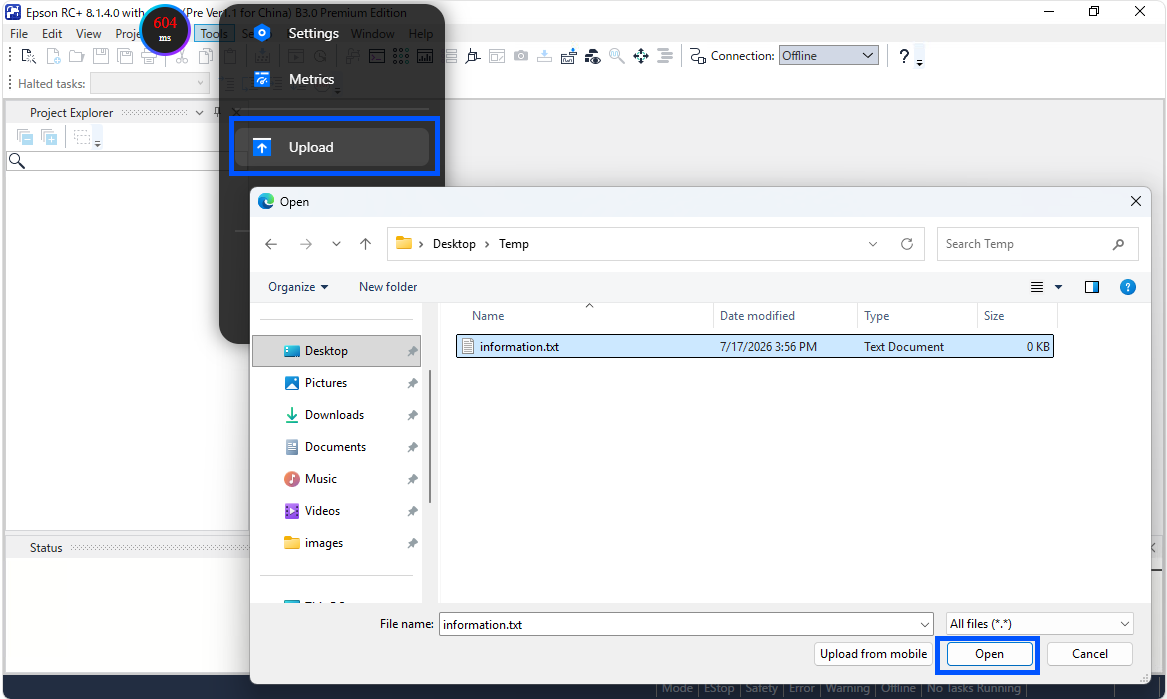
Click [Upload] on the menu at the top of the browser screen.
In the file selection dialog box, select the file to upload from the local environment and click [Open].
The target file is uploaded to the Downloads folder in the browser-based RC+ execution environment.
To retain an uploaded file after the current session ends, place it in one of the following persistent folders. Files outside the persistent folders are retained only during the current session.
C:\EpsonRC80\BackupC:\EpsonRC80\CloudProjectsC:\EpsonRC80\projectsC:\EpsonRC80\LogC:\EpsonRC80\VisionC:\EpsonRC80\_SpelAssistantHistoryC:\EpsonRC80\HotExit
KEY POINTS
When adding the destination to save a project or setting a local source for the extension manager, create a folder under Home Folder, and specify that folder.
Download
Click [Download] on the menu at the top of the browser screen.
In the file selection dialog box, select the file to download from the browser-based RC+ execution environment and click [Open].
The target file is downloaded to the Downloads folder in the local environment.