Troubleshooting
Cannot Use in a Proxy Environment
To use Gateway Manager in a proxy environment, proxy settings must be configured in advance. Without proxy settings, external communication is blocked and Gateway Manager does not operate correctly. When installed in service mode, Gateway Manager runs in the background independently of the user's login status, so separate proxy settings are required. If the settings are not configured correctly, connection errors or communication failures occur.
Cannot Start Version Control
On the Start Version Control screen, if starting with a volume selected fails for any reason, regardless of the startup mode, a project with the same name can no longer be uploaded to the same volume. Change the upload destination volume or the project name, and try again.
Version Control Operations Involving Volume Interaction Fail
Check the items below.
- (A) Whether the same project on the same volume is being operated from another PC
- (B) Whether volume settings were configured after version control in Advanced Mode and that configuration failed
For (A), wait until the operation on the other PC is complete, and then try again.
For (B), change the upload destination volume or the project name, and then try again.
In cases other than those above, the operation may be temporarily unavailable due to internal processing. Wait at least five minutes, and then try again.
Cannot Download a Version-Controlled Project from a Volume
The project to download may only have volume settings configured and may not have been pushed yet. Ask the project creator whether the project has been pushed.
A Project Deleted from a Volume in RC+ Still Appears in the List on the Open Project Screen
Projects deleted on the [Project] > [Delete Project] screen in RC+ are projects that were downloaded locally. Projects on a volume must be deleted from the RC+ Cloud Portal.
Want to Change the Version Control Mode Partway Through
The version control mode cannot be changed partway through.
Want to Remove Permissions I No Longer Need
There are four ways in which a user can have permissions for a resource.
- (A) An organization owner has permissions for the resources owned by that organization
- (B) A resource grants permission directly to a user
- (C) A resource grants permission to a group, and the user receives the permission by belonging to that group
- (D) A resource grants permission to an organization, and the user receives the permission by belonging to that organization
For (A), the permission cannot be removed.
For (B) through (D), the permission can be removed using one of the following methods.
- Ask a user with administrative privileges for the resource or an owner to revoke the permission.
- The recipient of the permission removes it. (Relinquishing Permissions)
For relinquishing group permissions, refer to Group Management. For relinquishing organization permissions, refer to Organization Management.
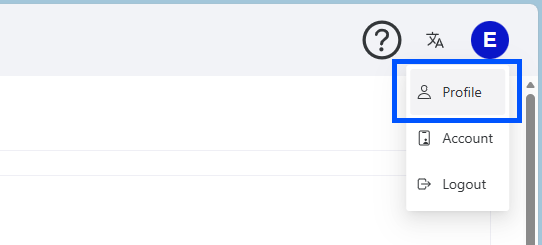
Users can relinquish their permissions from their user page (upper-right icon > [Profile]).
Desired User, Group, or Organization Does Not Appear in the Selection List When Granting Permissions or Adding Users
Only users, groups, and organizations that meet the following conditions are displayed in the options.
- User: A user who belongs to the same organization as the user performing the operation
- Group: A group to which the user performing the operation belongs
- Organization: An organization to which the user performing the operation belongs
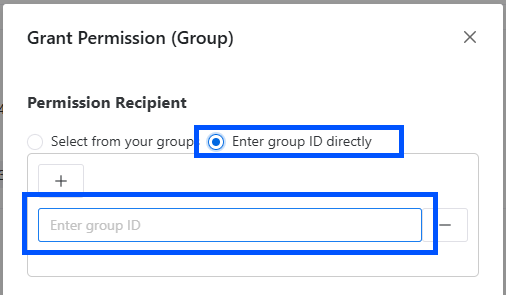
To select any other user, group, or organization, enter the ID directly.
An Error Occurred During a Data Sharing Operation
Check the items below.
- Whether the same volume is being operated from another PC
- (For an upload error) Whether the target file or folder is being used by another application
If none of the above apply, the operation may be temporarily unavailable due to internal processing.
In this case, wait at least 60 minutes, and then try again.
Data Upload Repeatedly Fails in Data Sharing
The file or folder may be in use by another application.
Copy it to another location, and then upload it again.
Cannot Upload an Empty Folder in Data Sharing
To create an empty folder on a volume, right-click the volume or a folder on the Data Sharing screen, and create the folder.
Controller Backup or Folder Overwrite Upload Fails in Data Sharing
Delete the controller backup or folder to be overwritten, and then upload it again.