Installing extensions
Extensions are installed from the [Downloaded] tab of the Extensions Manager.
Select the extension you want to install and its version, and then click the [Install] button.
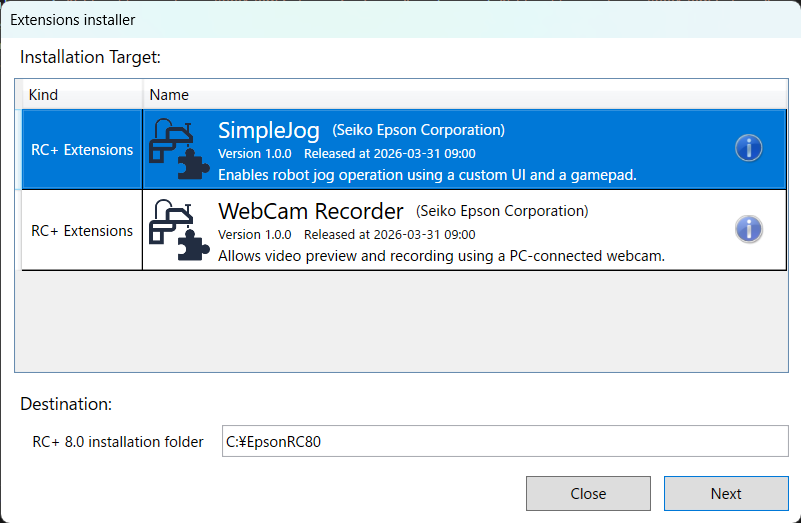
The [Extension installer] is launched and the extension is installed upon closing Epson RC+.
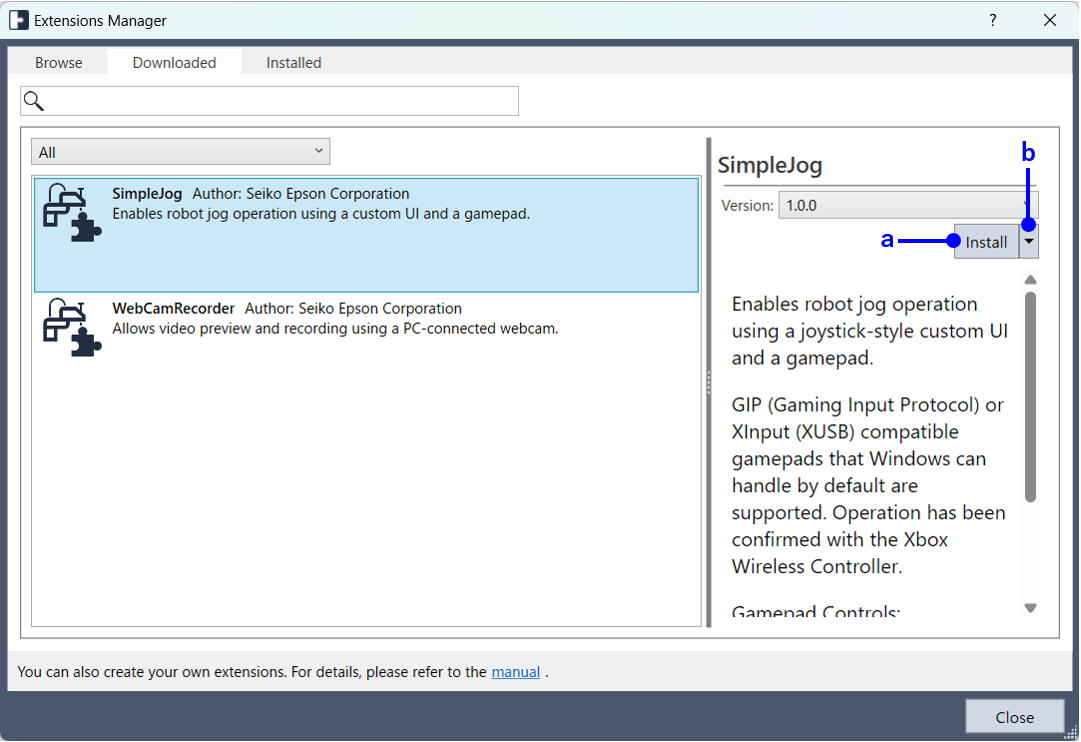
| Symbol | Description |
|---|---|
| a | Install the extension. Once clicked, the button label changes to [Cancel Install]. Click the button again to cancel the installation. 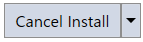 |
| b | The following menu is displayed. 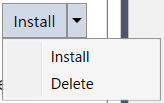 - Install: Same as a. - Delete: Allows you to delete downloaded extensions. |
Extension installer
The Extension installer is launched upon closing Epson RC+. Click the [Next] button to proceed with the installation.
Enabling and disabling extensions
Extensions are enabled from the [Installed] tab of the Extensions Manager.
Select the extension you want to install, and then click the [Enable] button.
The extension will be enabled after closing Epson RC+ and will be available starting from the next launch.
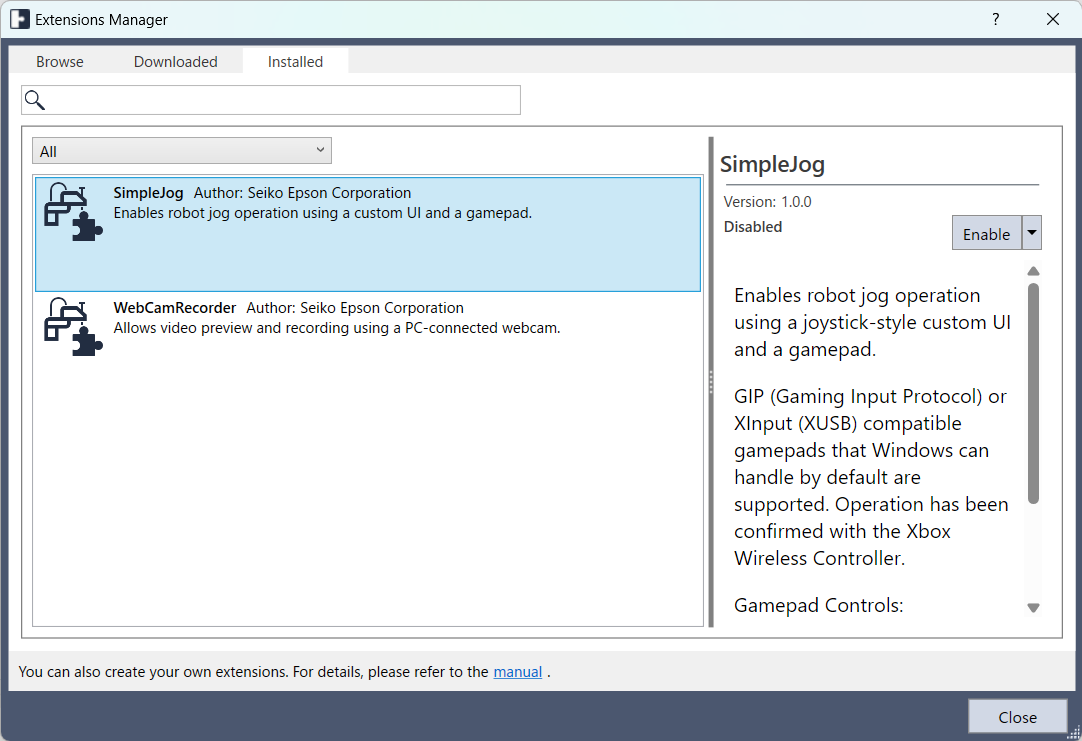
Once the [Enable] button is clicked, the button label changes to [Cancel Enable]. Click the button again to cancel enabling.
|
The same steps apply to disabling extensions.
To temporarily disable all extensions, start Epson RC+ with the following command line option.
erc80.EXE /DISABLE_EXT