Creating a Library for Distribution
This section explains how to create a library for distribution to users who wish to use the library.
When distributing libraries, you can identify which library user is available. Use this when setting prices for libraries according to the distribution format.
| Signal | Available library user | Usage | Necessary information |
|---|---|---|---|
| a | Only users of specified Controllers | Permits the usage on a specific Controller. The library user must buy a library for each Controller they wish to operate and enable them. The library creator must obtain a serial number for each Controller and issue an authentication key. | Distribution License, Serial number of the library user's Controller (It can also be output from the library user's RC+. Obtain beforehand.) |
| b | Only users of the specified PC | Permits the usage on the RC+ virtual controller running on a specific PC. This is different from the actual Controller. The library user must buy a library for each PC they wish to operate and enable them. The library creator must obtain a PC hardware ID for each PC and issue an authentication key. | Distribution License, PC hardware ID of the library user (It can also be output from the library user's RC+. Obtain beforehand.) |
| c | All users who have received an authentication key | Library users can use Controllers and PC without limitations. Library users must enable the library. | Distribution License, A optional string defined by the creator of the library (Used only for settings. Not needed in enabling the library user.) |
| d | All users who have received a library | Library users can use Controllers and PC without limitations. Library users do not have to enable the library. | Distribution License |
Open the project containing the library you want to distribute.
Select Extensions | Library Builder.
The Library Builder dialog box appears if the project build is successful.
KEY POINTS
In RC+ 8.0 Ver. 8.1.0.0, Library Builder cannot be used with TP4 (Operation Mode: AUTO).
For details about TP4 (Operation Mode: AUTO), refer to the following manual."Robot Controller Option, Teaching Pendant TP4 Manual - Operation Mode (TEACH, AUTO, TEST)"
Enter the Distribution License sent by Epson.
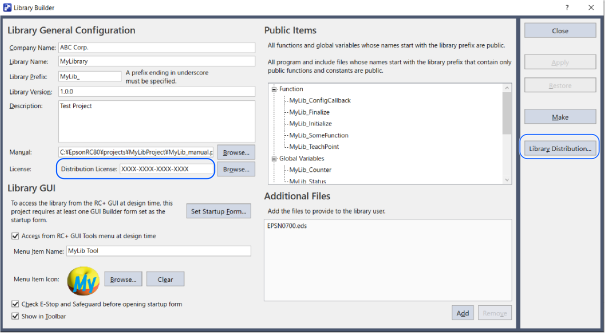
Click the Library Distribution button.
When the library distribution wizard appears, select whether or not the library to be distributed requires activation with an authentication key.
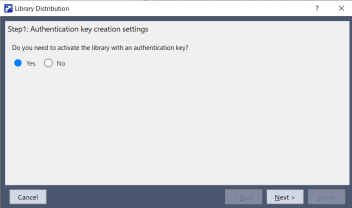
- [Yes] : Select when a library user other than d is available. Move onto the next step.
- [No] : Select when d is the available library user. Move onto step 9.
Depending on the library user you want to identify its usage for, select the device you want to enable the library on.
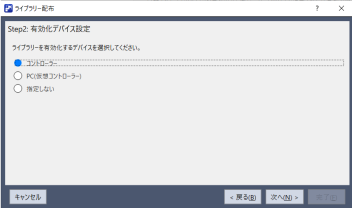
- [Controller] : Select when the available library user is a.
- [PC(Virtual Controller)] : Select when the available library user is b.
- [Do not specify] : Select when the available library user is c.
Enter the following information depending on the device that is selected.
If Controller is selected:
Click the Add button to load the CSV file containing the controller serial number obtained from the library user.
Click the Add from clipboard button to add the character string from the clipboard. Use this to copy and paste the serial number.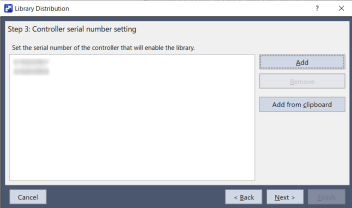
KEY POINTS
You can load multiple serial numbers and generate authentication keys for multiple controllers at once.
If PC (Virtual Controller) is selected:
Click the Add button to load the CSV file containing the PC hardware ID obtained from the library user.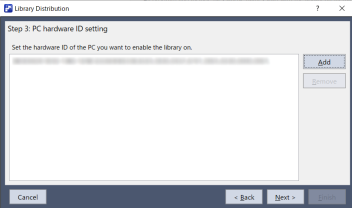
KEY POINTS
You can load multiple PC hardware IDs and generate authentication keys for multiple PCs at once.
If Not Specified is selected:
Enter the random key. Up to 32 alphanumeric characters, underscores, and hyphens can be used.
It is possible to create a distribution library that is "c. Available only to registered users" without entering a key.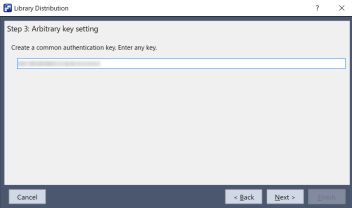
KEY POINTS
The generated authentication key allows you to activate the library regardless of the device.
Specify the destination to output the library and authentication key.
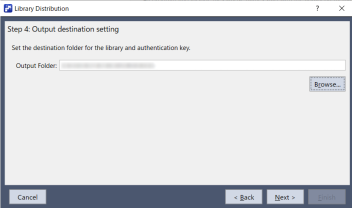
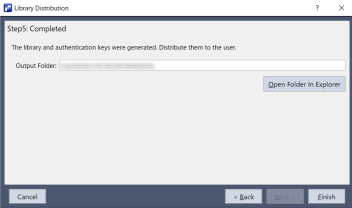
The library and authentication key are output. (If you selected No at step 6, the authentication key is not output.)
Click the Open Folder In Explorer button to display the output folder.