Usage
Following explanation below to create the OPC UA Client Program.
Precondition: It is assumed that an OPC UA Client library will be used. (For example, Node.js’s node-opcua library, or Python’s opcua-asyncio library)
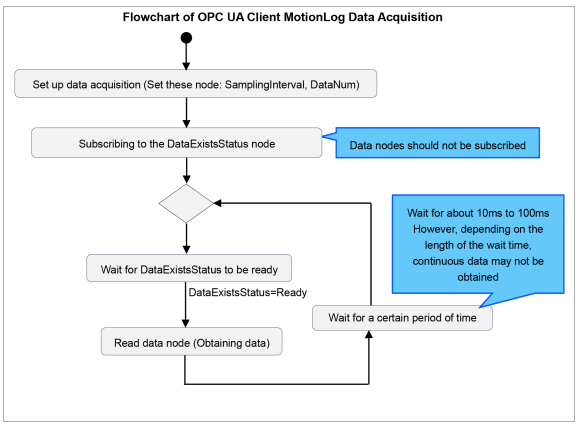
Creates an OPC UA Client program to acquire and utilize sensor data with OPC UA. A flowchart of the OPC UA client's data acquisition process is shown below.
Setting the maximum number of data items
The maximum number of data items to be acquired from the OPC UA Server at one time can be set in the DataNum node.
Data acquisition cycle settings
Set the data acquisition cycle with the OPC UA Server. This can be set on the SamplingInterval node. Be careful of things that differ from the OPC UA Client-run data acquisition cycle
CAUTION
Depending on your DataNum and data acquisition cycle settings, it might not be possible to acquire continuous sensor data. In such cases, set DataNum to “0” and your data acquisition cycle to a larger value.
Start time of Data node reading
Make it so that the status of the DataExistsStatus node is a condition for starting the reading of the Data node. DataExistsStatus nodes can also be registered for subscriptions. While the DataExistsStatus node value is “Stop,” put the Data node on standby, as reading is not performed.
Data node reading
By referencing the data node, you can read the data described in the following chapters. Decode data as needed.
CAUTION
- Make it so that after Data node reading begins, OPC UA Client will continue to acquire data at intervals of 10 to 100 ms. If there is a long interval between readings of the Data node, data may be missing. In that case, the ErrorStatus node will become Warning. If Warning occurs, check the time stamp and process the data appropriately.
- If you want to reduce the amount of missing data mentioned above, speed up the data acquisition cycle, set DataNum to “0” or “200,” and increase the value of the SamplingInterval.
- To ensure that the data is read, the Data node should not be registered for subscriptions.
Response to ErrorStatus
By referring to the ErrorStatus node, you can determine whether it is possible to acquire proper data. The chart below describes the meaning of the ErrorStatus node’s values, and provides an example of how to respond to each.
| ErrorStatus Node | Meaning | Response |
|---|---|---|
| None | Proper data can be acquired. | Continue reading the Data node. |
| Warning | Part of the data is missing. Read the Data node. The ErrorStatus will return to “None.” | Continue to read data, bearing in mind that data is missing from the period when the Warning status was active. |
| Error | Robot MotionLog data cannot be acquired by the OPC UA Server. When Robot MotionLog data can be read again, the ErrorStatus will return to “None.” | Stop reading data. |
Written in pseudo code, a program for acquiring Robot MontionLog data is shown below. Create your program according to the usage of the OPC UA client library you use.
# Collect the MotionLog data from OPC UA Server of Epson Robot Controller.
# * This is pseudo code.
# Create OPC UA Client
client = create_opcua_client() # Create OPC UA Client Instance
client.connect('opc.tcp://192.168.0.1:4840') # Connect to OPC UA Server
# Get node object
node_DataNum = client.getNode('ns=1;i=20313') # DataNum Node
node_SamplingInterval = client.getNode('ns=1;i=20314') # SamplingInterval Node
node_Data = client.getNode('ns=1;i=20316') # Data Node
node_LoggingStatus = client.getNode('ns=1;i=20317') # MonitorStatus Node
node_DataExistsStatus = client.getNode('ns=1;i=20318') # DataExistsStatus Node
# Setup necessary settings
node_DataNum.setValue(0) # set DataNum
node_SamplingInterval.setValue(0) # set SamplingInterval
# Start data collection
while True: # loop for collect data
while node_DataExistsStatus.getValue() is not 'Ready': # wait to data Exists
sleep(0.01) # wait 10ms
binary_data = node_Data.getValue() # read MotionLog data
decoded_data = decode(binary_data) # decode binary data to readable format
writefile(decoded_data) # write data to file