Enabling an option license (online authentication)
If your PC has Epson RC+ 8.0 installed, is connected to a Controller, and can connect to the Internet, use this authentication method.
Purchase an option-enabling license from the supplier of your region.
Connect to the Controller for which you want to enable the option.
From the [License Configuration] window, select [Controller]-[Options].
Click the [Enable] button.
Enter the license key in the text box. If you acquired the license certificate as a file, click the [Load] button to specify the file.
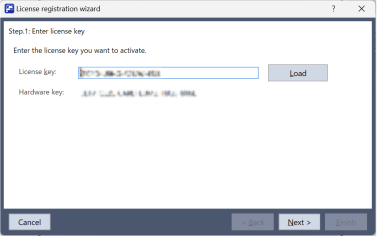
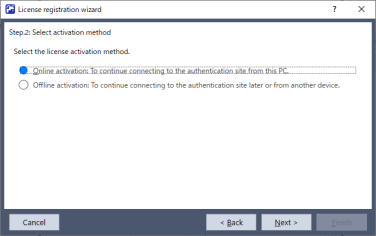
Select [Online Authentication] and click [Next].
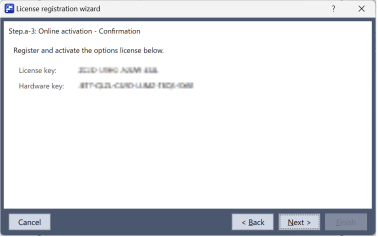
Check the displayed license key and click [Next].
Check the results window and click [Finish].
Close the [License Configuration] window.
The controller will be automatically restarted.