Connection with PC and Wiring Cables
After installing the VR unit, connect the VR unit to PC with USB cable.
(Support for USB 3.0 , 2.0 , 1.1)
USB cable terminal
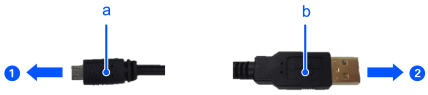
| Symbol | Description |
|---|---|
| a | Micro B |
| b | Type A |
| ① | To VR unit |
| ② | To PC |
To read the VRT parameters accurately, make sure not to apply vibrations except generated vibrations. Fix the wirings at 150 to 200mm from the terminal by using the tape or cable tie.
Note
- To connect the VR unit with PC, you can use the general USB cables (Type A – Micro B) other than attached ones. However, be sure to use products complying with the industrial standards or noise resistant USB cable. If you use USB cable (office use product), it may cause communication error and may not offer the proper performance.
- Make sure to use USB cable that can execute data transfer. Be careful since some of general USB cables are only for supplying power.
- Target of the measurement is only one VR unit which set COM port by VR software. It is not possible to process more than one VR unit simultaneously.
- After reading the parameters and checking the effect of VRT, remove the VR unit and USB cable immediately. Do not operate the robot continuously with connecting the VR unit. (It is not a flex resistance USB cable. Parameters cannot be read unlimitedly.)
How to check USB COM port number of VR unit
Install the VR unit to vibrating position
Connect the VR unit to PC with USB cable.
Click Windows-[Start] menu-[Run].
Input “devmgmt.msc” to the [Name] box.
Display the device manager.
Expand the [Ports (COM & LPT)] tree.
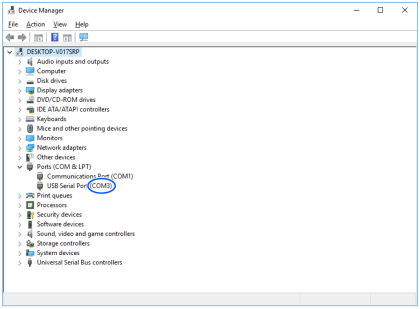
COM port number of the VR unit is displayed after the COM.
If more than one port numbers are already displayed, disconnect and connect the USB cable of the VR unit and check the number.