Program Editing Screen
The program editing screen allows you to edit the visual program by arranging the provided commands.
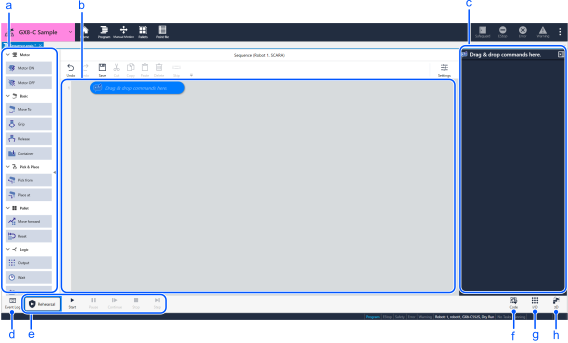
| Symbol | Name | Description |
|---|---|---|
| a | Command area | The available commands will be displayed. You can add items by dragging and dropping them into the editing area. |
| b | Editing area | The added commands will be displayed. You can edit commands and configure their operation. |
| c | Detailed settings area | You can configure the detailed settings for the selected command. |
| d | Event log | You can check any errors or messages that occurred during program execution. |
| e | Operation control button | You can start and stop the operation. |
| f | Spel Code | Displays the SPEL codes converted from visual program. |
| g | I/O | You can check and change the I/O setting. |
| h | 3D View | You can check the robot’s motion with using a simulator. |