安裝軟體
安裝裝置的驅動程式
在將Hilscher PROFINET機板裝入已安裝Epson RC+8.0的電腦前,您必須安裝Hilscher SYCON .net應用程式以及與使用的機板類型相應的驅動程式。
將Communication-Solutions DVD放入已安裝Epson RC+8.0的電腦中。
顯示Communication-Solutions DVD的[Communication-Solutions DVD \Driver_&_Toolkit\Device Driver (NXDRV-WIN)\Installation]資料夾。
點擊cifX Device Driver Setup.exe。[User Account Control]對話方塊即會顯示。
點擊[Yes]。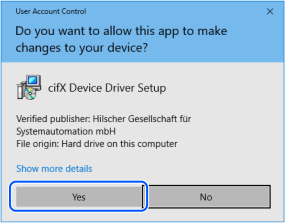
[Device Driver Setup]對話方塊即會顯示。
勾選[I accept the terms in the License Agreement]。
按一下[Install]。
[Windows Security]對話方塊即會顯示。
點擊[Install]。當對話方塊切換時,再點擊[Install]。
[Completed the cifX Device Driver (x64) 2.6.1.0 Setup Wizard]對話方塊即會顯示。
點擊[Finish]。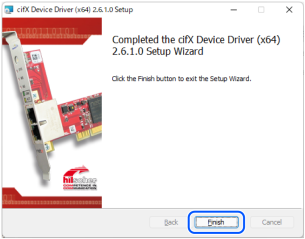
安裝主控端應用程式軟體
顯示Communication-Solutions DVD的[Communication-Solutions DVD\Software_&_Tools\Configuration_Software\SYCON .net]資料夾。
執行SYCONnet netX setup.exe。[Security Warning]對話方塊即會顯示。
點擊[Run]。[User Account Control]對話方塊即會顯示。
點擊[Yes]。
[Choose Setup Language]對話方塊即會顯示。
選擇「English [USA]」,然後點擊[OK]。
現在,開始安裝程式。

[InstallShield Wizard - Welcome] 對話方塊即會顯示。
點擊[Next]。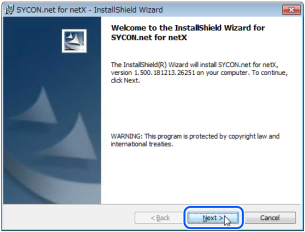
[InstallShield Wizard - Important Information] 對話方塊即會顯示。
選擇[I read the information]。
點擊[Next]。
[InstallShield Wizard - License Agreement] 對話方塊即會顯示。
選擇[I accept the terms in the license agreement]。
按一下[Next]。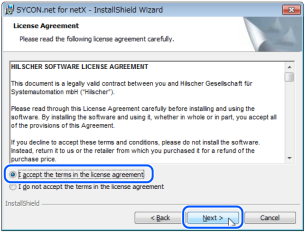
[InstallShield Wizard - Customer Information] 對話方塊即會顯示。
輸入使用者名稱(User Name:)與組織(Organization:)。
點擊[Next]。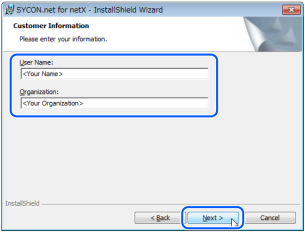
[InstallShield Wizard - Ready to Install the Program] 對話方塊即會顯示。
點擊[Install]。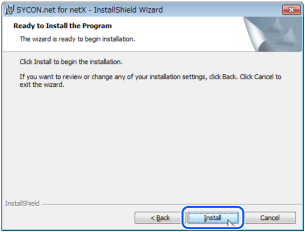
現在,開始安裝程式。
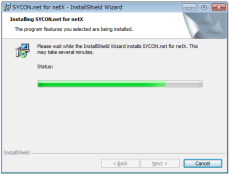
[InstallShield Wizard - InstallShield Wizard Completed]對話方塊即會顯示。
點擊[Finish]。
請參照下一節的「安裝機板」,以安裝Hilscher PROFINET機板。