Installing Software
Installing device driver
Before adding PROFINET board manufactured by Hilscher to the PC with Epson RC+ 8.0 installed, you must install the Hilscher SYCON .net application and drivers according to the type of the board you are using.
Insert Communication-Solutions DVD into the PC with Epson RC+ 8.0 installed.
Open the [Communication-Solutions DVD\Driver_&_Toolkit\Device Driver (NXDRV-WIN\Installation] folder of the Communication-Solutions DVD.
Click cifX Device Driver Setup.exe.The [User Account Control] dialog box appears.
Click [Yes].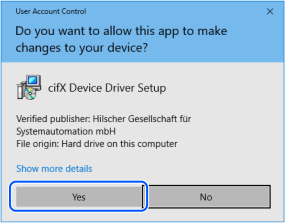
The [Device Driver Setup] dialog box appears.
Select the [I accept the terms in the License Agreement] check box.
Click [Install].
The [Windows Security] dialog box appears.
Click [Install].When the dialog box switched, click [Install] again.
The [Completed the cifX Device Driver (x64) 2.6.1.0 Setup Wizard] dialog box appears.
Click [Finish].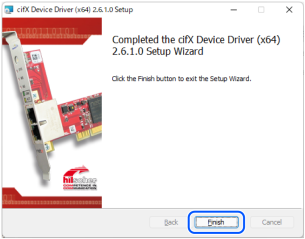
Installing master application software
Open the [Communication-Solutions DVD\Software_&_Tools\Configuration_Software\SYCON .net] folder of the Communication-Solutions DVD.
Execute SYCONnet netX setup.exe.The [Security Alert] dialog box appears.
Click [Run].The [User Account Control] dialog box appears.
Click [Yes].
[Choose Setup Language] dialog box appears.
Select "English [USA]" and click [OK].
Now, the installation begins.

The [InstallShield Wizard - Welcome] dialog box appears.
Click [Next].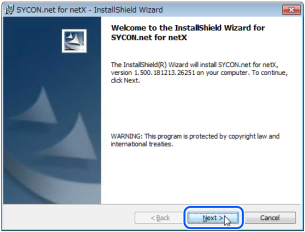
The [InstallShield Wizard - Important Information] dialog box appears.
Select [I read the information].
Click [Next].
The [InstallShield Wizard - License Agreement] dialog box appears.
Select [I accept the terms in the license agreement].
Click [Next].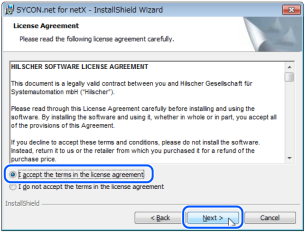
The [InstallShield Wizard - Customer Information] dialog box appears.
Enter the User Name and Organization.
Click [Next].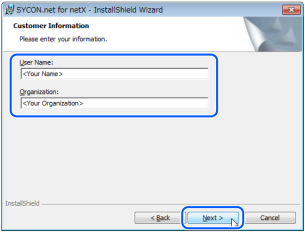
The [InstallShield Wizard - Ready to Install the Program] dialog box appears.
Click [Install].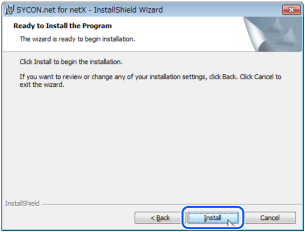
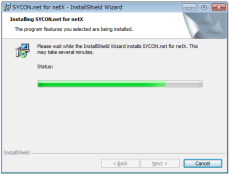
Now, the installation begins.
The [InstallShield Wizard - InstallShield Wizard Completed] dialog box appears.
Click [Finish].
Refer to following section,s and install the PROFINET board manufactured by Hilscher.