Installing a Board
- Configure the rotary switch of the board address on the PROFINET board manufactured by Hilscher.
You can install one Fieldbus master board to the PC with Epson RC+ 8.0 installed. The slot number should be "Not in use (0)". Refer to the following table for configuration.
| Slot No. | Rotary switch position |
|---|---|
| Not in use | 0 |
| Slot No. 1 | 1 |
| Slot No. 9 | 9 |
Install the PROFINET board manufactured by Hilscher to the PCI bus or PCI Express bus of the PC with Epson RC+ 8.0 installed.
Depending on the type of PC, the way to install the Hilscher PROFINET board to the PCI bus/PCI Express bus and how to open the cover will differ. Refer to the manuals of each PC for information on how to install the board to the PCI bus/PCI Express board.Connect the PROFINET board manufactured by Hilscher to the PROFINET network.
Start up the PC.
Select the Start menu - [SYCON .net] and execute it.

Set an Administrator password for SYCON .net.
Click [OK].
Be careful not to forget the Administrator password.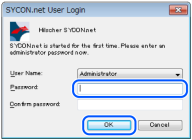
SYCON .net starts up.
Click the Device Catalog list to the right of [netDevice].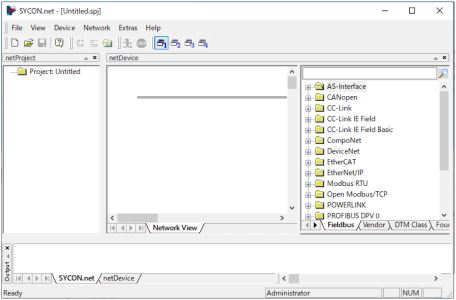
Importing slave GSDML (*.xml) files
Click [Network] - [Import Device Descriptions…].

The [Import Device Description] dialog box appears.
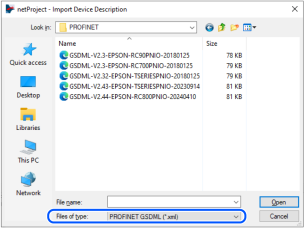
From [Files of type], select PROFINET GSDML (*.xml)
Select GSDML files provided by each device manufacturer and click [Open].
Click [Open].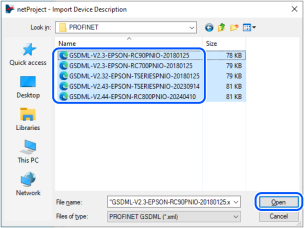
The following message appears.
Click [Yes]. The GSDML (*.xml) files are imported.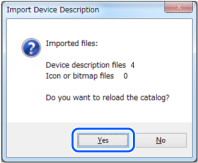
Adding a master icon
In the SYCON .net application software, go to the Device Catalog list on the right side of the- [NetDevice] window, and select - [PROFINET-IO] - [Master] - [ CIFX RE/PNM V3].
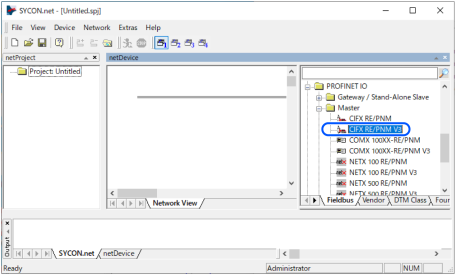
Drag & drop [CIFX RE/PNM V3] on the bold line on the left side of [netDevice].

A "CIFX RE/PNM V3" icon indicating the PROFINET-IO board manufactured by Hilscher is connected.

Adding a slave icon
In the SYCON .net application software, go to the Device Catalog list on the right side of the- [NetDevice] window, and select - [PROFINET-IO] - [Slave] and the name of the Slave device.
In the case of a PROFINET-IO slave module:
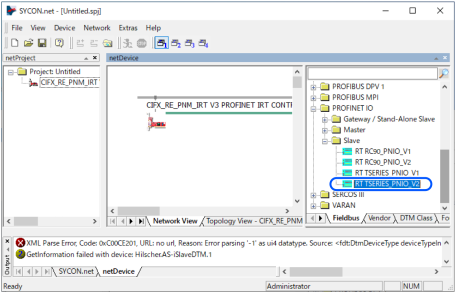
Drag & drop the selected slave device on the bold line on the left side of [netDevice].
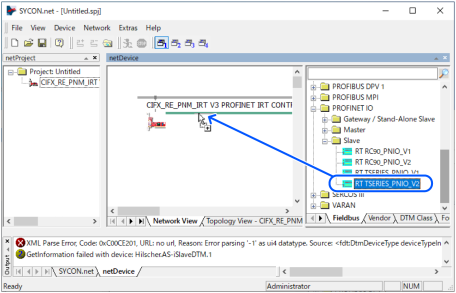
The PROFINET-IO slave device is connected and its icon appears.

Settings on the master side
Right-click [netDevice] - [CIFX_RE_PNM V3] and click [Configuration…].

The [Configuration] dialog box appears.
Select [Settings] - [ Driver] tab.
Select the [CIFX Device Driver] checkbox and click [Apply].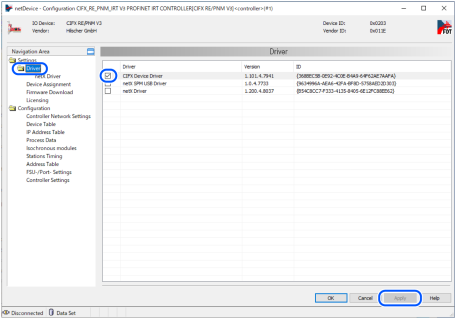
Select [Settings] - [Device Assignment] tab.
Select the [CIFX 50E-RE] checkbox.
Click [Apply].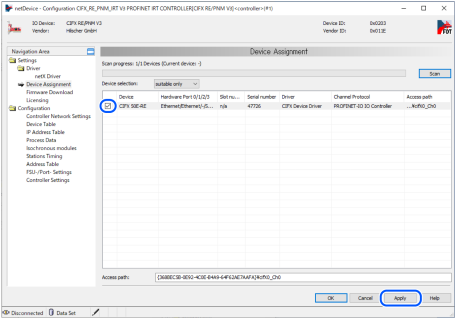
Select [Settings] - [Driver] - [Firmware Download] tab.
Click [Browse…].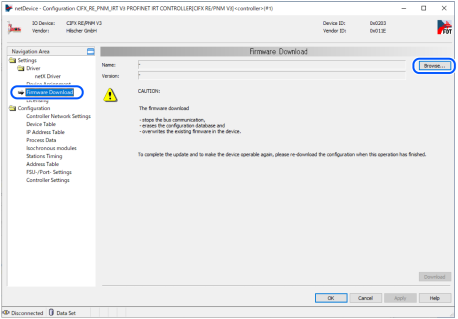
Display the [Firmware,_EDS,_Firmware,_EDS,_Examples,Webpages\Firmware_&_EDS\COMSOL-PNM V3.4.0.7\COMSOL-PNM V3.4.0.7\Firmware¥cifX] folder of Communication-Solutions DVD.
Select [C010C000.nxf].
Click [Open].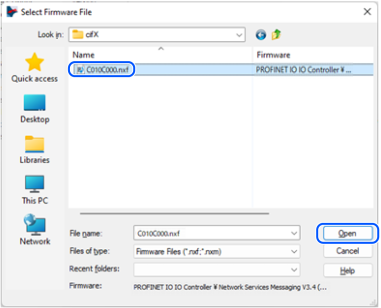
Confirm that [Name] is "PROFINET-IO IO Controller".
Click [Download].
Click [Yes].
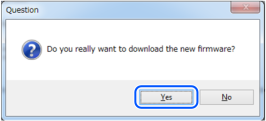
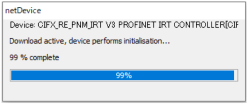
Start the installation of firmware.
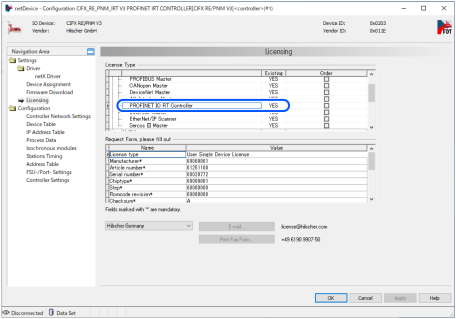
Select the [Settings] - [Licensing] tab.
Confirm that the license for [PROFINET IO RT Controller] shows "Existing: YES".
Configuring slave devices
Configure the slave devices (Station name, IP address, Network mask, Gateway address).
Select [Settings] - [Ethernet Device] tab.
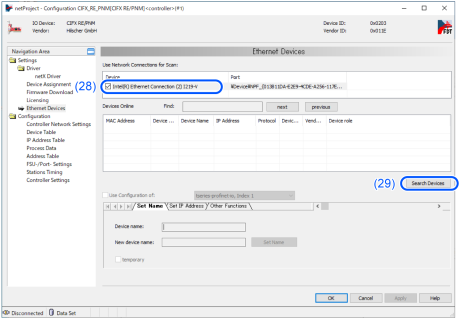
Connect the Ethernet port of the PC to the PROFINET Slave device with an Ethernet cable.
Click [Search Device] and search the PROFINET Slave devices on the network.
The PROFINET Slave devices found on the network will be displayed on the screen.
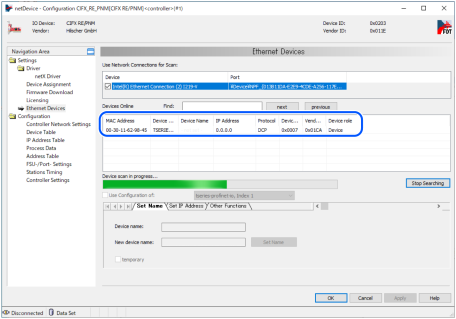
On the [Set Name] tab, set the station name of the PROFINET Slave device.
Click [Set Name].
On the [Set IP Address] tab, set the IP address, Network mask, and gateway address of the PROFINET Slave device.
Click [Set Address].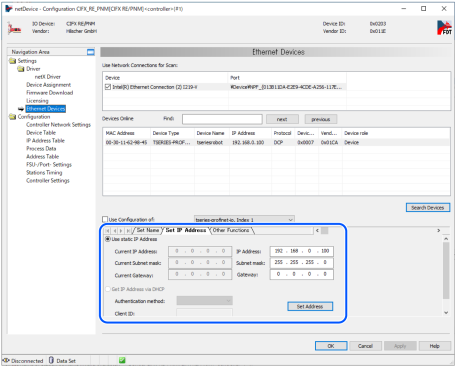
Connect the Ethernet port on the Hilscher PROFINET board to the PROFINET Slave device with an Ethernet cable.
Select [Configuration] - [Controller Network Settings].
Configure [IP Settings] and click [Apply].
(Ex.) IP Address: 192.168.0.1 (Fixed Address)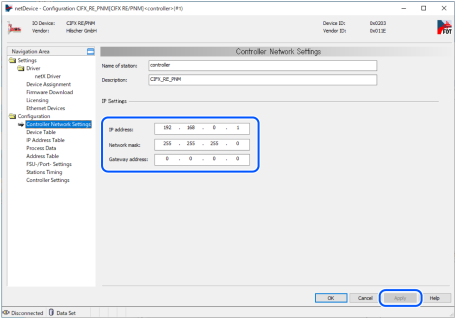
Select [Configuration] - [Device Table].
Check the [Activate] checkbox for the slave device.
Enter the station name set in [Name of station] and click [Apply].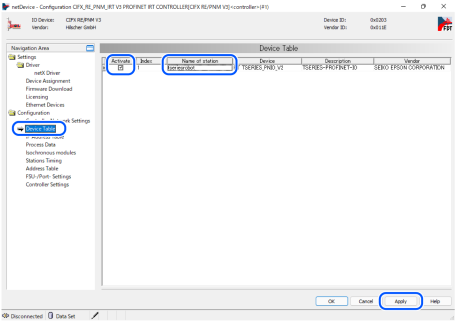
Select [Configuration] - [IP Address Table].
In [IP Address], enter the IP address and click [OK].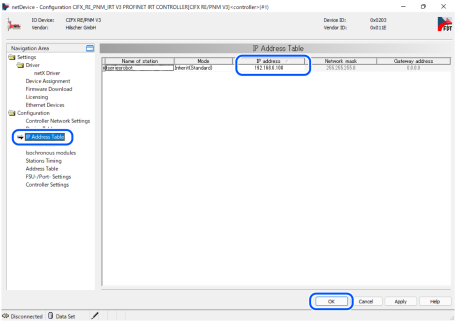
Close [Configuration] dialog.
Configuring the slave side
Right-click the [netDevice] icon.
Click [Configuration…].
The [Configuration] dialog box appears.
Select [Configuration] - [Modules].
Click [Add Module] and set the new module to Output 32 byte. (For a 32-byte setting)
Click [Add Module] again and set this new module to Input32 byte. (For a 32-byte setting)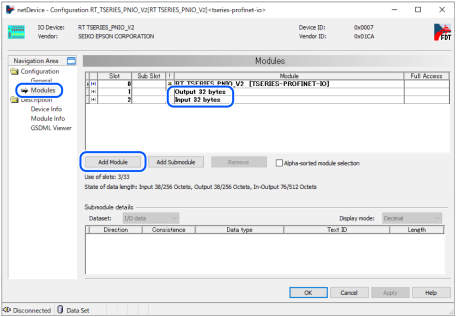
Click [Apply].
Close [Configuration] dialog.
Downloading to the master board
Right-click on the [netDevice] - [CIFX_RE_PNM V3] icon again, and click [Configuration…].
The [Configuration] dialog box appears.Click [Configuration] - [Address Table].
Check the settings of [Address Table] and click [OK].
"Address Table"-Inputs - Length: 32 (For 32-byte setting)
"Address Table"-Outputs - Length: 32 (For 32-byte setting)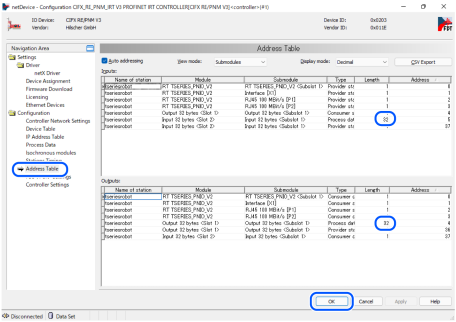
Close [Configuration] dialog.
Right-click [netDevice] -"CIFX_RE_PNM V3" icon and click [Download].
Right-click [netDevice] slave icon and click [Download].
By performing the above step, "Setting on master side" and "Setting on slave side" are downloaded to the PROFINET board.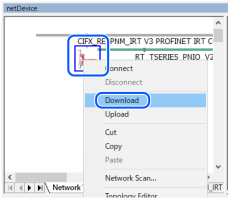
The settings are applied to PROFINET board manufactured by Hilscher.
Connection Diagnosis
Right-click the [netDevice] - [CIFX_RE_PNM V3] icon.
Select [Diagnosis…].
The [Diagnosis] dialog box appears.
Select [Diagnosis] - [General Diagnosis].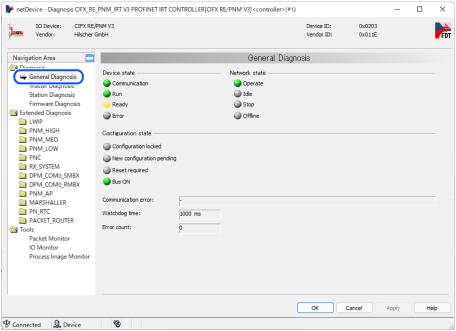
The state is normal when the Communication, Run, and Bus ON indicators are lit green and the Ready indicator is lit.
Select [Tools] - [IO Monitor] and perform the input/output test.
Set IOPS in [Output data].
Communication can be started by entering "128" into the address of a module other than [Process data], which is displayed in the lower part of [Outputs:] - [Type] in (44).
In this tutorial, we're going to set Output data: 0, 1, 2, 3, 36, 37 to "128".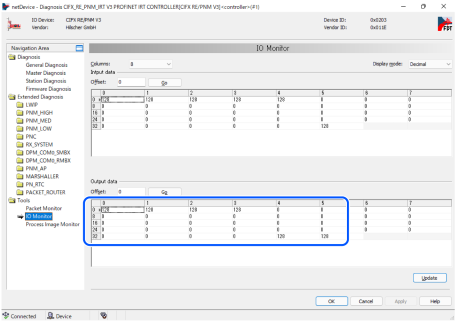
Close the [Diagnosis] dialog.
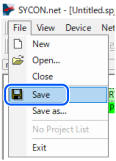
Click [File] - [Save] and save the settings changes to a file.
Exporting the configuration file (.csv) for RC+
Right-click the [netDevice] -"CIFX_RE_PNM V3" icon.
Click [Additional Functions] - [Export] - [CSV…].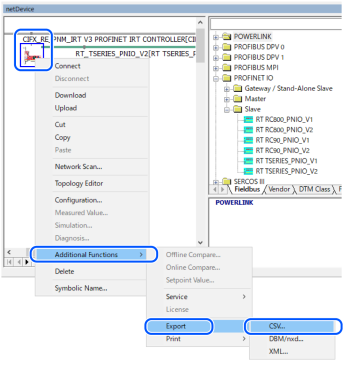
Save the CSV file to the file.
The exported CSV file will be used in the following section.
Epson RC+ 8.0 Configuration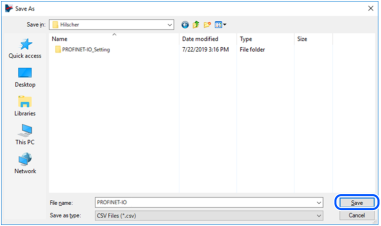
Now, the settings by SYCON .net are complete.
Close SYCON .net.
KEY POINTS
If there is a problem such as the fieldbus master board is not recognized by Windows, refer to the following section.