Creating a PLC Project using Allen-Bradley
Epson RC+ 8.0 users are provided with Allen-Bradley® Logix Designer files which are installed on the user PC by the Epson RC+ v8.0.0 or greater installer. The files are located in ¥EpsonRC80¥Fieldbus¥FunctionBlockLibraries¥Allen-Bradley on the user PC.
In this chapter, we will show how to create a simple example project to turn robot motors on and off using Function Blocks.
To create a new project, make sure you are in offline mode and follow these steps:
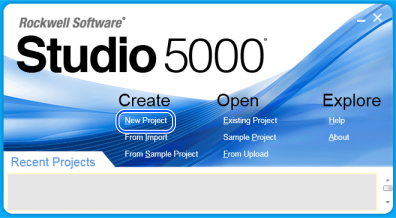
Start the Studio 5000® software, then click [New Project]. The [New Project] dialog will be displayed.
Choose your Controller family and PLC controller model number. Enter a project name under [Name], then click [Next].

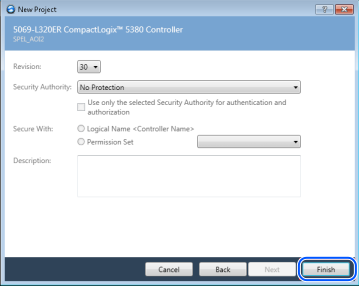
The dialog shown below will be displayed. Leave all choices as default, then click [Finish].
You have just created a new empty PLC project
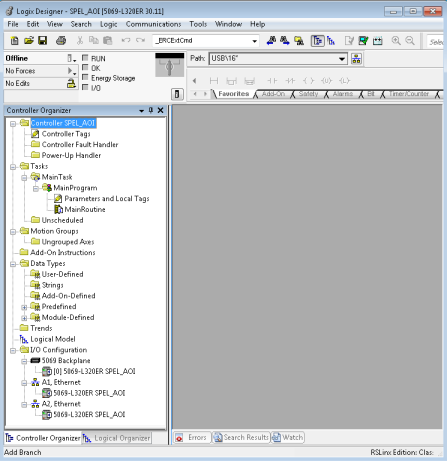
Now you need to add and configure the Ethernet module for communications with the robot controller. There are two methods: Import the file EpsonEtherNetIP.L5X, or perform manual configuration.
Method 1: Importing the Ethernet configuration
Right click on [A1, Ethernet], then click [Import Module].
Navigate to
¥EpsonRC80¥Fieldbus¥FunctionBlockLibraries¥Allen-Bradleyand select the file EpsonEtherNetIP.L5X.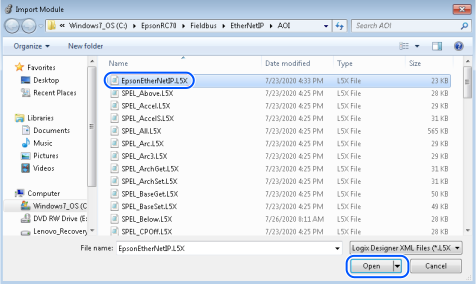
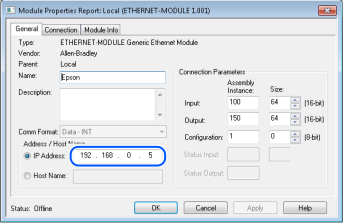
After import, right-click on the module and select [Properties]. Change the default IP address to be the address of the robot controller's EtherNetIP slave board.
Method 2: Manual Ethernet configuration
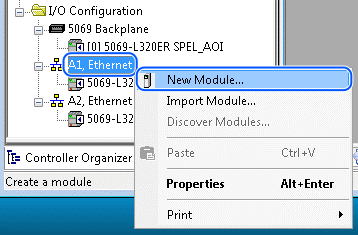
Right click on [A1, Ethernet], then click [New Module].
Type in “generic” in the search field. Click “ETHERNET MODULE” under catalog number, then click [Create].

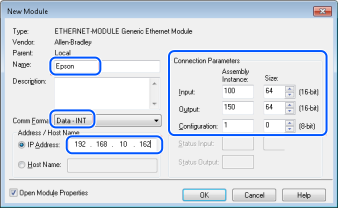
Enter the values as shown, and use the IP address of the robot controller EtherNet/IP slave, then click [OK].
Click [OK] on the next window.

Saving your project at this stage is a good idea. When creating a new Ethernet module, please note that connection parameter values should match your robot controller values.
Import Function Blocks into the new project
Now you need to import Function Blocks in the new project. For this example, you will import all Function Blocks. You can also import individual Function Blocks.
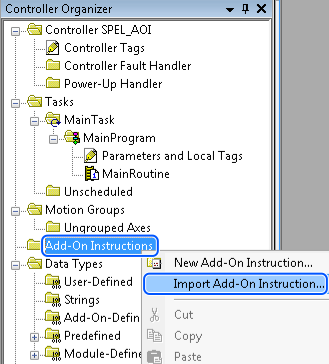
To do this, right click on [Add-On Instructions] folder from [Controller Organizer], click [Import Add-On Instruction].
Navigate to
¥EpsonRC80¥Fieldbus¥FunctionBlockLibraries¥Allen-Bradley, then select “SPEL_All.L5X” file and click [Open].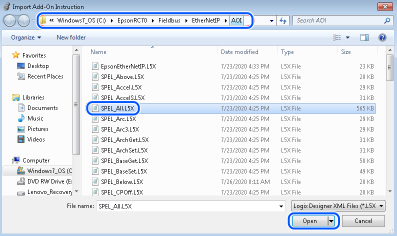
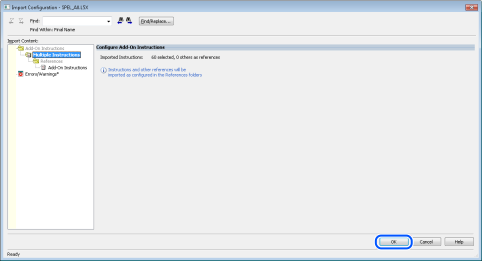
The dialog below is displayed. Check to make sure that there are no errors, then click [OK].
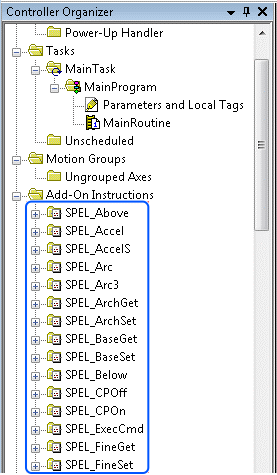
Now you should see the list of all Function Blocks in the project.
Now you can create a program.
Expand [MainProgram], then double click on [MainRoutine].
Click the [Favorites] tab to add five extra rungs. While selecting rungs 0, 2, and 4, click "Examine On" and "Output Energize."
Click the [Add-On] tab.
- While selecting rung1, click "SPEL_Init."
- While selecting rung3, click "SPEL_MotorOn."
- While selecting rung5, click "SPEL_MotorOff."
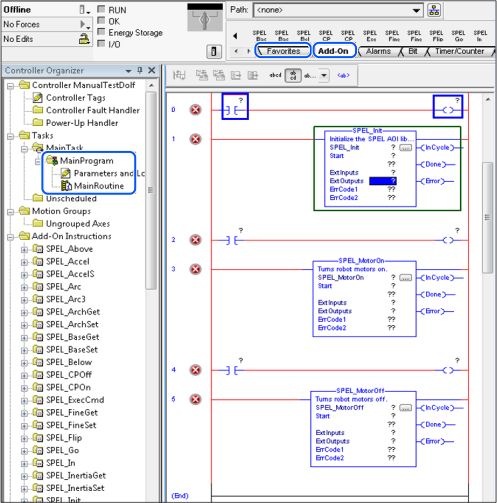
In rung 0, double click at [?] of “Examine On”, type in the name of the variable. In this case we will use “InitSwitch”.
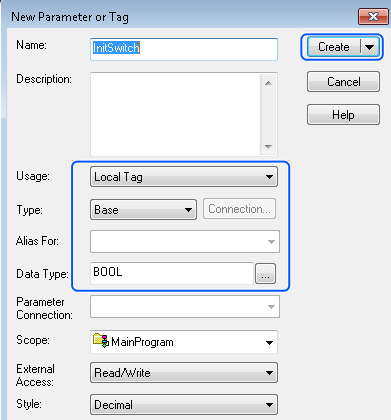
Do the same step as above, in rung 0, double click on [?] of the “Output Energize”, and type “InitCoil”.
Right click on [InitSwitch], click on [New “InitSwitch”], then click [Create], as shown below.

Create new variable “InitCoil” same method used in “InitSwitch”.
Do same steps in 6 for rung 2 and 4 to create new variables. Use variable name “MotorOnSwitch”, “MotorOnCoil” for rung 2, and “MotorOffSwitch”, “MotorOffCoil” for rung 4.
Now we configure SPEL_Init Function Block inputs.
Inside “SPEL_Init” block, click [?] to the right of [SPE_Init], and type “Init”.
Right click on [Init], choose [New “Init”], then click [Create].
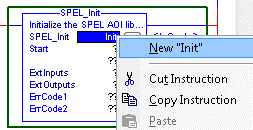
“Init” will be the name of the structure that holds all internal variable of “SPEL_Init” Function Block.
Click [?] next to “Start”, type “InitCoil”, you do not need to create a new variable.
Click [?] next to [ExtInputs], type “Ep”, it will auto populate, press [Enter].
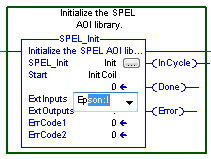
Do same step to [ExtOutputs]. “SPEL_Init” is now configured and the rung lines should change from red to blue.
Do the same steps as in 11-1 to 11-2 for rung 3 and 5. Choose “MotorOn” for rung 3, “MotorOff” for rung 5.
Do the same steps as in 11-3 for rung 3 and 5. Use “MotorOnCoil” for rung 3, “MotorOffCoil” for rung 5.
The program is now complete. Save the project.
Click the down arrow right to [Path] to choose communication path with controller.
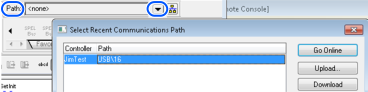
In this example I am using USB to connect my PC to the PLC controller.
Double click on “USB” to close the window, then click [Download] in the next window to transfer program to PLC controller.
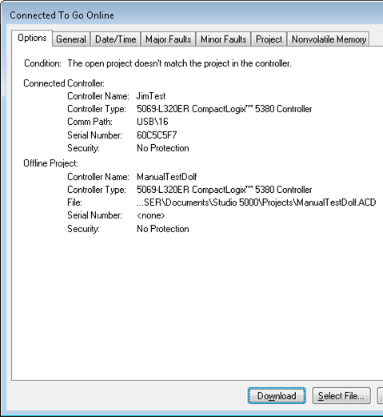
Click [Yes] in the next window if prompted to change PLC into “Remote Run” mode, like shown below.
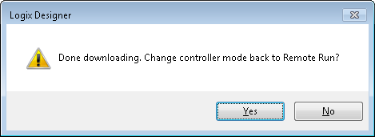
PLC now in run mode and program is ready to be executed.
