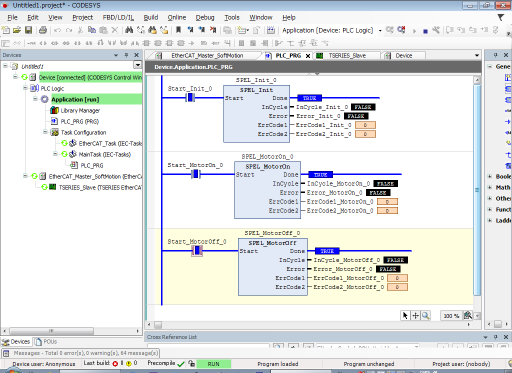
Procedure to Create a Project
In Epson RC+ 8.0 or later, a CODESYS Function Blocks library is installed in the following folder:
\EpsonRC80\Fieldbus\FunctionBlockLibraries\CODESYS
In this section, we will show how to create a simple example program to turn robot motors on and off.
First, create a new project.
Start the CODESYS, then click [New Project].
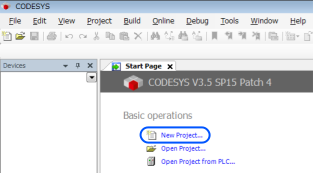
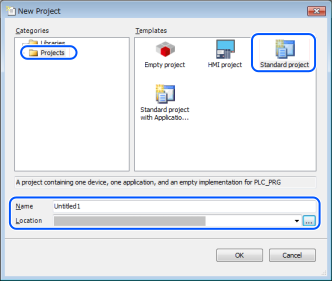
Select [Projects]-[Standard project]. Enter a project name and save location, then click [OK].
Select the appropriate device and [Ladder Logic Diagram] and click [OK].
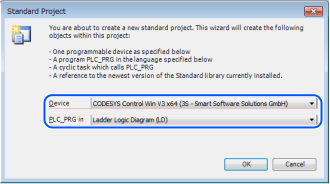
You have just created a new empty project.
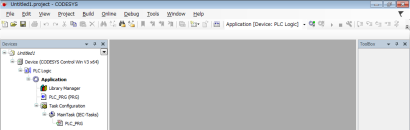
Now you need to import a CODESYS Function Blocks library in the new project.
Double click [Library Manager].
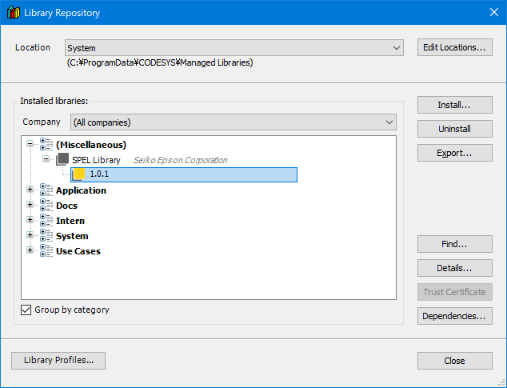
Then, click [Library Repository].
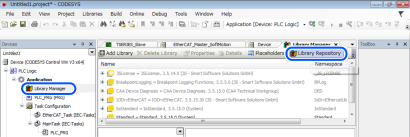
Click [Install].
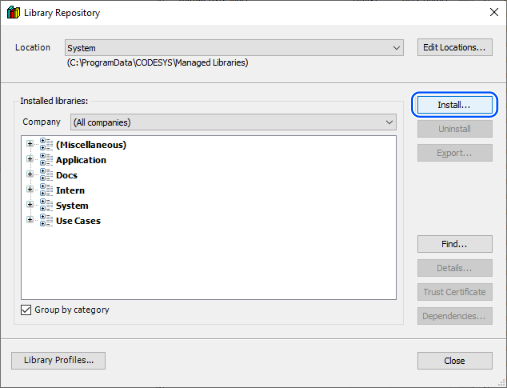
Select the “SPEL_Library.compiled-library” file provided by Epson and click [Open].
The file is in
\EpsonRC80\Fieldbus\FunctionBlockLibraries\CODESYSfolder.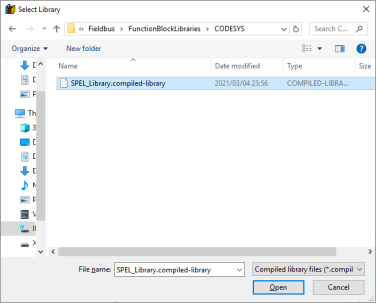
Make sure that there is “SPEL Library” in [Miscellaneous].
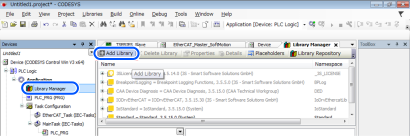
Click [Add Library] in [Library Manager].
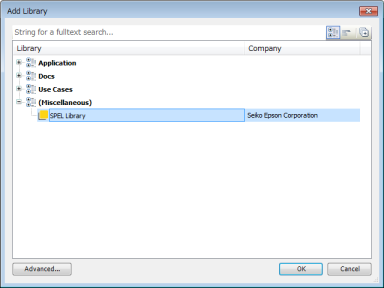
Select [SPEL Library], then click [OK].
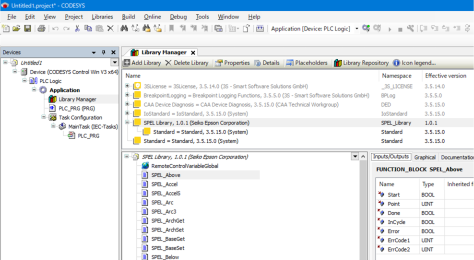
Function Blocks are installed.
Then, create a program.
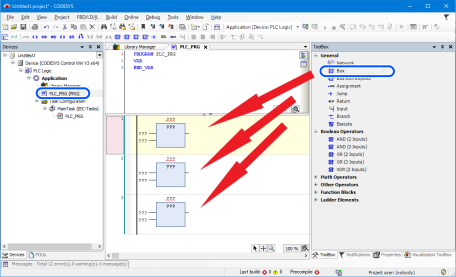
Double click [PLC_PRG] to display the program screen.
Then, drag and drop three [Box] to the program screen.
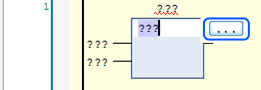
Click [???] in Box.
Then, click [...] next to [???].
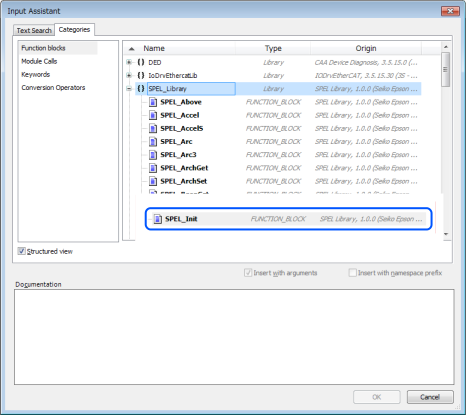
Select [SPEL_Init] from the list of the Function Blocks, then click [OK].
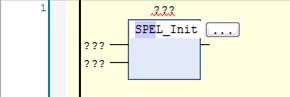
The name of the Function Block is displayed.
Press the [Enter] key.
The inputs/outputs of the Function Block are displayed.
Press the [Enter] key.
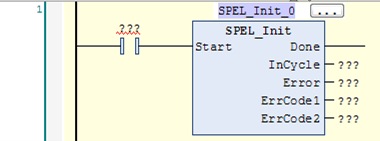
Auto declare screen is displayed.
Click [OK].
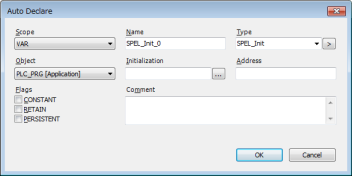
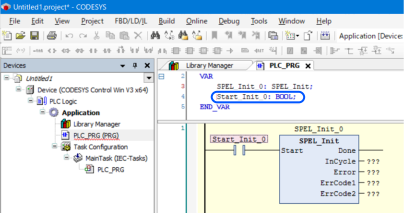
A variable is added automatically.
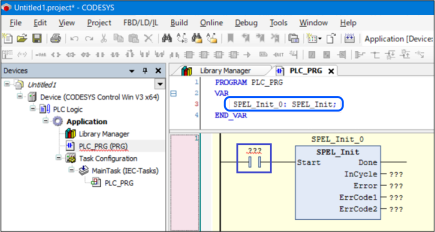
Click [???] of the a contact (blue frame in the figure above) connected to Start.
Then, enter a name of this contact. In this case we will use, “Start_Init_0”.
Then, press [Enter] key.
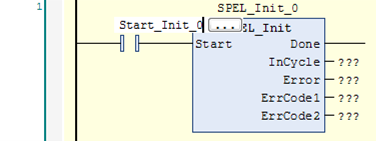
Auto declare screen is displayed. Click [OK].
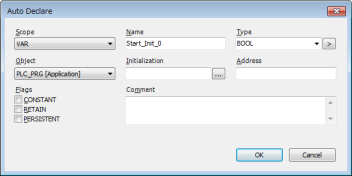
A variable is added automatically.
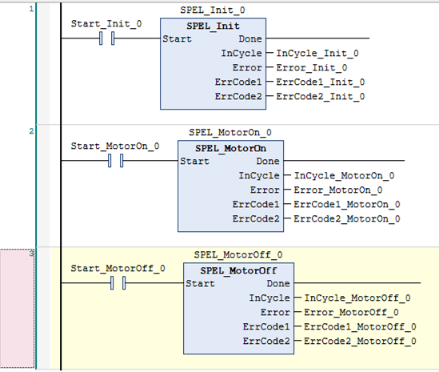
Follow the same procedure to change all [???] as follows.
Then, prepare to connect with a robot.
Right click [Device], then click [Add Device].
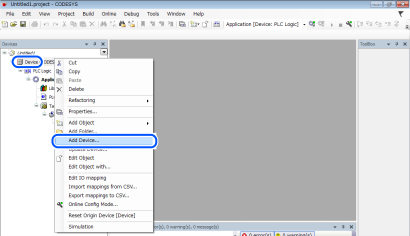
Select [EtherCAT Master], then click [Add Device].
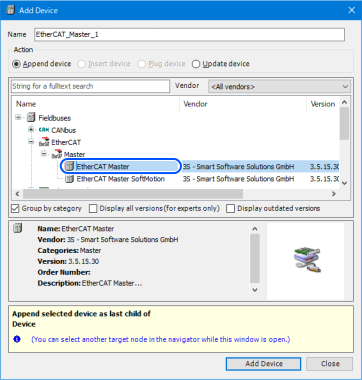
“EtherCAT_Master” is added.
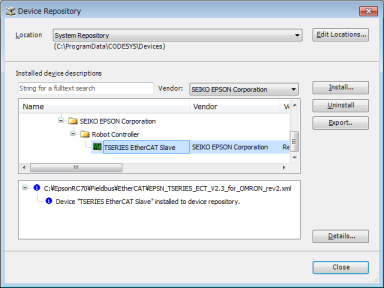
Select [Tools], then click [Device Repository].
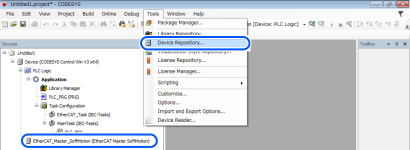
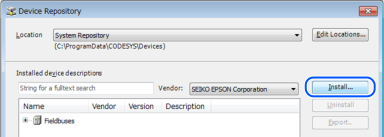
Click [Install].
Select the configuration file according to the robot to be used.
The configuration file is in the following folder:
\EpsonRC80\Fieldbus\EtherCATIn this case we will select “EPSN_TSERIES_ECT_V2.3_for_OMRON_rev2.xml”, then click [Open].
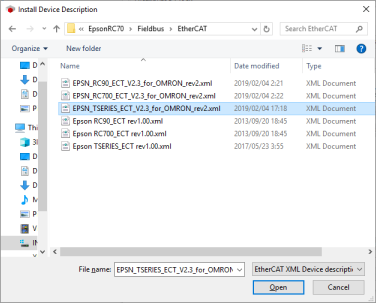
The configuration file has been read and “TSERIES EtherCAT Slave” is displayed.
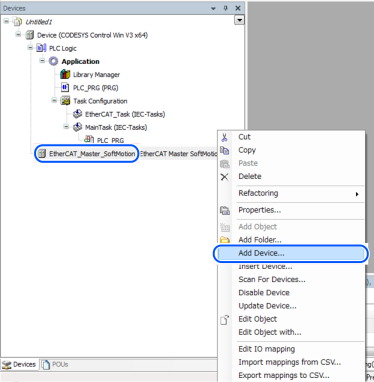
Right click [EtherCAT Master], then click [Add Device].
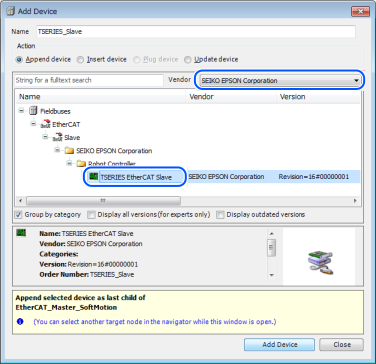
Change “Vendor” to [SEIKO EPSON Corporation].
Select [TSERIES EtherCAT Slave], then click [Add Device].
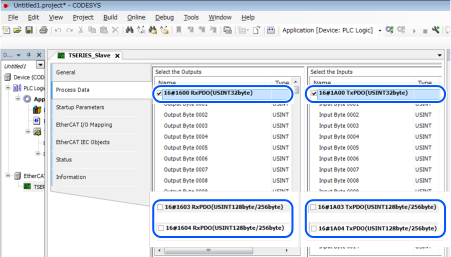
Double click [TSERIES_Slave], then click [Process Data].
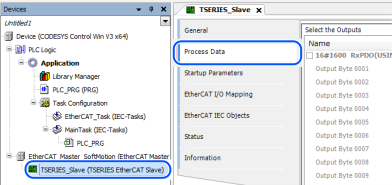
Have the check boxes the same as the image below.
Use “32byte” to communicate with controllers.
(Before using, match the number of inputs/outputs bytes of the Fieldbus slave with setting values.)
Execute Function Blocks.
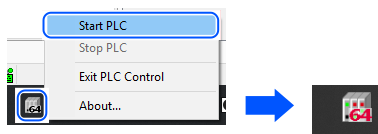
Right click the PLC on the PC task bar or system tray, then click [Start PLC].
Check that the PLC display has changed.
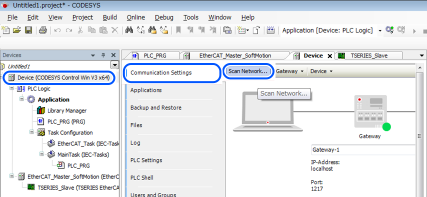
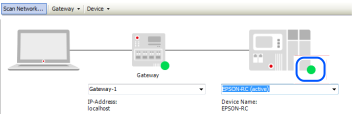
Double click [Device], then click [Communication Settings] - [Scan Network].
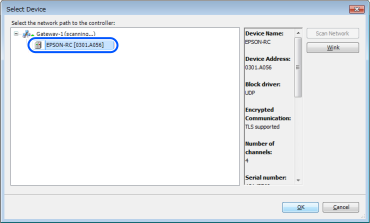
Select the displayed device, then click [OK].
Check that the color of device has changed to green.
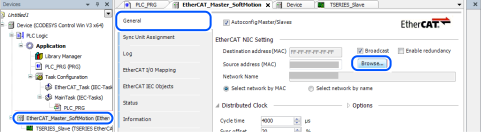
Double click [EtherCAT_Master], then click [General] - [Browse].
Select a network adapter to be used, then click [OK].
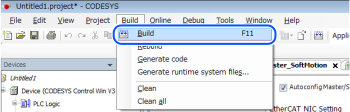
Select [Build], then click [Build].
Check to make sure that there are no errors.
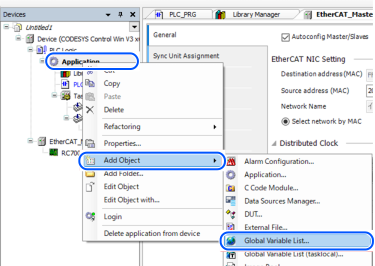
Right-click [Application], then click [Add Object] - [Global Variable List…].
Click the [Add] button.
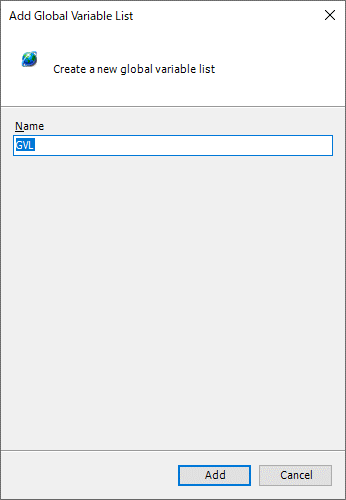
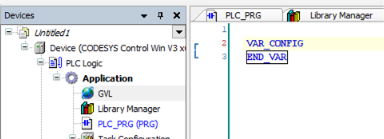
A global variable list is added.
Change “VAR_GLOBAL” to “VAR_CONFIG”.
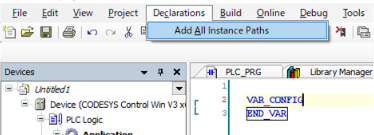
Select [Declarations], then click [Add All Instance Paths].
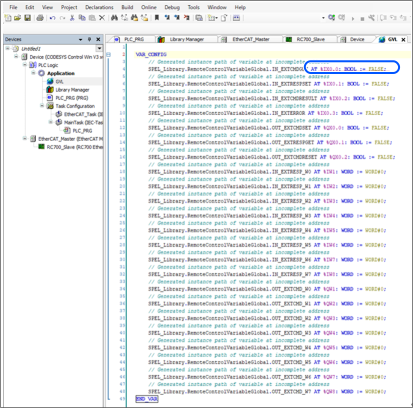
Change the currently set address to the address to be used.
An example for changing is the image below, refer to “4.2.2 Address to Use” and enter a proper address after “AT.
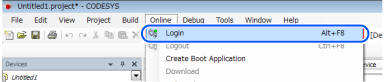
Select [Online], then click [Login].
Select [Debug], then click [Start].
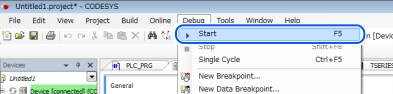
Check that the green cycle is displayed on the left of “TSERIES_Slave”.
Double-click the a contact of SPEL_Init, then “[TRUE]” is displayed.
Then, right-click anywhere and click [Write All Values of ‘Device.Application’] to write values.
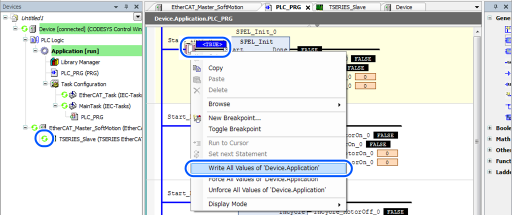
When the Function Block execution is finished, Done changes to TRUE.
Follow the same procedure to execute SPEL_MotorOn and SPEL_MotorOff.