Software Setup and Connection Check
The following are steps for connecting the development PC and the Manipulator.
- Make sure that the Epson RC+ software is installed on the development PC connected to the Manipulator. (Install the software if it is not installed.)
- Connect the development PC and the Manipulator by a USB cable.
- Turn ON the Manipulator.
- Start the Epson RC+ software.
- From the Epson RC+ menu, select [Setup] - [PC to Controller Communications] to display the [PC to Controller Communications] dialog.
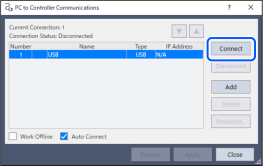
- Select the “No.1 USB” and click the [Connect] button.
- After connection of the development PC and the Manipulator is completed, "Connected" is displayed in [Connection Status:]. Make sure that “Connected” is displayed and click the [Close] button to close the [PC to Controller Communications] dialog.
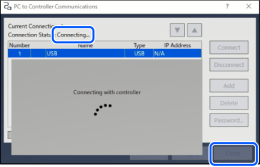
Connection of the development PC and the Manipulator is completed. The robot system can now be used from Epson RC+.