Moving the Manipulator to Initial Posture
In addition to creating and executing programs, the Manipulator can also be operated by the following methods.
- Jog operation by the Teach Pendant
- Command execution from Epson RC+
- Jog operation from Epson RC+
- Manual operation
This section explains the following operation methods.
- A: Execute command from the Epson RC+
- B: Jog operation from the Epson RC+
- C: Manual operation
A: Execute command from the Epson RC+
Move the Manipulator by exciting the Manipulator motors and executing the command.
This presents an example of moving all joints to the 0 pulse positions by specifying the pulse for each joint.
- Start Epson RC+.
Double click the [Epson RC+] icon on the desktop. - Open the command window.
Epson RC+ menu-[Tools]-[Command Window] - Execute the following command in [Command Window].
>Motor On
>Go Pulse (0,0,0,0,0,0)
For the position and posture of the Manipulator at the 0 pulse position, refer to “Motion Range” in the Manipulator manuals.
B: Jog operation from the Epson RC+
Move the Manipulator by exciting the motors and operating from the Jog & Teach window of the Epson RC+.
- Start Epson RC+.
Double click the [Epson RC+] icon on the desktop. - Create a new project.
- From the Epson RC+ menu, select [Project] - [New]. The [New Project] dialog box is displayed.
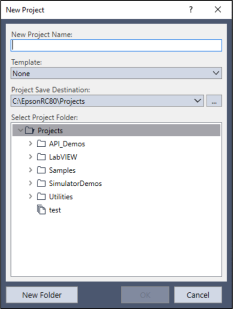
- Type a project name in the [New Project Name] box. (e.g. FirstApp)
- Click the [OK] button to create the new project.
- Open the Robot Manager.
From the Epson RC+ menu, select [Tools] - [Robot Manager]. - Turn ON the motors.
Click the [Motor: Off] button.
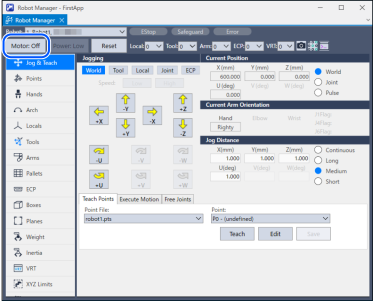
Perform jog operation. 5. Select the [Jog & Teach] tab.
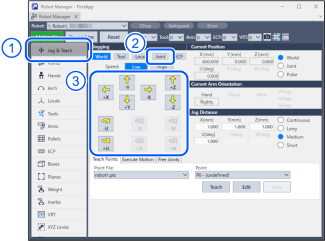
- Epson RC+ 8.0: From [Jogging], select "Joint."
- Click jog keys J1-J4 to operate the selected joint. Movement is possible by setting to other modes or setting the movement distance.
C: Manual operation
Manually move the Manipulator that is in a non-energized state.
You can move the Manipulator manually by releasing the solenoid brake from the command window of Epson RC+.
For details, refer to the following section.
Release the Brake by the Software
CAUTION
- Normally, release the brakes of joints one at a time. If the brakes of two or more joints must be released simultaneously due to unavoidable reasons, use extreme care. Releasing the brakes of two or more joints simultaneously may cause the arm to fall in an unexpected direction, resulting in hands or fingers getting caught or Manipulator damage or breakdown.
- When the brake is released, the arm may fall due to its own weight and operate in an unexpected direction. Makes sure to always take measures to prevent the arm from falling, and check the safety of your surrounding when starting work.
- When releasing the brake using the software, always do so with the emergency stop switch within reach. Otherwise, if the emergency stop switch is not easily accessible, you will be unable to immediately stop the arm falling due to an erroneous operation, which could lead to robot damage or breakdown.
- Start Epson RC+.
Double click the [Epson RC+] icon on the desktop. - Open the command window.
Epson RC+ menu-[Tools]-[Command Window] - Execute the following command in [Command Window].
>Reset
>Brake Off,[Arm # (1 to 6) whose brake is released]
Execute the following command to activate the brake again.
>Brake On,[Arm # (1 to 6) whose brake is activated]