Distributing Extensions
To use a developed extension in another environment, you need to package it. With RC+ Extensions, you can easily create packages from the Visual Studio Build menu.
Perform packaging using the procedure below.
- Open the project in Visual Studio and select [Build] > [Build Solution] from the menu.
- When the build completes successfully, output files such as DLLs are generated in the
binfolder directly under the project.
- When the build completes successfully, output files such as DLLs are generated in the
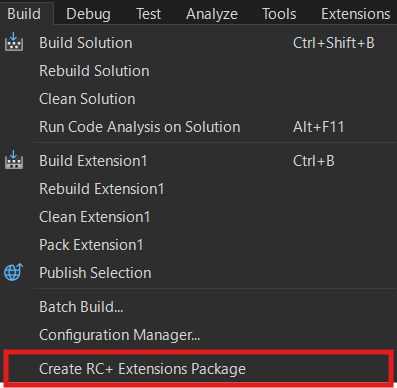
- Select [Build] > [Create RC+ Extensions Package] from the menu.
- As shown in the figure below, a dedicated item has been added to the Visual Studio build menu.
- Upon execution, a
.rcxpkgfile will be generated in thebin\Releaseorbin\Debugfolder within the project root. - The
.rcxpkgfile is a file format that can be installed with the Epson RC+ Extensions Manager.
- As shown in the figure below, a dedicated item has been added to the Visual Studio build menu.
The created .rcxpkg file can be installed into Epson RC+ using the following steps.
- Place the
.rcxpkgfile in any folder on your PC or in a shared folder within your organization. - Launch Epson RC+ and select [Extensions Manager] from the [Extension] menu.
- From the local source setting button in the upper right corner of the screen, add the path of the folder you placed earlier as a local source. This will display the created extension in the Browse tab of the Extensions Manager, allowing you to download and install it.
- For details, see [Using Extensions].
<Additionao Information>
When developing an extension based on an existing one, the ID used as the extension’s identifier (including its GUID) must be changed so that it does not duplicate the ID of another extension.
The extension ID appears in the following locations, all of which need to be replaced with a new ID:
- The id field in PackageItems/manifest.rcxmanifest
(Example) id: SimpleJog_d2525b11-6852-4164-bba0-1a0469afa2d1 - The ID string defined in Main.CommonId
- The <AssemblyName> entry in the project’s .csproj file
If these IDs are identical to those of another extension, it may lead to issues such as the extension not appearing in the Extensions Manager or being incorrectly recognized.
A GUID to use for the ID can be generated in Visual Studio by selecting [Tools] > [Create GUID] from the menu.