Webcam recorder
Let's create an extension that utilizes a webcam, which is one of the peripheral devices that can be connected to a PC.
First, enable previewing of webcam images in the RC+ docking window (beginner level).
Next, add an image recording function (intermediate level). Recording begins when the SPEL+ program starts and stops when the program closes. Under the assumption that the program will run for a long time, create and record a new file every 5 seconds and retain only the most recent two files.
This is an attempt to add functionality similar to vehicle dashcam to the system. By monitoring the robot's operation during equipment startup, it becomes possible to later visually check what occurred from the recorded video if the program stops unexpectedly.
If the PC is connected to a network, it can also be used to send alerts along with the recorded data.
Let's begin.
■ Beginner level
Follow the procedure in [Getting Started] to create an Extensions project.
- Name it "WebCamRecorder."
- Select the Main menu and tool bar item and Docking window initial features.
- For ARM64 versions of Windows, set the configuration to x64.
Build and debug the project in Visual Studio to make sure it works.
- The menu item
WebCamRecorder (xx)(where xx is the display language) is added to the Extension tab on the RC+ main menu. The project is OK if the docking window appears when you select this menu item.
- The menu item
Since the template has been verified, exit RC+ for now.
Double-click the WebCamRecorder project in Visual Studio Solution Explorer, and make the following changes.
- Change the TargetFramework to net8.0-windows10.0.19041.0.
- This allows you to use the Windows Media Foundation API. The following changes are also related to this. Windows Media Foundation is a COM-based API set that is included as standard in Windows operating systems starting from Windows Vista, as the successor to DirectShow. Although it is not currently included in the standard .NET libraries, it can be used in the same way as standard libraries by using tools such as Microsoft.Windows.CsWin32, described below.
- Add the line
<EnableWindowsTargeting>true</EnableWindowsTargeting>. (Inside<PropertyGroup>) - Add the line
<AllowUnsafeBlocks>true</AllowUnsafeBlocks>.
- Change the TargetFramework to net8.0-windows10.0.19041.0.
Select [Tools] > [NuGet Package Manager] > [Manage NuGet Packages for Solution] to open the window.
- Search for the Microsoft.Windows.CsWin32 package in the "Browse" tab. Install the latest stable version (operation was verified using v0.3.264 for this document).
- Microsoft.Windows.CsWin32 is a library that makes it easy to invoke the Windows API from C#. For details, refer to https://github.com/microsoft/CsWin32 (opens new window).
- Search for the Microsoft.Windows.CsWin32 package in the "Browse" tab. Install the latest stable version (operation was verified using v0.3.264 for this document).
Add the NativeMethods.txt and NativeMethods.json files to your Visual Studio project.
These are the files required to use the Windows API with Microsoft.Windows.CsWin32.
NativeMethods.txt
MFStartup
MFShutdown
MFCreateAttributes
MFEnumDeviceSources
MFCreateSourceReaderFromMediaSource
MFCreateMediaType
MFCreateSinkWriterFromURL
MFCreateSample
MFCreateAlignedMemoryBuffer

(code omitted)

CoInitializeEx
CoTaskMemFree

COINIT
NativeMethods.json
{
    "$schema": "https://aka.ms/CsWin32.schema.json",
    "public": true
}
Add the following files to the project.
CameraInfo.cs
- This file describes the CameraInfo class that represents the camera in this extension.
(previous code omitted)

namespace WebCamRecorder
{
    /// <summary>
    /// Camera information
    /// </summary>
    public class CameraInfo
    {
        /// <summary>
        /// Friendly name (may not be unique)
        /// </summary>
        public string FriendlyName { get; }

        /// <summary>
        /// Unique symbolic link
        /// </summary>
        public string SymbolicLink { get; }

        /// <summary>
        /// Constructor
        /// </summary>
        /// <param name="friendlyName">Friendly name</param>
        /// <param name="symbolicLink">Symbolic link</param>
        public CameraInfo(
            string friendlyName,
            string symbolicLink
        )
        {
            FriendlyName = friendlyName;
            SymbolicLink = symbolicLink;
        }
    }
}
CameraInfoCollection.cs
- This file defines the CameraInfoCollection class, which represents a list of cameras and is used to obtain the media source (the object that serves as the entry point for data processing in Windows Media Foundation) of a specified camera.
(previous code omitted)

namespace WebCamRecorder
{
    (code omitted)

    /// <summary>
    /// Camera collection object
    /// </summary>
    public sealed class CameraInfoCollection : IDisposable
    {
        /// <summary>
        /// Camera information
        /// </summary>
        public List<CameraInfo> CameraInfos = [];

        /// <summary>
        /// Source activates
        /// </summary>
        private unsafe IMFActivate_unmanaged** _sourceActivates;

        /// <summary>
        /// Constructor
        /// </summary>
        /// <param name="sourceActivates">Source activates</param>
        public unsafe CameraInfoCollection(
            IMFActivate_unmanaged** sourceActivates
        )
        {
            _sourceActivates = sourceActivates;
        }

        /// <summary>
        /// Create media source for the specified camera
        /// </summary>
        /// <param name="cameraInfo">Selected camera</param>
        /// <returns>Media source object</returns>
        public unsafe IMFMediaSource? GetMediaSource(
            CameraInfo cameraInfo
        )
        {
            var index = CameraInfos.FindIndex(
                (x) => (
                    x != null
                    && x.FriendlyName == cameraInfo.FriendlyName
                    && x.SymbolicLink == cameraInfo.SymbolicLink
                )
            );
            if (index < 0)
            {
                return null;
            }
            else
            {
                if (Marshal.GetObjectForIUnknown((nint)_sourceActivates[index]) is not IMFActivate managedSourceActivate)
                {
                    return null;
                }

                var mediaSource = managedSourceActivate.ActivateObject(typeof(IMFMediaSource).GUID) as IMFMediaSource;

                Marshal.ReleaseComObject(managedSourceActivate);

                return mediaSource;
            }
        }

        (remaining code omitted)
IFrameProcessor.cs
- This file defines the IFrameProcessor interface for processing images obtained from the camera.
(previous code omitted)

namespace WebCamRecorder
{
    /// <summary>
    /// Frame processor interface
    /// </summary>
    public interface IFrameProcessor
    {
        /// <summary>
        /// Initialize the processor
        /// </summary>
        /// <param name="width">Frame width</param>
        /// <param name="height">Frame height</param>
        /// <param name="stride">Frame stride</param>
        /// <param name="bitRate">Bit rate</param>
        public void Initialize(
            uint width,
            uint height,
            uint stride,
            uint bitRate
        );

        /// <summary>
        /// Termniate the processor
        /// </summary>
        public void Terminate();

        /// <summary>
        /// Process the frame
        /// </summary>
        /// <param name="frame">Frame data</param>
        /// <param name="duration">Duration</param>
        public void Process(
            byte[] frame,
            long duration
        );

        /// <summary>
        /// Request stopping
        /// </summary>
        public void Stop();

        /// <summary>
        /// The processing is currently stopping or not
        /// </summary>
        public bool IsStopped { get; }
    }
}
CameraManager.cs
- This file defines the CameraManager class, which captures images and sequentially passes the image data to the image processor (an instance of a class that implements the IFrameProcessor interface described above).
(previous code omitted)

namespace WebCamRecorder
{
    (code omitted)

    /// <summary>
    /// Camera manager
    /// </summary>
    public class CameraManager
    {
        /// <summary>
        /// List of frame processors
        /// </summary>
        public List<IFrameProcessor> FrameProcessors { get; } = [];

        (code omitted)

        /// <summary>
        /// List available cameras
        /// </summary>
        /// <returns>Collection object</returns>
        public unsafe CameraInfoCollection? ListCameras()
        {

        (code omitted)

        /// <summary>
        /// Read a frame from source
        /// </summary>
        /// <param name="sourceReader">Source reader object</param>
        /// <param name="frame">Buffer</param>
        /// <param name="duration">Variable to get duration</param>
        /// <returns>1: got it, 0: not got, -1: error</returns>
        private static unsafe int ReadFrame(
            IMFSourceReader sourceReader,
            byte[] frame,
            out long duration
        )
        {
        (code omitted)

        /// <summary>
        /// Start the processings
        /// </summary>
        /// <param name="cameraInfo">Selected camera</param>
        /// <returns>Task</returns>
        public async Task Start(
            CameraInfo cameraInfo
        )
        {
            while (!_done)
            {
                const int _waitMSec = 10;

                await Task.Delay(_waitMSec);
            }

            await Task.Run(() =>
            {
                HRESULT hr;

                hr = PInvoke.CoInitializeEx(COINIT.COINIT_MULTITHREADED);
                if (hr.Failed)
                {
                    return;
                }

                hr = PInvoke.MFStartup(PInvoke.MF_VERSION, PInvoke.MFSTARTUP_FULL);
                if (hr.Succeeded)
                {
                    _done = false;

                    var sourceReader = CreateSourceReader(cameraInfo);
                    if (sourceReader != null)
                    {
                        GetVideoInfos(
                            sourceReader,
                            out var width,
                            out var height,
                            out var stride,
                            out var bitRate
                        );

                        var frame = new byte[stride * height];

                        foreach (var frameProcessor in FrameProcessors)
                        {
                            frameProcessor.Initialize(width, height, stride, bitRate);
                        }

                        _stopping = false;
                        while (true)
                        {
                            var status = ReadFrame(sourceReader, frame, out var duration);
                            if (status < 0)
                            {
                                break;
                            }
                            else if (status > 0)
                            {
                                foreach (var frameProssor in FrameProcessors)
                                {
                                    frameProssor.Process(frame, duration);
                                }
                            }

                            if (_stopping && FrameProcessors.All(x => x.IsStopped))
                            {
                                break;
                            }
                        }

                        foreach (var frameProcessor in FrameProcessors)
                        {
                            frameProcessor.Terminate();
                        }

                        Marshal.ReleaseComObject(sourceReader);
                    }

                    _ = PInvoke.MFShutdown();

                    _done = true;
                    _stoppedAction?.Invoke();
                }
            });
        }

        (remaining code omitted)
Previewer.cs
- This file defines the Previewer class for previewing camera images.
- PreviewImage is an Image control used to display an image in the window. During initialization, bitmap data is created and set as the Source of the PreviewImage. The image data is then passed from the CameraManager and written to the bitmap.
(previous code omitted) namespace WebCamRecorder { (code omitted) /// <summary> /// Image previewer for the camera /// </summary> public class Previewer : IFrameProcessor { /// <summary> /// Image control /// </summary> public Image? PreviewImage; /// <summary> /// Bitmap /// </summary> private WriteableBitmap? _bitmap; (code omitted) /// <inheritdoc /> public void Initialize( uint width, uint height, uint stride, uint bitRate ) { _width = (int)width; _height = (int)height; _stride = (int)stride; Application.Current.Dispatcher.Invoke(() => { _bitmap = new( _width, _height, 96, 96, PixelFormats.Bgr32, null ); if (PreviewImage != null) { PreviewImage.Source = _bitmap; } }); } (code omitted) /// <inheritdoc /> public void Process( byte[] frame, long duration ) { if (_bitmap == null) { return; } Application.Current.Dispatcher.Invoke(() => { _bitmap.WritePixels( new Int32Rect(0, 0, _width, _height), frame, _stride, 0 ); }); } (remaining code omitted)- This file defines the Previewer class for previewing camera images.
Edit the DockingWindowContent.xaml file in the DockingWindow folder.
Considering the case when the image is larger than the window, place the ScrollViewer and move the DockPanel inside it.
Delete the original TextBlock and Grid.
Add a StackPanel with a Label and a ComboBox.
- When the ComboBox drop-down menu is opened, this extension stops image capture (if it is in progress) and retrieves a list of connected cameras. The image capture process starts when a camera is selected from the drop-down menu. These processes will be described later. The following properties and commands are assumed to be added to the view model and bound to the appropriate locations.
- Cameras(
ReactiveCollection<CameraInfo>): Represents the list of cameras. - SelectedCameraIndex(
ReactivePropertySlim<int>): Represents the index of the selected camera in the camera list. - RefreshCamerasCommand(ReactiveCommand): A command to (re)acquire the camera list.
- Cameras(
- Note the Content property of the Label. It is bound to Captions[CaptionCamera].Value. In this extension, define the strings to be localized according to the RC+ display language in Captions.xlsx. Although details are described later, you can localize according to the RC+ display language by binding in the same way using the name defined in the symbol column of Captions.xlsx (in this case, CaptionCamera).
- When the ComboBox drop-down menu is opened, this extension stops image capture (if it is in progress) and retrieves a list of connected cameras. The image capture process starts when a camera is selected from the drop-down menu. These processes will be described later. The following properties and commands are assumed to be added to the view model and bound to the appropriate locations.
Add an Image named PreviewImage.
<UserControl x:Class="WebCamRecorder.DockingWindow.DockingWindowContent"
            xmlns="http://schemas.microsoft.com/winfx/2006/xaml/presentation"
            xmlns:x="http://schemas.microsoft.com/winfx/2006/xaml"
            xmlns:mc="http://schemas.openxmlformats.org/markup-compatibility/2006"
            xmlns:d="http://schemas.microsoft.com/expression/blend/2008"
            xmlns:i="http://schemas.microsoft.com/xaml/behaviors"
            xmlns:local="clr-namespace:WebCamRecorder.DockingWindow"
            mc:Ignorable="d"
            d:DesignHeight="450" d:DesignWidth="800">

    <UserControl.DataContext>
        <local:DockingWindowContentViewModel />
    </UserControl.DataContext>

    <ScrollViewer
        VerticalScrollBarVisibility="Auto"
        HorizontalScrollBarVisibility="Auto">

        <DockPanel
            Background="White"
            LastChildFill="True">

            <StackPanel
                DockPanel.Dock="Top"
                Orientation="Horizontal"
                Margin="10">

                <Label
                    Content="{Binding Captions[CaptionCamera].Value}" />
                <ComboBox
                    ItemsSource="{Binding Cameras}"
                    SelectedIndex="{Binding SelectedCameraIndex.Value}"
                    IsReadOnly="True"
                    DisplayMemberPath="FriendlyName"
                    MinWidth="200"
                    Margin="10,0,0,0">
                    <i:Interaction.Triggers>
                        <i:EventTrigger
                            EventName="DropDownOpened">
                            <i:InvokeCommandAction
                                Command="{Binding RefreshCamerasCommand}" />
                        </i:EventTrigger>
                    </i:Interaction.Triggers>
                </ComboBox>

            </StackPanel>

            <Image
                x:Name="PreviewImage"
                Width="640"
                Height="480"
                Stretch="UniformToFill"
                HorizontalAlignment="Left" />

        </DockPanel>
    </ScrollViewer>

</UserControl>
Edit DockingWindowContentViewModelAddition.cs in the DockingWindow folder.
- The DockingWindow folder also contains the DockingWindowContentViewModel.cs file, and these two files define the DockingWindowContentViewModel class.
DockingWindowContentViewModel.cs contains methods for closing and saving as well as methods for editing content, such as copy, cut, and paste, to use for the processes you need.
This extension only adds a process to stop imaging when the window is closed.
(previous code omitted)

/// <inheritdoc />
public Task<bool> CloseAsync()
{
    _cameraManager.Stop();

    return Task.FromResult(true);
}

(remaining code omitted)
DockingWindowContentViewModelAddition.cs contains the view model constructor and the WindowCreated method, which is called only once after a window is created. By consolidating the window-specific properties and commands, along with the related API calls, in this file, the overall view model can be written more clearly.
(previous code omitted)

namespace WebCamRecorder.DockingWindow
{
    (code omitted)

    /// <summary>
    /// Extension : Docking Window (Specific Part)
    /// </summary>
    internal partial class DockingWindowContentViewModel
    {
        /// <summary>
        /// Camera list
        /// </summary>
        public ReactiveCollection<CameraInfo> Cameras { get; } = [];

        /// <summary>
        /// Index of the selected camera
        /// </summary>
        public ReactivePropertySlim<int> SelectedCameraIndex { get; } = new(-1);

        /// <summary>
        /// Refresh camera list command
        /// </summary>
        public ReactiveCommand RefreshCamerasCommand { get; } = new();

        (code omitted)

        /// <summary>
        /// Camera manager
        /// </summary>
        private readonly CameraManager _cameraManager = new();

        /// <summary>
        /// Previewer
        /// </summary>
        private readonly Previewer _previewer = new();

        (code omitted)

        /// <summary>
        /// Refresh camera list
        /// </summary>
        private void OnRefreshCameras()
        {
            SelectedCameraIndex.Value = -1;

            Cameras.Clear();
            var cameraInfoCollection = _cameraManager.ListCameras();
            if (cameraInfoCollection != null)
            {
                foreach (var cameraInfo in cameraInfoCollection.CameraInfos)
                {
                    Cameras.Add(cameraInfo);
                }
                cameraInfoCollection.Dispose();
            }
        }

        /// <summary>
        /// Change camera
        /// </summary>
        /// <param name="index">The index of the selected camera</param>
        /// <returns>Task</returns>
        private async Task OnSelectedCameraChanged(
            int index
        )
        {
            _cameraManager.Stop();

            if (index >= 0)
            {
                await _cameraManager.Start(Cameras[index]);
            }
        }

        /// <summary>
        /// Set image control for previewer
        /// </summary>
        /// <param name="previewImage">Image control for previewing</param>
        public void SetPreviewImage(
            Image previewImage
        )
        {
            _previewer.PreviewImage = previewImage;
        }

        /// <summary>
        /// Constructor
        /// </summary>
        public DockingWindowContentViewModel()
        {
            _cameraManager.FrameProcessors.Add(_previewer);

            RefreshCamerasCommand.Subscribe(OnRefreshCameras).AddTo(_disposables);

            SelectedCameraIndex.Subscribe(async (index) =>
            {
                await OnSelectedCameraChanged(index);
            })
            .AddTo(_disposables);
        }

        (remaining code omitted)
- The DockingWindow folder also contains the DockingWindowContentViewModel.cs file, and these two files define the DockingWindowContentViewModel class.
Edit the DockingWindowContent.xaml.cs file in the DockingWindow folder.
Pass a reference to the preview image control to the view model.
(previous code omitted)

if (DataContext is DockingWindowContentViewModel viewModel)
{
    viewModel.SetPreviewImage(PreviewImage);
}

(remaining code omitted)
Open and edit the Captions.xlsx file.
- As described above, define the strings to be localized according to the RC+ display language in this file.
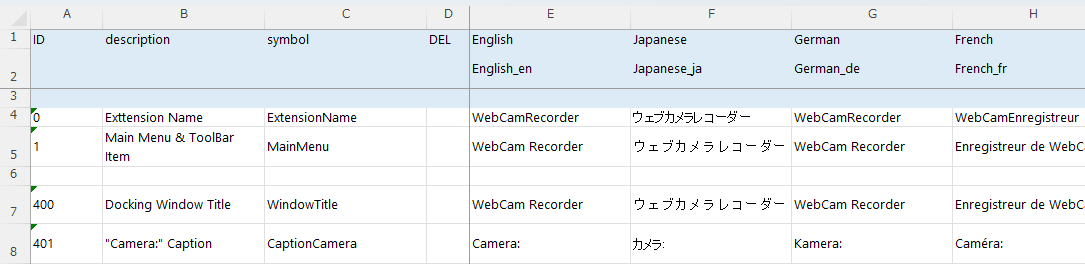
ID is the caption number. Assign numbers so that they are not duplicated in this file.
"description" is used for comments. Write the comment freely, as required.
"symbol" specifies the name used to reference the string in the extension source code (.xaml, .cs). When you edit the Captions.xlsx file and build the project, constant definitions that associate "symbol" with ID are generated as Captions.cs. Do not edit this file directly.
// <auto-generated>

namespace WebCamRecorder
{
    using System.Reflection;

    internal class Constants
    {
        internal class Caption
        {
            (code omitted)

            public const int ExtensionName = 0;
            public const int MainMenu = 1;
            public const int WindowTitle = 400;
            public const int CaptionCamera = 401;
        }
    }
}
In each column (English, Japanese, etc.), enter the string you want to display in that language.
- As described above, define the strings to be localized according to the RC+ display language in this file.
Build and debug the project.
- Connect a webcam to your PC, open the WebCamRecorder window and select a camera. If the image appears, the operation was successful.
■ Intermediate level
The beginner level does not use any Extensions APIs other than those used in the generated solution.
At the intermediate level, we will use the Extensions APIs that provide the following features.
- Acquire the pathname of the project folder for the open project (Project API).
- Acquire a list of SPEL+ tasks (Program Execution API).
By leveraging the rich .NET libraries and Windows APIs together with the necessary Extensions APIs, you can create and use your own applications as extensions that work closely with RC+ and SPEL+ programs.
Let's begin.
If RC+ is running, close it. Start Visual Studio, and open the solution you created at the beginner level.
Add Recorder.cs.
The Recorder class implements IFrameProcessor in the same way as the Previewer class. Recorder generates a video file in H.264 format from the image data passed from CameraManager.
A new video file named
Video_N.mp4(where N ranges from 000 to 999 and returns to 000 after reaching 999) is created approximately every 5 seconds in the folder specified in the Recorder instance. To prevent excessive use of PC storage, only the two most recent files are kept.- This extension deletes all videos in the folder when a new recording starts.
Also, to provide dashcam-like behavior, recording continues for two seconds after a stop instruction is issued. (This means that the last video saved will be a maximum of 7 seconds.)
In addition to the Auto mode, in which recording is synchronized with the start and end of the SPEL+ program, a Manual mode is also provided, allowing recording to be started and stopped at any time.
As the camera image preview does not need to be explicitly started (it starts when you select the camera), IFrameProcessor only provides a Stop method to instruct it to stop. Therefore, the Recorder is designed to have the above recording modes as a Mode property, and recording starts according to the Mode setting. Additionally, we'll generate a PropertyChanged event when the Mode changes, so that the program can detect when recording actually stops.
(previous code omitted)

namespace WebCamRecorder
{
    (code omitted)

    /// <summary>
    /// Recorder
    /// </summary>
    public class Recorder : IFrameProcessor, INotifyPropertyChanged
    {
        /// <summary>
        /// Recording mode definitions
        /// </summary>
        public enum RecordingMode
        {
            Stop,
            Auto,
            Manual,
        }

        /// <inheritdoc />
        public event PropertyChangedEventHandler? PropertyChanged;

        /// <summary>
        /// Recording mode
        /// </summary>
        public RecordingMode Mode
        {
            get
            {
                return _mode;
            }
            set
            {
                if (_sinkWriter == null)
                {
                    _shouldStop = false;

                    _mode = value;
                    RaisePropertyChanged();
                }
            }
        }

        /// <summary>
        /// Folder for video files
        /// </summary>
        public string VideoFolder
        {
            get
            {
                return _videoFolder;
            }
            set
            {
                if (_sinkWriter == null)
                {
                    try
                    {
                        Directory.CreateDirectory(value);
                        _videoFolder = value;
                    }
                    catch (Exception)
                    {
                        // EMPTY
                    }
                }
            }
        }

        (code omitted)

        /// <inheritdoc />
        public void Process(
            byte[] frame,
            long duration
        )
        {
            if (_sinkWriter == null)
            {
                if (_mode == RecordingMode.Stop)
                {
                    return;
                }

                _sinkWriter = CreateSinkWriter(GetNextSegmentFile());

                _recordTime = 0;
                _segmentSpan = _initialSegmentSpan;
            }

            if (_sinkWriter != null && _sample != null)
            {
                SetFlippedFrame(frame);

                _sample.SetSampleTime(_recordTime);
                _sample.SetSampleDuration(duration);

                _sinkWriter.WriteSample(_streamIndex, _sample);

                _recordTime += duration;
                if (_recordTime > _segmentSpan)
                {
                    _sinkWriter.Finalize();
                    Marshal.ReleaseComObject(_sinkWriter);
                    _sinkWriter = null;

                    if (_shouldStop)
                    {
                        Mode = RecordingMode.Stop;
                    }
                }
            }
        }

        /// <inheritdoc />
        public void Stop()
        {
            const long _minAdditionalTime = 20_000_000;

            if (_segmentSpan - _recordTime < _minAdditionalTime)
            {
                _segmentSpan = _recordTime + _minAdditionalTime;
            }

            _shouldStop = true;
        }

        (remaining code omitted)
Edit the DockingWindowContent.xaml file in the DockingWindow folder.
Add an indicator to the screen to show that recording is in progress, and a button to start and stop recording manually (Manual mode).
The following properties and commands will be added to the view model later.
- IsRecording(
ReactivePropertySlim<bool>): Indicates that recording is in progress. - CanStartRecording(
ReactivePropertySlim<bool>): Indicates that recording can be started, and StartRecordingCommand(ReactiveCommand): Issues a command to start recording. - CanStopRecording(
ReactivePropertySlim<bool>): Indicates that recording can be stopped, and StopRecordingCommand(ReactiveCommand): Issues a command to stop recording. - In this extension, manual recording cannot be started or stopped while recording is in progress in Auto mode. Conversely, recording in Auto mode is disabled while recording is in progress in Manual mode.
- In either case, closing the docking window will stop the recording.
(previous code omitted) </ComboBox> <Border CornerRadius="10" Width="60" Height="20" Margin="20,0,0,0" VerticalAlignment="Center"> <TextBlock Text="REC" HorizontalAlignment="Center" VerticalAlignment="Center"> <TextBlock.Style> <Style TargetType="TextBlock"> <Style.Triggers> <DataTrigger Binding="{Binding IsRecording.Value}" Value="True"> <Setter Property="Foreground" Value="White" /> </DataTrigger> <DataTrigger Binding="{Binding IsRecording.Value}" Value="False"> <Setter Property="Foreground" Value="Black" /> </DataTrigger> </Style.Triggers> </Style> </TextBlock.Style> </TextBlock> <Border.Style> <Style TargetType="Border"> <Style.Triggers> <DataTrigger Binding="{Binding IsRecording.Value}" Value="True"> <Setter Property="Background" Value="Red" /> </DataTrigger> <DataTrigger Binding="{Binding IsRecording.Value}" Value="False"> <Setter Property="Background" Value="LightGray" /> </DataTrigger> </Style.Triggers> </Style> </Border.Style> </Border> <Button Command="{Binding StartRecordingCommand}" IsEnabled="{Binding CanStartRecording.Value}" Content="{Binding Captions[LabelStart].Value}" Width="80" VerticalAlignment="Center" Margin="10,0,0,0" /> <Button Command="{Binding StopRecordingCommand}" IsEnabled="{Binding CanStopRecording.Value}" Content="{Binding Captions[LabelStop].Value}" Width="80" VerticalAlignment="Center" Margin="10,0,0,0" />- IsRecording(
Edit the DockingWindowContentViewModelAddition.cs file in the DockingWindow folder.
Add the properties and commands that were bound in the view (.xaml).
Also add an instance of the Recorder class to the CameraManager.
Pay attention to the WindowCreated method. Here, we use the Project API of the Extensions API to acquire the project folder (pathname) of the open project.
- Acquire the API object using the Main.GetAPI method.
- The ProjectFolder property of the Project API object is the pathname of the project folder for the open project. If no project is open, the property is null.
- If no project is open, use the "Videos" folder for the logged in Windows user instead of the project folder.
- The Recorder is configured to create a subfolder named WebCamRecorder in the project folder or in the logged-in user's "Videos" folder and to save the recording files there.
(previous code omitted)
/// <summary>
/// Recording in progress or not
/// </summary>
public ReactivePropertySlim<bool> IsRecording { get; } = new(false);

/// <summary>
/// Can start recording or not
/// </summary>
public ReactivePropertySlim<bool> CanStartRecording { get; } = new(false);

/// <summary>
/// Start recording command
/// </summary>
public ReactiveCommand StartRecordingCommand { get; }

/// <summary>
/// Can stop recording or not
/// </summary>
public ReactivePropertySlim<bool> CanStopRecording { get; } = new(false);

/// <summary>
/// Stop recording command
/// </summary>
public ReactiveCommand StopRecordingCommand { get; }

(code omitted)

/// <summary>
/// Recorder
/// </summary>
private readonly Recorder _recorder = new();

(code omitted)

/// <summary>
/// Change camera
/// </summary>
/// <param name="index">The index of the selected camera</param>
/// <returns>Task</returns>
private async Task OnSelectedCameraChanged(
    int index
)
{
    EnableOrDisableRecordingCommands();

    _cameraManager.Stop();

    if (index >= 0)
    {
        await _cameraManager.Start(Cameras[index]);
    }
}

(code omitted)

/// <summary>
/// Update recording command possibilities
/// </summary>
private void EnableOrDisableRecordingCommands()
{
    CanStartRecording.Value = (SelectedCameraIndex.Value >= 0 && _recorder.Mode == Recorder.RecordingMode.Stop);
    CanStopRecording.Value = (_recorder.Mode == Recorder.RecordingMode.Manual);
}
/// <summary>
/// Start recording
/// </summary>
private void OnStartRecording(
    bool isAuto
)
{
    if (_recorder.Mode == Recorder.RecordingMode.Stop)
    {
        try
        {
            var files = Directory.EnumerateFiles(
                _recorder.VideoFolder,
                $"*{Recorder.VideoFileExtension}"
            );
            foreach (var file in files)
            {
                File.Delete(file);
            }
        }
        catch (Exception)
        {
            // IGNORE
        }
        _recorder.Mode = isAuto ? Recorder.RecordingMode.Auto : Recorder.RecordingMode.Manual;

        EnableOrDisableRecordingCommands();
    }
}

/// <summary>
/// Stop recording
/// </summary>
private void OnStopRecording()
{
    _recorder.Stop();

    CanStopRecording.Value = false;
}

/// <summary>
/// Constructor
/// </summary>
public DockingWindowContentViewModel()
{
    _cameraManager.FrameProcessors.Add(_previewer);
    _cameraManager.FrameProcessors.Add(_recorder);

    (code omitted)

    _recorder.PropertyChanged += (_, _) =>
    {
        IsRecording.Value = (_recorder.Mode != Recorder.RecordingMode.Stop);
        EnableOrDisableRecordingCommands();
    };

    (code omitted)

}

/// <inheritdoc />
public Task WindowCreated()
{
    string videoFolder;

    var projectAPI = Main.GetAPI<IRCXProjectAPI>();
    if (projectAPI != null && projectAPI.ProjectFolder != null)
    {
        videoFolder = projectAPI.ProjectFolder;
    }
    else
    {
        videoFolder = Environment.GetFolderPath(Environment.SpecialFolder.MyVideos);
    }
    _recorder.VideoFolder = Path.Combine(videoFolder, "WebCamRecorder");

    (remaining code omitted)
Build and debug the project.
- Open the docking window, select the camera, and try starting and stopping recording.
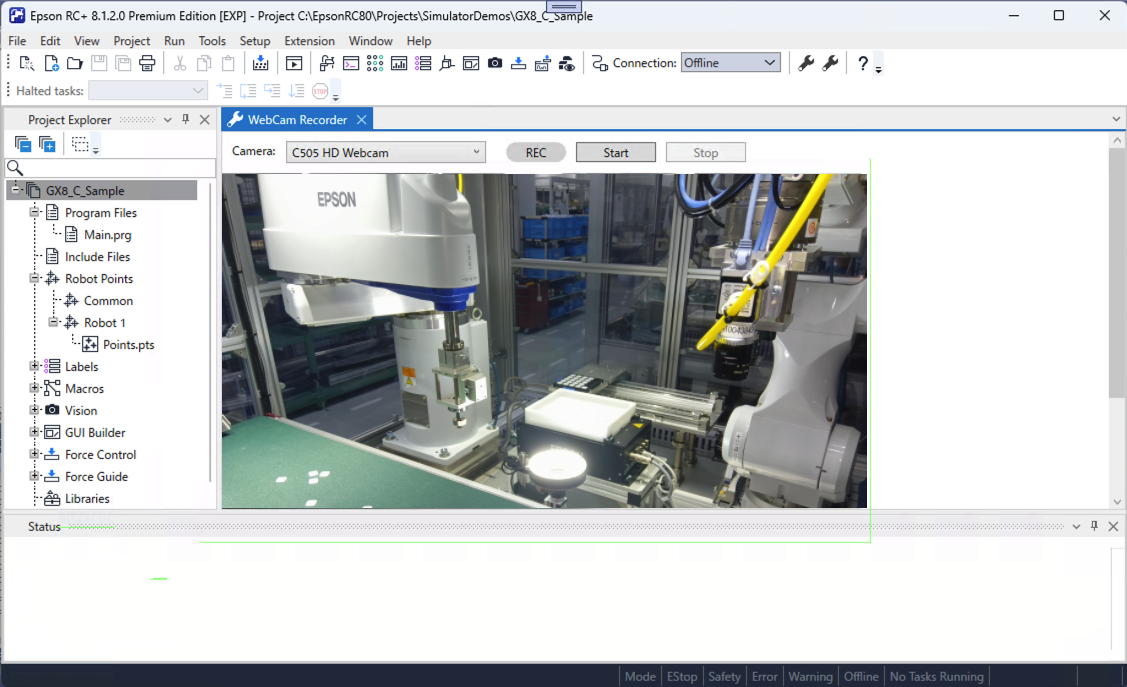
- If the video file is saved in the specified folder* and can be played back, the operation is successful.
- "WebCamRecorder" folder in the project folder if a project is open.
"Videos" folder for the logged in Windows user if no project is open.
- "WebCamRecorder" folder in the project folder if a project is open.
Edit the DockingWindowContentViewModelAddition.cs file in the DockingWindow folder.
Add the image recording function in Auto mode. For this, the extension needs to know when the SPEL+ program execution starts and ends.
- The SPEL+ program is multitasking. In this extension, the start and end of a SPEL+ program are treated as the start and end of a normal task.
- The list of tasks can be acquired with the Tasks property of the Program Execution API object.
- Tasks is an
IEnumerable<IRCXTask>collection. An IRCXTask instance has State and Kind properties that indicate the task state and task type, respectively. - Any change to the tasks in SPEL+ generate a PropertyChanged event for the Tasks property.
- Tasks is an
Add the following code to the WindowCreated method to monitor whether a normal task is running and update _isProgramRunning in
ReactivePropertySlim<bool>.(previous code omitted) /// <summary> /// Program execution API object /// </summary> private IRCXProgramExecutionAPI? _programExecutionAPI; /// <summary> /// Program running state /// </summary> private readonly ReactivePropertySlim<bool> _isProgramRunning = new(false, ReactivePropertyMode.DistinctUntilChanged); (code omitted) /// <inheritdoc /> public Task WindowCreated() { (code omitted) _programExecutionAPI = Main.GetAPI<IRCXProgramExecutionAPI>(); _programExecutionAPI?.ObserveProperty(x => x.Tasks).Subscribe((tasks) => { _isProgramRunning.Value = tasks .Any( x => ( x.Kind == IRCXProgramExecutionAPI.IRCXTask.RCXTaskKind.Normal && x.State == IRCXProgramExecutionAPI.IRCXTask.RCXTaskState.Run ) ); }) .AddTo(_disposables); (remaining code omitted)Additionally, add code to the constructor that detects changes to the _isProgramRunning property updated as mentioned above and calls the methods to start or stop recording accordingly.
(previous code omitted)

/// <summary>
/// Constructor
/// </summary>
public DockingWindowContentViewModel()
{

(code omitted)
    _isProgramRunning.Subscribe((isRunning) =>
    {
        if (SelectedCameraIndex.Value >= 0)
        {
            if (isRunning)
            {
                OnStartRecording(isAuto: true);
            }
            else
            {
                OnStopRecording();
            }

            EnableOrDisableRecordingCommands();
        }
    })
    .AddTo(_disposables);
}

(remaining code omitted)
Build and debug the project.
- Open the extension window, select a camera, and check the displayed preview image.
- Open the Run window and run the program.
- If recording starts when the program starts, stops approximately 2 seconds after it ends, and the video file is saved in the designated folder, the operation is successful.
← Tutorial Simple jog →