Simple jog
RC+ includes a full-featured "Jog & Teach" that can be invoked from the Robot Manager and other components. By creating an extension, you can implement a custom jog panel (window) that provides access only to the required Jog & Teach functions.
Depending on the usage scenario, creating a custom jog panel may improve teaching efficiency.
In addition to custom jog panels, customizing RC+ through RC+ Extensions allows you to create your own tailored RC+ environment and work more comfortably.
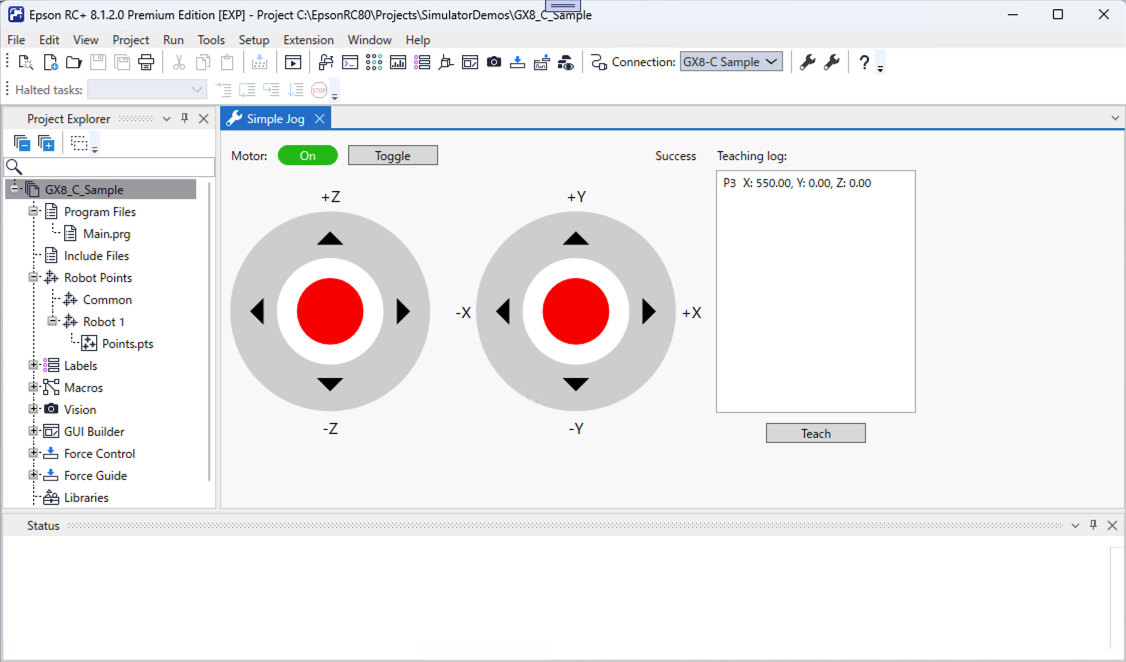
The beginner level of this tutorial explains how to create the following simple jog panel and how to call the functions.
- Click the motor "Toggle" button to turn the motor on or off.
- The panel has two gamepad-style stick controls on the left and right sides that can be moved by dragging the mouse.
- Moving the left stick up or down jogs along the Z coordinates.
- Moving the right stick up or down jogs along the Y coordinates. Moving it left or right jogs along the X coordinates.
- When you click the "Teach" button, the robot's current position and posture are sequentially taught to undefined points in the selected point file.
- For each point, a comment is added indicating that it was taught using this extension and the date and time of teaching.
- The panel displays a log showing the points that have been taught.
At the intermediate level, enable robot operation using a gamepad when one is actually connected.
- Assign motor "toggle" to the left bumper button (also referred to as the shoulder button).
- Allow the left and right stick-like controls to operate the robot with an actual stick.
- Assign "Teach" to the A button.
NOTE
If you try this extension on an actual robot, ensure that appropriate safety measures are taken in the system design, and always operate it from outside the safety fence.
Let's begin.
■ Beginner level
Follow the procedure in [Getting Started] to create a new RC+ Extensions project.
- Set the name to SimpleJog.
- Select the Main menu and tool bar item and Docking window initial features.
- For ARM64 versions of Windows, change the configuration to x64.
Build and debug the project in Visual Studio to make sure it works.
- The menu item
SimpleJog (xx)(where xx is the display language) is added to the Extension tab on the RC+ main menu. The project is OK if the docking window appears when you select this menu item.
- The menu item
Since the template has been verified, exit RC+ for now.
Add the following files to the DockingWindow folder.
Stick.xaml
- This file defines a user control that implements a "stick"-like appearance.
- When the control is enabled, the central "knob" part turns red and can be moved by dragging it with the mouse.
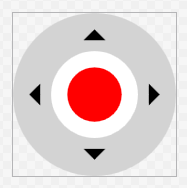
<UserControl x:Class="SimpleJog.DockingWindow.Stick" xmlns="http://schemas.microsoft.com/winfx/2006/xaml/presentation" xmlns:x="http://schemas.microsoft.com/winfx/2006/xaml" xmlns:mc="http://schemas.openxmlformats.org/markup-compatibility/2006" xmlns:d="http://schemas.microsoft.com/expression/blend/2008" xmlns:i="http://schemas.microsoft.com/xaml/behaviors" xmlns:local="clr-namespace:SimpleJog.DockingWindow" mc:Ignorable="d" d:DesignHeight="300" d:DesignWidth="300"> <Canvas Width="300" Height="300"> (code omitted) </Canvas> </UserControl>- This file defines a user control that implements a "stick"-like appearance.
Stick.xaml.cs
- This is the code-behind file with code added to move the "knob" of the Stick control with the mouse.
(previous code omitted)

namespace SimpleJog.DockingWindow
{
    (code omitted)

    /// <summary>
    /// Stick.xaml interaction logic
    /// </summary>
    public partial class Stick : UserControl
    {
        (code omitted)

        /// <summary>
        /// Constructor
        /// </summary>
        public Stick()
        {
            InitializeComponent();

            Knob.Loaded += (_, _) =>
            {
                _radius = Math.Min(KnobRange.RenderSize.Width, KnobRange.Height) / 2.0 * _limitFactor;
                _deadZone = _radius * _deadZoneFactor;
                _center = new Point(KnobRange.RenderSize.Width / 2.0, KnobRange.RenderSize.Height / 2.0);
            };

            Knob.MouseLeftButtonDown += (_, ev) =>
            {
                Knob.CaptureMouse();

                _dragging = true;

                _offset = ev.GetPosition(KnobRange) - _center;
                _smoothed = new Vector();
            };

            (code omitted)
        }

        /// <summary>
        /// Update knob position
        /// </summary>
        /// <param name="mousePosInRange">Relative mouse position in knob range</param>
        private void UpdateKnobPosition(
            Point mousePosInRange
        )
        {
            var x = mousePosInRange.X - _center.X;
            var y = mousePosInRange.Y - _center.Y;

            var distanceFromCenter = Math.Sqrt(x * x + y * y);
            if (distanceFromCenter < _deadZone)
            {
                Position = _smoothed = new Vector();
            }
            else if (distanceFromCenter < _radius)
            {
                _smoothed = new Vector(
                    _smoothed.X * (1 - _smoothingFactor) + (x / _radius) * _smoothingFactor,
                    _smoothed.Y * (1 - _smoothingFactor) + (y / _radius) * _smoothingFactor
                );
                Position = new Vector(_smoothed.X, -_smoothed.Y);
            }
        }
    }
}
StickProperties.cs
- This file adds a Vector-type Position property that indicates the "knob" position on the Stick control.
- Each element of the Vector (X and Y) is normalized to take values between -1.0 and +1.0.
(previous code omitted) namespace SimpleJog.DockingWindow { using System.Windows; /// <summary> /// Stick.xaml dependency properties /// </summary> public partial class Stick { /// <summary> /// Normalized position /// </summary> public Vector Position { get => (Vector)GetValue(PositionProperty); set => SetValue(PositionProperty, value); } /// <summary> /// Field of the "Position" /// </summary> public static readonly DependencyProperty PositionProperty = DependencyProperty.Register( nameof(Position), typeof(Vector), typeof(Stick), new FrameworkPropertyMetadata( default(Vector), (FrameworkPropertyMetadataOptions.BindsTwoWayByDefault | FrameworkPropertyMetadataOptions.AffectsRender), OnPositionChanged, CoercePositionNormalized ) ); /// <summary> /// Position changed event handler /// </summary> /// <param name="d">The object</param> /// <param name="ev">The event</param> private static void OnPositionChanged( DependencyObject d, DependencyPropertyChangedEventArgs ev ) { if (d is Stick stick) { stick.UpdateRawPosition(); } } /// <summary> /// Coerce value of the "Position" /// </summary> /// <param name="d">The object</param> /// <param name="value">The value</param> /// <returns>Corrected value</returns> private static object CoercePositionNormalized( DependencyObject d, object value ) { var vector = (Vector)value; vector.X = Math.Clamp(vector.X, -1.0, 1.0); vector.Y = Math.Clamp(vector.Y, -1.0, 1.0); return vector; } /// <summary> /// Field key of the "RawPosition" /// </summary> private static readonly DependencyPropertyKey RawPositionPropertyKey = DependencyProperty.RegisterReadOnly( nameof(RawPosition), typeof(Vector), typeof(Stick), new PropertyMetadata(default(Vector)) ); /// <summary> /// Field of the "RawPosition" /// </summary> public static readonly DependencyProperty RawPositionProperty = RawPositionPropertyKey.DependencyProperty; /// <summary> /// Raw (pixel) position /// </summary> public Vector RawPosition => (Vector)GetValue(RawPositionProperty); /// <summary> /// Set raw position /// </summary> private void UpdateRawPosition() { var rawPosition = new Vector(Position.X * _radius, -(Position.Y * _radius)); SetValue(RawPositionPropertyKey, rawPosition); } } }- This file adds a Vector-type Position property that indicates the "knob" position on the Stick control.
Now build the program so you can see the Stick in the .xaml design view.
Edit the DockingWindowContent.xaml file in the DockingWindow folder.
- Delete the original DockPanel.
- Instead, create a 3x3 Grid and place the following in each cell. Hereafter, using zero-based indexing, the cell at row R and column C is denoted as (R, C).
- For the third row and third column, set Height and Width to "*". These are margins, so the Grid is effectively 2×2.
- (0, 0): Place the DockPanel and enter a Label "Motor:," Border, Button, and TextBlock inside it.
- Border is an indicator showing the motor status, referencing IsMotorOn(
ReactivePropertySlim<bool>) and MotorState(ReactivePropertySlim<string>). When the motor is on, ON is displayed in white on a green background. When the motor is off, OFF is displayed in black on a light gray background. - Button turns the motor on and off.
- Content is bound to Captions[LabelToggle].Value.
- Command is bound to MotorToggleCommand(ReactiveCommand).
- IsEnabled is bound to IsOnline.Value. IsOnline(
ReactivePropertySlim<bool>) is a flag that is True when a connection has been established with the robot controller.
- The Text in the TextBlock is bound to APIResult.Value. APIResult(
ReactivePropertySlim<string>) is for debugging this extension. It is a string representation of the call status (RCXResult type) of the invoked Extensions API. Some APIs return information other than the status. To display the additional information in this case, provide APIResultAux(ReactivePropertySlim<string>) and bind APIResultAux.Value to the ToolTip.
- Border is an indicator showing the motor status, referencing IsMotorOn(
- (1. 0): Place a 3×4 Grid, and add six Labels indicating the coordinate directions and two Sticks inside it.
- Sticks are wrapped in a Viewbox to allow it to be resized.
- IsEnabled is bound to IsMotorOn.Value.
- Position is bound to LeftStickPosition.Value for the left Stick. LeftStickPosition(
ReactivePropertySlim<Vector>) is the "knob" position of the left Stick. The same applies to the right Stick.
- Sticks are wrapped in a Viewbox to allow it to be resized.
- (0, 1): Place a Label. Content is bound to Captions[CaptionLogHeader].Value.
- (1, 1): Place the DockPanel and enter a Button and ListBox inside it.
- Button is for teaching.
- Content is bound to Captions[LabelTeach].Value.
- Command is bound to TeachCommand(ReactiveCommand).
- IsEnabled is bound to CanTeach.Value. CanTeach(
ReactivePropertySlim<bool>) is a flag that indicates whether teaching is possible.
- ListBox is a log that records information about the taught points.
- ItemsSource is bound to LogItems(
ReactiveCollection<LogItem>). LogItem will be created later. - Set AutoScrollBehavior to display the latest log information, which is appended to the end. AutoScrollBehavior will also be created later.
- ItemsSource is bound to LogItems(
- Button is for teaching.
<UserControl x:Class="SimpleJog.DockingWindow.DockingWindowContent"
            xmlns="http://schemas.microsoft.com/winfx/2006/xaml/presentation"
            xmlns:x="http://schemas.microsoft.com/winfx/2006/xaml"
            xmlns:mc="http://schemas.openxmlformats.org/markup-compatibility/2006"
            xmlns:d="http://schemas.microsoft.com/expression/blend/2008"
            xmlns:i="http://schemas.microsoft.com/xaml/behaviors"
            xmlns:local="clr-namespace:SimpleJog.DockingWindow"
            mc:Ignorable="d"
            d:DesignHeight="450" d:DesignWidth="800">

    <UserControl.DataContext>
        <local:DockingWindowContentViewModel />
    </UserControl.DataContext>

    <Grid
        Margin="10">

        <Grid.RowDefinitions>
            <RowDefinition Height="30" />
            <RowDefinition Height="Auto" />
            <RowDefinition Height="*" />
        </Grid.RowDefinitions>

        <Grid.ColumnDefinitions>
            <ColumnDefinition Width="Auto" />
            <ColumnDefinition Width="Auto" />
            <ColumnDefinition Width="*" />
        </Grid.ColumnDefinitions>

        <DockPanel
            Grid.Row="0" Grid.Column="0"
            LastChildFill="True">

            <Label
                Content="Motor:"
                VerticalAlignment="Center" />

            <Border
                CornerRadius="10"
                Width="60"
                Height="20"
                Margin="10,0,0,0"
                VerticalAlignment="Center">
                <TextBlock
                    Text="{Binding MotorState.Value}"
                    HorizontalAlignment="Center"
                    VerticalAlignment="Center">
                    <TextBlock.Style>
                        <Style
                            TargetType="TextBlock">
                            <Style.Triggers>
                                <DataTrigger
                                    Binding="{Binding IsMotorOn.Value}"
                                    Value="True">
                                    <Setter
                                        Property="Foreground"
                                        Value="White" />
                                </DataTrigger>
                                <DataTrigger
                                    Binding="{Binding IsMotorOn.Value}"
                                    Value="False">
                                    <Setter
                                        Property="Foreground"
                                        Value="Black" />
                                </DataTrigger>
                        </Style.Triggers>
                        </Style>
                    </TextBlock.Style>
                </TextBlock>
                <Border.Style>
                    <Style
                        TargetType="Border">
                        <Style.Triggers>
                            <DataTrigger
                                Binding="{Binding IsMotorOn.Value}"
                                Value="True">
                                <Setter
                                    Property="Background"
                                    Value="#00bb00" />
                            </DataTrigger>
                            <DataTrigger
                                Binding="{Binding IsMotorOn.Value}"
                                Value="False">
                                <Setter
                                    Property="Background"
                                    Value="LightGray" />
                            </DataTrigger>
                        </Style.Triggers>
                    </Style>
                </Border.Style>
            </Border>

            <Button
                Command="{Binding MotorToggleCommand}"
                IsEnabled="{Binding IsOnline.Value}"
                Content="{Binding Captions[LabelToggle].Value}"
                Width="90"
                Margin="10,0,0,0"
                VerticalAlignment="Center" />

            <TextBlock
                Text="{Binding APIResult.Value}"
                ToolTip="{Binding APIResultAux.Value}"
                TextAlignment="Right"
                VerticalAlignment="Center"
                Margin="10,0,20,0" />

        </DockPanel>

        <Grid
            Grid.Row="1" Grid.Column="0"
            Margin="0,10,0,0">

            <Grid.Resources>
                <Style
                    TargetType="Label">
                    <Setter
                        Property="FontSize"
                        Value="16" />
                </Style>
            </Grid.Resources>

            <Grid.RowDefinitions>
                <RowDefinition Height="Auto" />
                <RowDefinition Height="Auto" />
                <RowDefinition Height="Auto" />
            </Grid.RowDefinitions>

            <Grid.ColumnDefinitions>
                <ColumnDefinition Width="Auto" />
                <ColumnDefinition Width="Auto" />
                <ColumnDefinition Width="Auto" />
                <ColumnDefinition Width="Auto" />
            </Grid.ColumnDefinitions>

            <Label
                Grid.Row="0" Grid.Column="0"
                Content="+Z"
                HorizontalAlignment="Center" />
            <Label
                Grid.Row="2" Grid.Column="0"
                Content="-Z"
                HorizontalAlignment="Center" />
            <Viewbox
                Grid.Row="1" Grid.Column="0"
                Width="200">
                <local:Stick
                    IsEnabled="{Binding IsMotorOn.Value}"
                    Position="{Binding InputService.LeftStickPosition.Value}" />
            </Viewbox>

            <Label
                Grid.Row="1" Grid.Column="1"
                Content="-X"
                Margin="20,0,0,0"
                VerticalAlignment="Center" />
            <Label
                Grid.Row="1" Grid.Column="3"
                Content="+X"
                Margin="0,0,10,0"
                VerticalAlignment="Center" />
            <Label
                Grid.Row="0" Grid.Column="2"
                Content="+Y"
                HorizontalAlignment="Center" />
            <Label
                Grid.Row="2" Grid.Column="2"
                Content="-Y"
                HorizontalAlignment="Center" />
            <Viewbox
                Grid.Row="1" Grid.Column="2"
                Width="200">
                <local:Stick
                    IsEnabled="{Binding IsMotorOn.Value}"
                    Position="{Binding InputService.RightStickPosition.Value}" />
            </Viewbox>

        </Grid>

        <Label
            Grid.Row="0" Grid.Column="1"
            Content="{Binding Captions[CaptionLogHeader].Value}"
            VerticalAlignment="Center" />

        <DockPanel
            Grid.Row="1" Grid.Column="1"
            LastChildFill="True">

            <Button
                DockPanel.Dock="Bottom"
                Command="{Binding TeachCommand}"
                IsEnabled="{Binding CanTeach.Value}"
                Content="{Binding Captions[LabelTeach].Value}"
                Width="100"
                Margin="0,10,0,0"
                HorizontalAlignment="Center" />

            <ListBox
                x:Name="TeachingLog"
                ItemsSource="{Binding LogItems}"
                Width="200">
                <i:Interaction.Behaviors>
                    <local:AutoScrollBehavior />
                </i:Interaction.Behaviors>
            </ListBox>

        </DockPanel>

    </Grid>

</UserControl>
Create the LogItem.cs file in the DockingWindow folder.
In this extension, the teaching log will display the point number and the X, Y, and Z values in the world coordinate system.
(previous code omitted)

namespace SimpleJog.DockingWindow
{
    using static Epson.RoboticsShared.ExtensionsAPI.IRCXRobotManagerAPI;

    /// <summary>
    /// Teaching log list box item
    /// </summary>
    public class LogItem
    {
        /// <summary>
        /// Point number
        /// </summary>
        public int PointNumber { get; }

        /// <summary>
        /// Point position
        /// </summary>
        public IDictionary<RCXJogCartesianAxis, double>? WorldPosition { get; }

        /// <inheritdoc />
        public override string ToString()
        {
            if (WorldPosition == null)
            {
                return $"P{PointNumber}";
            }
            else
            {
                var x = WorldPosition[RCXJogCartesianAxis.X];
                var y = WorldPosition[RCXJogCartesianAxis.Y];
                var z = WorldPosition[RCXJogCartesianAxis.Z];

                return $"P{PointNumber}  X: {x:f2}, Y: {y:f2}, Z: {z:f2}";
            }
        }

        (remaining code omitted)
Create the AutoScrollBehavior.cs file in the DockingWindow folder.
- Details are omitted here as it is purely WPF related.
Edit the DockingWindowContentViewModelAddition.cs file in the DockingWindow folder.
Add the properties and commands that were bound in the .xaml file.
To check whether or not a connection is established with the robot controller, refer to the IsOnline property of the Controller Connection API. IsOnline is true if the connection is established, false if the connection is cut, or null otherwise (in an intermediate state such as attempting to establish a connection). A PropertyChanged event is generated if the connection state changes.
- ObserveProperty(x => x.PropName).Subscribe(...) is the classic way to observe property changes of any API object that has a property named PropName. This extension also makes use of it.
To determine the motor state, refer to the IsMotorOn property of the Controller API. IsMotorOn may be null because the controller is in an error state, for example. A PropertyChanged event is generated if the motor state changes.
Use the Jogger object for jogging operation. Acquire a Robot Manager API object and call the CreateJoggerAsync method to acquire the Jogger object. The Jogger object has an IsValid flag. This feature can be used only if this flag is true. Be sure to check this flag when calling methods of the Jogger object. If the Jogger object becomes disabled due to a controller disconnection or other reason, create the Jogger object again.
- Jog-related parameters (jog movement distance, speed, etc.) are shared across the entire RC+ system. Changes made in "Jog & Teach" of the RC+ main system generally also apply to SimpleJog. Parameter changes are not implemented in SimpleJog in this version. If necessary, use "Jog & Teach" in RC+ together with SimpleJog.
- Another possible extension would be to set the jog movement distance according to the stick position (small movements result in a short distance, large movements result in a long distance, etc.).
- When using a gamepad, you can operate both the left and right sticks simultaneously. The current API does not support jogging in multiple directions. Therefore, this extension employs a round-robin algorithm that starts the timer when the Jogger object is created and sequentially performs jogging in each axis direction based on the stick position obtained at the timer cycle. Since executing multiple jog tasks simultaneously is prohibited, an error occurs if the new jog task is started while the jog task initiated in the previous cycle is not complete.
- It is also possible to implement this by canceling an ongoing jog operation and starting a new one.
- Jog-related parameters (jog movement distance, speed, etc.) are shared across the entire RC+ system. Changes made in "Jog & Teach" of the RC+ main system generally also apply to SimpleJog. Parameter changes are not implemented in SimpleJog in this version. If necessary, use "Jog & Teach" in RC+ together with SimpleJog.
Point files can be obtained from the PointFileDescriptors property of the Point API object. Since this extension is used to teach the current robot's position and posture, if multiple robots are connected to the controller, the teaching must be associated with the current robot or with a common point file.
- This extension teaches data to the current robot's default point file or, if that is unavailable, to one of the common point files. If no target point file is found, set CanTeach.Value to false to disable the teach button and command.
- The robot number of the current robot is obtained from the CurrentRobotNumber property of the Robot Manager API. If the current robot is switched, a PropertyChanged event is generated for this property, and the target point file is reselected at that time.
(previous code omitted)

namespace SimpleJog.DockingWindow
{
    (code omitted)

    /// <summary>
    /// Extension : Docking Window (Specific Part)
    /// </summary>
    internal partial class DockingWindowContentViewModel
    {
        /// <summary>
        /// The controller is online or not
        /// </summary>
        public ReactivePropertySlim<bool> IsOnline { get; } = new(false);

        /// <summary>
        /// Motors are powered or not
        /// </summary>
        public ReactivePropertySlim<bool> IsMotorOn { get; } = new(false);

        /// <summary>
        /// Motor state expression
        /// </summary>
        public ReactivePropertySlim<string> MotorState { get; } = new("Off");

        /// <summary>
        /// Toggle motor state command
        /// </summary>
        public AsyncReactiveCommand MotorToggleCommand { get; }

        /// <summary>
        /// TeachCommand feasibility
        /// </summary>
        public ReactivePropertySlim<bool> CanTeach { get; } = new(false);

        /// <summary>
        /// Teach command
        /// </summary>
        public AsyncReactiveCommand TeachCommand { get; }

        /// <summary>
        /// Teached points information for log
        /// </summary>
        public ReactiveCollection<LogItem> LogItems { get; } = [];

        /// <summary>
        /// API result expression
        /// </summary>
        public ReactivePropertySlim<string> APIResult { get; } = new();

        /// <summary>
        /// Auxiliary information for API result (Error message etc.)
        /// </summary>
        public ReactivePropertySlim<string> APIResultAux { get; } = new();

        /// <summary>
        /// Controller connection API object
        /// </summary>
        private IRCXControllerConnectionAPI? _connectionAPI;

        /// <summary>
        /// Controller API object
        /// </summary>
        private IRCXControllerAPI? _controllerAPI;

        /// <summary>
        /// Robot manager API object
        /// </summary>
        private IRCXRobotManagerAPI? _robotManagerAPI;

        /// <summary>
        /// Point API object
        /// </summary>
        private IRCXPointAPI? _pointAPI;

        /// <summary>
        /// Jogger object
        /// </summary>
        private IRCXRobotManagerAPI.IRCXJogger? _jogger;

        /// <summary>
        /// Polling timer
        /// </summary>
        private PeriodicTimer? _pollingTimer;

        /// <summary>
        /// Polling task
        /// </summary>
        private Task? _pollingTask;

        /// <summary>
        /// Next axis to jog
        /// </summary>
        private IRCXRobotManagerAPI.RCXJogCartesianAxis _targetAxis = IRCXRobotManagerAPI.RCXJogCartesianAxis.Z;

        /// <summary>
        /// Polling interval
        /// </summary>
        private const long _pollingMSec = 10;

        /// <summary>
        /// Target point file for teaching
        /// </summary>
        private string? _targetPointFile;

        /// <summary>
        /// Toggles the motor state
        /// </summary>
        /// <returns>Task</returns>
        private async Task OnMotorToggleAsync()
        {
            if (_controllerAPI != null)
            {
                if (_controllerAPI.IsMotorOn == true)
                {
                    var result = await _controllerAPI.MotorOffAsync();
                    APIResult.Value = result.ToString();
                    APIResultAux.Value = string.Empty;
                }
                else if (_controllerAPI.IsMotorOn == false)
                {
                    var result = await _controllerAPI.MotorOnAsync();
                    APIResult.Value = result.ToString();
                    APIResultAux.Value = string.Empty;
                }
            }
        }

        /// <summary>
        /// Jog along specified axis
        /// </summary>
        /// <param name="axis">Axis</param>
        /// <param name="position">Stick position</param>
        /// <returns>Task</returns>
        private async Task Jog(
            IRCXRobotManagerAPI.RCXJogCartesianAxis axis,
            double position
        )
        {
            if (_jogger != null && _jogger.IsValid)
            {
                var oppositeDirection = (position > 0);
                var (result, message) = await _jogger.StartCartesianJogAsync(axis, oppositeDirection);
                APIResult.Value = result.ToString() + (string.IsNullOrEmpty(message) ? string.Empty : " *");
                APIResultAux.Value = message;
            }
        }

        /// <summary>
        /// Check the stick positions and jog
        /// </summary>
        /// <returns>Task</returns>
        private async Task CheckStickPosition()
        {
            switch (_targetAxis)
            {
                case IRCXRobotManagerAPI.RCXJogCartesianAxis.X:
                    if (Math.Abs(RightStickPosition.Value.X) >= _positionThreshold)
                    {
                        await Jog(_targetAxis, RightStickPosition.Value.X);
                    }
                    _targetAxis = IRCXRobotManagerAPI.RCXJogCartesianAxis.Y;
                    break;

                case IRCXRobotManagerAPI.RCXJogCartesianAxis.Y:
                    if (Math.Abs(RightStickPosition.Value.Y) >= _positionThreshold)
                    {
                        await Jog(_targetAxis, RightStickPosition.Value.Y);
                    }
                    _targetAxis = IRCXRobotManagerAPI.RCXJogCartesianAxis.Z;
                    break;

                case IRCXRobotManagerAPI.RCXJogCartesianAxis.Z:
                    if (Math.Abs(LeftStickPosition.Value.Y) >= _positionThreshold)
                    {
                        await Jog(_targetAxis, LeftStickPosition.Value.Y);
                    }
                    _targetAxis = IRCXRobotManagerAPI.RCXJogCartesianAxis.X;
                    break;
            }
        }

        /// <summary>
        /// Set target point file
        /// </summary>
        /// <param name="robotNumber">Robot number</param>
        private void SetTargetPointFile(
            int? robotNumber
        )
        {
            _targetPointFile = null;

            if (_pointAPI != null)
            {
                var descriptors = _pointAPI.PointFileDescriptors;

                _targetPointFile = descriptors
                    .Where(x => x.RobotNumber == robotNumber && x.IsDefault)
                    .Select(x => x.FileName)
                    .FirstOrDefault();

                if (_targetPointFile == null)
                {
                    _targetPointFile = descriptors
                        .Where(x => x.RobotNumber == null)
                        .Select(x => x.FileName)
                        .FirstOrDefault();
                }
            }

            CanTeach.Value = (IsOnline.Value && !string.IsNullOrEmpty(_targetPointFile));
        }

        /// <summary>
        /// Teach point
        /// </summary>
        /// <returns>Task</returns>
        private Task OnTeachAsync()
        {
            if (_pointAPI != null && _targetPointFile != null)
            {
                var (result, points) = _pointAPI.GetPoints(_targetPointFile);
                if (result == RCXResult.Success && points != null)
                {
                    var pointNumbers = points.Select(x => (int)x["Number"].Value).ToHashSet();
                    var pointNumberRange = Enumerable.Range(
                        _pointAPI.PointNumberMin,
                        _pointAPI.PointNumberMax - _pointAPI.PointNumberMin + 1
                    );
                    foreach (var number in pointNumberRange)
                    {
                        if (!pointNumbers.Contains(number))
                        {
                            var stamp = DateTime.Now.ToString("yyyy-MM-dd HH:mm:ss");

                            var teachResult = _pointAPI.TeachPoint(
                                _targetPointFile,
                                number,
                                description: $"SimpleJog: {stamp}",
                                shouldSave: true
                            );
                            APIResult.Value = teachResult.ToString();
                            APIResultAux.Value = string.Empty;

                            if (teachResult == RCXResult.Success)
                            {
                                LogItems.Add(new(number, _robotManagerAPI?.WorldPosition));
                            }
                            break;
                        }
                    }
                }
            }

            return Task.CompletedTask;
        }

        /// <summary>
        /// Constructor
        /// </summary>
        public DockingWindowContentViewModel()
        {
            MotorToggleCommand = IsOnline
            .ToAsyncReactiveCommand()
            .WithSubscribe(OnMotorToggleAsync)
            .AddTo(_disposables);

            TeachCommand = CanTeach
            .ToAsyncReactiveCommand()
            .WithSubscribe(OnTeachAsync)
            .AddTo(_disposables);
        }

        /// <inheritdoc />
        public Task WindowCreated()
        {
            _connectionAPI = Main.GetAPI<IRCXControllerConnectionAPI>();

            _connectionAPI?.ObserveProperty(x => x.IsOnline).Subscribe((isOnline) =>
            {
                IsOnline.Value = (isOnline == true);

                CanTeach.Value = (IsOnline.Value && !string.IsNullOrWhiteSpace(_targetPointFile));
            })
            .AddTo(_disposables);

            _controllerAPI = Main.GetAPI<IRCXControllerAPI>();
            _robotManagerAPI = Main.GetAPI<IRCXRobotManagerAPI>();
            _pointAPI = Main.GetAPI<IRCXPointAPI>();

            _controllerAPI?.ObserveProperty(x => x.IsMotorOn).Subscribe(async (isMotorOn) =>
            {
                IsMotorOn.Value = (isMotorOn == true);
                MotorState.Value = (isMotorOn == true) ? "On" : "Off";

                if (_robotManagerAPI != null)
                {
                    if (isMotorOn == true)
                    {
                        _jogger = await _robotManagerAPI.CreateJoggerAsync();
                        _pollingTimer = new PeriodicTimer(TimeSpan.FromMilliseconds(_pollingMSec));
                        _pollingTask = Task.Factory.StartNew(async () =>
                        {
                            while (await _pollingTimer.WaitForNextTickAsync())
                            {
                                await CheckStickPosition();
                            }
                        });
                    }
                    else
                    {
                        if (_jogger != null)
                        {
                            await _jogger.DisposeAsync();
                            _jogger = null;
                        }
                        _pollingTask?.Dispose();
                        _pollingTimer?.Dispose();
                    }

                }
            })
            .AddTo(_disposables);

            _robotManagerAPI?.ObserveProperty(x => x.CurrentRobotNumber).Subscribe((robotNumber) =>
            {
                SetTargetPointFile(robotNumber);
            })
            .AddTo(_disposables);

            return Task.CompletedTask;
        }
    }
}
Edit the MainMenuItem.cs file.
Jogging requires an established connection with the robot controller (virtual or physical). Therefore, when a window is opened from the toolbar, an attempt is made to connect to the controller if no connection is established.
- Use the Controller Connection API to connect to the controller. The ConnectControllerAsync method works in the same way as controller connection in RC+. In automatic connection mode, it attempts to connect to the controller that was connected previously. If automatic connection is not enabled, the "PC to Controller Communications" screen appears.
(previous code omitted)
        /// <inheritdoc />
        public async Task ExecuteMainMenuItemCommandAsync(
            string commandName,
            bool fromToolBar
        )
        {
            if (fromToolBar)
            {
                var controllerConnectionAPI = Main.GetAPI<IRCXControllerConnectionAPI>();
                if (controllerConnectionAPI?.IsOnline == false)
                {
                    _ = await controllerConnectionAPI.ConnectControllerAsync().ConfigureAwait(true);
                }
            }

            await DockingWindowContentViewModel.Show();
        }
(remaining code omitted)
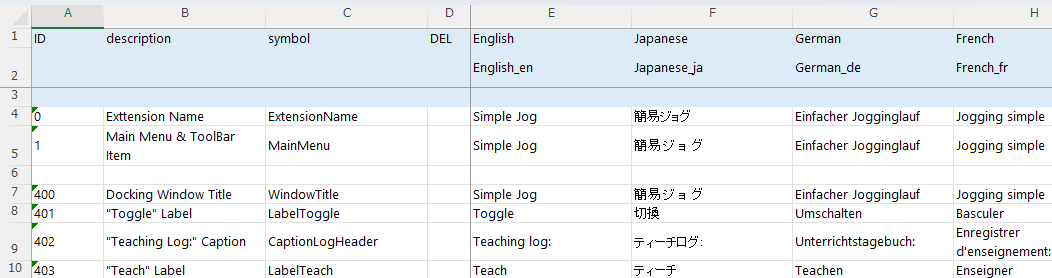
Edit the Captions.xlsx file.
Build and debug the project.
- Open the Extension screen, the Robot Manager's "Jog & Teach" screen, and the "Simulator" screen, and test that the robot moves.
- Depending on the robot's position and posture, it may not be possible to jog along the Cartesian coordinates. In this case, try changing the robot's position and posture using another method before operating it.
- Open the Extension screen, the Robot Manager's "Jog & Teach" screen, and the "Simulator" screen, and test that the robot moves.
■ Intermediate level
At the intermediate level, allow the gamepad to be used as an input device. (Operation has been confirmed with the Xbox Wireless Controller.)
Double-click the SimpleJog project in Visual Studio Solution Explorer, and make the following changes.
- Change the TargetFramework to net8.0-windows10.0.19041.0.
- This makes it easy to handle gamepads using the Windows.Gaming.Input API in Windows Runtime (WinRT).
- Change the TargetFramework to net8.0-windows10.0.19041.0.
Edit the install.json file.
This file specifies the following:
- Folders containing content used by the extension that must be copied separately from the build output folder
- Assemblies that must be explicitly loaded along with the extension itself
The contents are as follows.
{
    "Contents": [
    ],
    "Dependents": [
        "Microsoft.Windows.SDK.NET.dll",
        "WinRT.Runtime.dll"
    ]
}
Add the following files to the DockingWindow folder.
GamepadInfo.cs
This file defines the GamepadInfo class, which contains information used to identify gamepads.
- Due to specification restrictions, the Gamepad class of Windows.Gaming.Input alone cannot acquire human-friendly names. Therefore, this extension identifies gamepads simply in the order in which they are found.
(previous code omitted)

namespace SimpleJog.DockingWindow
{
    using Windows.Gaming.Input;

    /// <summary>
    /// Gamepad information
    /// </summary>
    public class GamepadInfo
    {
        /// <summary>
        /// Gamepad object
        /// </summary>
        public Gamepad Gamepad { get; }

        /// <summary>
        /// Gamepad number
        /// </summary>
        public int Number { get; }

        /// <summary>
        /// Gamepad name
        /// </summary>
        public string Name => $"Gamepad #{Number}";

        /// <summary>
        /// Constructor
        /// </summary>
        /// <param name="gamepad">Gamepad object</param>
        /// <param name="number">Gamepad number</param>
        public GamepadInfo(
            Gamepad gamepad,
            int number
        )
        {
            Gamepad = gamepad;
            Number = number;
        }
    }
}
IGamepadInputService.cs
This file defines the IGamepadInputService gamepad input interface used in this extension.
(previous code omitted)

namespace SimpleJog.DockingWindow
{
    using Reactive.Bindings;
    using Windows.Gaming.Input;

    /// <summary>
    /// Interface of gamepad input service
    /// </summary>
    public interface IGamepadInputService
    {
        /// <summary>
        /// Property for current reading
        /// </summary>
        public IReadOnlyReactiveProperty<GamepadReading> CurrentReading { get; }

        /// <summary>
        /// Set target gamepad
        /// </summary>
        /// <param name="gamepad">Gamepad object</param>
        public void SetGamepad(
            Gamepad gamepad
        );

        /// <summary>
        /// Start service
        /// </summary>
        public void Start();

        /// <summary>
        /// Stop service
        /// </summary>
        public void Stop();
    }
}
GamepadInputService.cs
This file describes the GamepadInputService class that implements the IGamepadInputService interface.
- A timer is used to poll and update the input. However, the update is skipped when the mouse button is pressed. As Tick of DispatcherTimer is called by the UI thread, it can access the Mouse instance of System.Windows.Input.
(previous code omitted)

namespace SimpleJog.DockingWindow
{
    using Reactive.Bindings;
    using System.Windows.Threading;
    using Windows.Gaming.Input;

    /// <summary>
    /// Implementation of gamepad input service
    /// </summary>
    public class GamepadInputService : IGamepadInputService
    {
        /// <inheritdoc />
        public IReadOnlyReactiveProperty<GamepadReading> CurrentReading => _reading;

        /// <summary>
        /// The substance of CurrentReading
        /// </summary>
        private readonly ReactivePropertySlim<GamepadReading> _reading = new(mode: ReactivePropertyMode.None);

        /// <summary>
        /// Target gamepad
        /// </summary>
        private Gamepad? _gamepad;

        /// <summary>
        /// Timer for polling
        /// </summary>
        private DispatcherTimer _timer;

        /// <summary>
        /// Polling interval
        /// </summary>
        private const int _pollingIntervalMSec = 16;

        /// <summary>
        /// Constructor
        /// </summary>
        public GamepadInputService()
        {
            _timer = new()
            {
                Interval = TimeSpan.FromMilliseconds(_pollingIntervalMSec),
            };

            _timer.Tick += (_, _) =>
            {
                if (_gamepad != null)
                {
                    if (Mouse.LeftButton == MouseButtonState.Pressed)
                    {
                        return;
                    }

                    _reading.Value = _gamepad.GetCurrentReading();
                }
            };
        }

        /// <inheritdoc />
        public void SetGamepad(
            Gamepad? gamepad
        )
        {
            _gamepad = gamepad;
        }

        /// <inheritdoc />
        public void Start()
        {
            _timer.Start();
        }

        /// <inheritdoc />
        public void Stop()
        {
            _timer.Stop();
        }
    }
}
InputService.cs
This file defines the InputService class, which is a service that converts gamepad input into the input for this extension.
- Similar code exists in the Stick mouse handling, and dead zone and smoothing processing are also performed here. Even when the gamepad stick is in the neutral position, the value may not be zero. Dead zone processing treats this value as zero within a specific range. Additionally, smoothing adjusts the value so that it changes gradually even if the stick is moved suddenly.
(previous code omitted)

namespace SimpleJog.DockingWindow
{
    (code omitted)

    /// <summary>
    /// Input service
    /// </summary>
    public class InputService : IDisposable
    {
        /// <summary>
        /// State of gamepad buttons
        /// </summary>
        public ReactivePropertySlim<GamepadButtons> Buttons { get; } = new(GamepadButtons.None);

        /// <summary>
        /// Left stick position
        /// </summary>
        public ReactivePropertySlim<Vector> LeftStickPosition { get; } = new();

        /// <summary>
        /// Right stick position
        /// </summary>
        public ReactivePropertySlim<Vector> RightStickPosition { get; } = new();

        /// <summary>
        /// Stores the most recently calculated smoothed position for the left stick.
        /// </summary>
        private Vector _leftSmoothedPosition;

        /// <summary>
        /// Stores the most recently calculated smoothed position for the right stick.
        /// </summary>
        private Vector _rightSmoothedPosition;

        /// <summary>
        /// Dead zone definition
        /// </summary>
        private const double _deadZoneFactor = 0.05;

        /// <summary>
        /// Represents the smoothing factor used in calculations that require exponential smoothing.
        /// </summary>
        /// <remarks>This constant determines the weight given to new data points versus historical data
        /// in smoothing algorithms. A lower value results in smoother output but slower response to changes.</remarks>
        private const double _smoothingFactor = 0.2;

        /// <summary>
        /// Disposables
        /// </summary>
        private readonly CompositeDisposable _disposables = [];

        /// <summary>
        /// Constructor
        /// </summary>
        /// <param name="gamepadInputService">Gamepad input service</param>
        public InputService(
            IGamepadInputService gamepadInputService
        )
        {
            gamepadInputService.CurrentReading.Subscribe((reading) =>
            {
                Buttons.Value = reading.Buttons;

                _leftSmoothedPosition = AdjustPosition(
                    new Vector(reading.LeftThumbstickX, reading.LeftThumbstickY),
                    _leftSmoothedPosition
                );
                _rightSmoothedPosition = AdjustPosition(
                    new Vector(reading.RightThumbstickX, reading.RightThumbstickY),
                    _rightSmoothedPosition
                );

                LeftStickPosition.Value = _leftSmoothedPosition;
                RightStickPosition.Value = _rightSmoothedPosition;
            })
            .AddTo(_disposables);
        }

        /// <summary>
        /// Dead zone check and smoothing
        /// </summary>
        /// <param name="currentPosition">Current stick position</param>
        /// <param name="lastPosition">Last stick position</param>
        /// <returns>Adjusted stick position</returns>
        private Vector AdjustPosition(
            Vector currentPosition,
            Vector lastPosition
        )
        {
            var distance = Math.Sqrt(
                Math.Pow(currentPosition.X, 2.0)
                + Math.Pow(currentPosition.Y, 2.0)
            );

            if (distance < _deadZoneFactor)
            {
                return new Vector();
            }
            else
            {
                return new Vector(
                    lastPosition.X * (1.0 - _smoothingFactor) + currentPosition.X * _smoothingFactor,
                    lastPosition.Y * (1.0 - _smoothingFactor) + currentPosition.Y * _smoothingFactor
                );
            }
        }

        /// <inheritdoc />
        public void Dispose()
        {
            _disposables.Dispose();
        }
    }
}
Edit the DockingWindowContent.xaml file in the DockingWindow folder.
Add a column to the top Grid and place a ComboBox in it to select a gamepad.
- ItemsSource is bound to Gamepads(
ReactiveCollection<GamepadInfo>). - SelectedIndex is bound to SelectedGamepadIndex.Value. SelectedGamepadIndex is a
ReactivePropertySlim<int>.
- ItemsSource is bound to Gamepads(
Change the LeftStickPosition and RightStickPosition bound to Stick to InputService.LeftStickPosition and InputService.RightStickPosition, respectively.
(previous code omitted)

        <StackPanel
            Grid.Row="2" Grid.Column="0"
            Orientation="Horizontal">

            <Label
                Content="Gamepads:"
                VerticalAlignment="Center" />
            <ComboBox
                ItemsSource="{Binding Gamepads}"
                SelectedIndex="{Binding SelectedGamepadIndex.Value}"
                DisplayMemberPath="Name"
                IsReadOnly="True"
                MinWidth="100"
                VerticalAlignment="Center"
                Margin="10,0,0,0" />

        </StackPanel>

(remaining code omitted)
Edit the DockingWindowContentViewModelAddition.cs file in the DockingWindow folder.
In the CheckStickPosition method, replace LeftStickPosition and similar references with InputService.LeftStickPosition and the corresponding references.
If a gamepad is attached or detached while the window is displayed, a GamepadAdded or GamepadRemoved event is triggered. If a gamepad is already connected before the window is displayed, these events are not triggered; therefore, connected gamepads must be checked separately using the ScanGamepads method.
Set gamepad button presses to monitor the Buttons property of the InputService instance and invoke the corresponding command.
(previous code omitted)
        /// <summary>
        /// Input service object
        /// </summary>
        public InputService InputService { get; }

        (code omitted)

        /// <summary>
        /// List of connected game pads
        /// </summary>
        public ReactiveCollection<GamepadInfo> Gamepads { get; } = new();

        /// <summary>
        /// Selected game pad index
        /// </summary>
        public ReactivePropertySlim<int> SelectedGamepadIndex { get; } = new(-1);

        (code omitted)

        /// <summary>
        /// Gamepad input service object
        /// </summary>
        private GamepadInputService _gamepadInputService = new();

        (code omitted)

        /// <summary>
        /// Scans for connected gamepads
        /// </summary>
        private void ScanGamepads()
        {
            SelectedGamepadIndex.Value = -1;

            Gamepads.Clear();

            const int _waitMSec = 100;
            const int _maxRetryCount = 30;

            for (var retryCount = 0; retryCount < _maxRetryCount; retryCount++)
            {
                if (Gamepad.Gamepads.Count <= 0)
                {
                    Thread.Sleep(_waitMSec);
                }
                else
                {
                    foreach (var (gamepad, index) in Gamepad.Gamepads.Select((x, index) => (x, index)))
                    {
                        Gamepads.Add(new GamepadInfo(gamepad, 1 + index));
                    }
                    SelectedGamepadIndex.Value = 0;
                    break;
                }
            }
        }

        /// <summary>
        /// Constructor
        /// </summary>
        public DockingWindowContentViewModel()
        {
            InputService = new(_gamepadInputService);

            (code omitted)

            InputService.Buttons.Subscribe((buttons) =>
            {
                if ((buttons & GamepadButtons.LeftShoulder) != 0)
                {
                    MotorToggleCommand.Execute();
                }

                if ((buttons & GamepadButtons.A) != 0)
                {
                    TeachCommand.Execute();
                }
            })
            .AddTo(_disposables);

            SelectedGamepadIndex.Subscribe((index) =>
            {
                if (index >= 0)
                {
                    _gamepadInputService.SetGamepad(Gamepads[index].Gamepad);
                }
            })
            .AddTo(_disposables);

            Gamepad.GamepadAdded += (_, gamepad) =>
            {
                Gamepads.AddOnScheduler(new GamepadInfo(gamepad, Gamepads.Count));
            };

            Gamepad.GamepadRemoved += (_, gamepad) =>
            {
                var target = Gamepads.FirstOrDefault(x => ReferenceEquals(x.Gamepad, gamepad));
                if (target != null)
                {
                    Gamepads.RemoveOnScheduler(target);
                }
            };

            ScanGamepads();

            _gamepadInputService.Start();
        }

        (remaining code omitted)
Edit the DockingWindowContentViewMode.cs file in the DockingWindow folder.
When closing the window, also stop the GamepadInputService.
(previous code omitted)

/// <inheritdoc />
public Task<bool> CloseAsync()
{
    _gamepadInputService.Stop();

    return Task.FromResult(true);
}

(remaining code omitted)
Build and debug the project.
- As in the beginner level, open each window and check that it can be operated using the gamepad.
- Gamepad support by this extension is subject to the following restrictions.
- Gamepad input is not received when the extension window does not have focus.
- In particular, when a confirmation dialog box or similar dialog is opened by an API call, the dialog buttons cannot be clicked using the gamepad. Therefore, gamepad operation must be interrupted, and the mouse or keyboard on the PC must be used instead.
- With this extension, this is the confirmation dialog box for turning on the motor. In cases where it is acceptable to omit the confirmation dialog box (consider this carefully), you can bypass the confirmation by executing the "Motor On" SPEL+ command instead of the motor on API. This is implemented in the final code. Consider it if you're interested.