Diagnostic Tool
After configuring the EtherNet/IP master, adding and configuring the devices of your network and downloading your configuration in the board, the statuses of all devices can be tested with the diagnostic tool.
Start this tool by selecting the menu command [Protocol/Diagnostic…] or selecting the [ (Diagnostic)] icon.
See also: To display the help, select [Start] - [Program] - [Direct-Link] - [applicomIO 2.3] - [Help].
Ethernet/IP channel on Ethernet diagnostics
The EtherNet/IP on Ethernet channel diagnostic information can be displayed by selecting the MULTI-MSG ETH channel.

All devices in the configuration are visualized by a LED corresponding to the applicomIO device number.
The LED may be red or green depending on the device error status.
Diagnostic of the TCP/IP layer
This dialog box displays the status of the TCP/IP layer.
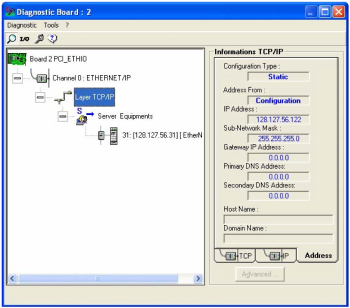
Indication Description Configuration Type Mode type selected in the configuration: DHCP, BOOTP, Static Address From How the IP address has been obtained: from the server, flash memory or factory address. IP address IP address of the applicomIO master on this channel. Sub-Network Mask Sub-network address of the applicomIO master on this channel. Gateway IP Address Address of the gateway configured on the applicomIO master on this channel. Primary DNS Address IP Address of the primary DNS server. Secondary DNS Address IP address of the secondary DNS server. Host Name Host name of the applicomIO master on this channel. Domain Name Domain name of the applicomIO master on this channel. TCP tab
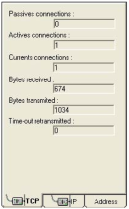
Indication Description Passive connections Number of passive connections. Active connections Number of active connections. Current connections Number of current connections. Bytes received Number of bytes received. Bytes transmitted Number of bytes transmitted. Retries on time-out Number of retries on reception of a time-out. IP tab
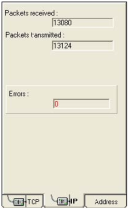
Indication Description Packets received Number of packets received. Packets transmitted Number of packets transmitted. Errors Number of IP errors. Diagnostic of server devices
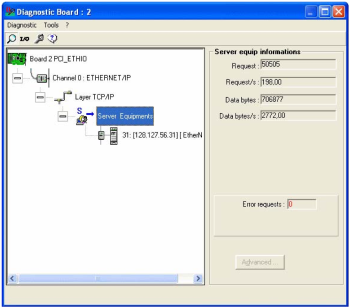
Indication Description Requests Number of requests. Requests / s Number of requests per second. Useful bytes Number of useful data bytes. Useful bytes / s Number of useful data bytes per second. Requests in error Number of requests in error. Overall device diagnostics
View the diagnostic information on a device in the configuration by selecting the node which corresponds to the device.
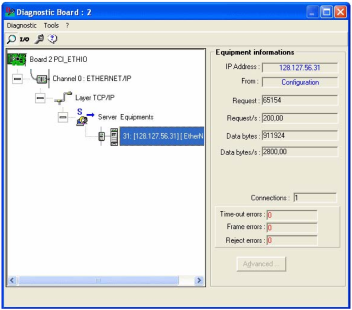
Indication Description IP Address IP address of the device. From How the IP address of the device was obtained: from the DNS server (IP address of the device has been resolved)
Requests Number of requests. Requests / s Number of requests per second. Useful bytes Number of useful data bytes. Useful bytes / s Number of useful data bytes per second. Connections Number of connections created for this device. Time-out errors Number of time-outs received for this device. Frame errors Number of frame errors for this device. Refusal errors Number of errors excluding time-out and frame errors.
TCP/IP tool
By clicking in the [ ] icon and selecting [TCP/IP layer], the [services] window displays the following options.
- DNS
- ICMP (ping)
See also: To display the help, select [Start] - [Program] - [Direct-Link] - [applicomIO 2.3] - [Help].
Resolution of IP address or name
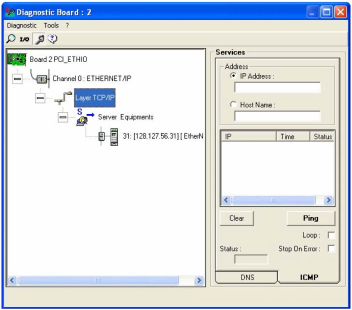
DNS functionality can be enabled by selecting the applicomIO menu - [Protocol/Diagnostic…] - the [DNS] tab.
- Selects the type of resolution to be carried out.
Indication Description IP Address The host name is obtained from the IP address. Host Name The IP address is obtained from the host name. Carries out a resolution.
Status: Status of resolution carried out
Number Description 0 No error 33 Response time-out exceeded. 132 Negative reply from DNS server (SERVER FAILURE, etc.) Ping
ICMP ECHO "PING" functionality can be enabled by selecting the applicomIO menu - [Protocol/Diagnostic…] - the [ICMP] tab.
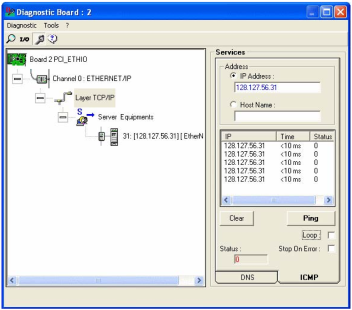
Entry field for the IP address or name of the remote station.
Field showing result obtained:
Status Description Status 0 The station is present and has responded. (the response time is given in the Time column)
Status 33 The station is not present. Command field:
Indication Description Clear Clears the list of results. Ping Sends a PING command. Loop Executes PING command in a loop. Stop on Error If Loop has been selected, stops if an error has occurred. Status Status of the PING request. 0: OK
33: Timeout
132: Resolution error