Tree View Control
Description
The tree view control uses the node that can be folded to display information in hierarchal order.
The tree view control can be used in the Standard and Premium editions.
Usage
Use the tree view control and display information in hierarchal order.
During Design:
Click the TreeNodeEditor property button and open the [TreeNodeEditor] dialog.

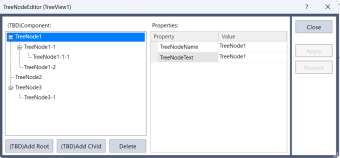
Add, delete, and rearrange nodes in the [TreeNodeEditor] dialog.
After setting the name and text for each node, close the [TreeNodeEditor] dialog.
For the details of [TreeNodeEditor] dialog, refer to the following.
TreeNodeEditor Property
During runtime:
You can add, delete, rearrange, and change the text of the node by using the following properties.
- AddNode property
- RemoveNode property
- Parent property
- Text property
Function AddNode
    String parentNodeName$, childNodeName$
    parentNodeName$ = "Node1"
    childNodeName$ = "Node2"

    'Add node.
    GSet frmMain.TreeView1.AddNode, parentNodeName$
    GSet frmMain.TreeView1.AddNode, childNodeName$

    'Set the strings to be displayed in the node.
    GSet frmMain.TreeView1.Text(parentNodeName$), "Node-1"
    GSet frmMain.TreeView1.Text(childNodeName$), "Node-2"

    'Set the node's parent-child relationship. (Set the parent node of childNodeName$ as parentNodeName$.)
    GSet frmMain.TreeView1.Parent(childNodeName$), parentNodeName$
Fend

Function RemoveNode(nodeName$ As String)
    'Delete node. (When the parent node is deleted, the child node will also be deleted.)
    GSet frmMain.TreeView1.RemoveNode, nodeName$
Fend
When you run the AddNode function, the following screen will be displayed.
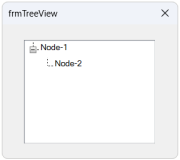
TreeView application (Setting screen for multiple categories):
By combining it with other controls, it can be applied to a screen used to set items separated into multiple categories.
- Placing the control as follows.
- Left: Tree View control
- Center: Wizard control
- Right: Button control
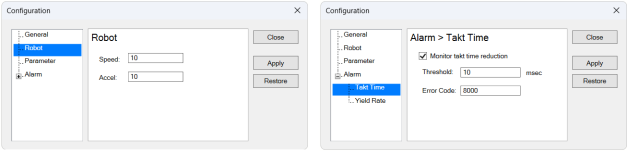
- When the node selected in the tree view control is changed using the SelectedNodeChange event, the wizard control page will switch.
Function frmMain_TreeView1_SelectedNodeChanged(Sender$ As String, NodeName$ As String)
    Integer wizardIndex

    ' Switch the page displayed in the wizard control based on the selected node
    Select NodeName$
        Case "TreeNode1"; wizardIndex = 0
        Case "TreeNode2"; wizardIndex = 1
        Case "TreeNode3"; wizardIndex = 2
        Case "TreeNode4"; wizardIndex = 3
        Case "TreeNode5"; wizardIndex = 4
        Case "TreeNode6"; wizardIndex = 5
    Send

    GSet frmMain.Wizard1.SelectedIndex, wizardIndex
Fend
Tree View Property
| Property | Description |
|---|---|
| --- | --- |
| AddNode | Adds the specified node. (Only available from SPEL+ programs) |
| BackColor | Sets the background color for the control. Default: Window |
| BorderStyle | Sets the border used for the control. Default: Fixed3D |
| Enabled | Sets whether the control is enabled. Default: True |
| EventTaskType | Sets the type of task used for events. Default: Normal |
| Font | Sets the font for the control text. () Default: Microsoft Sans Serif 8.25 pt |
| FontBold | The bold attribute for the current font. Default: False |
| FontItalic | The italic attribute for the current font. Default: False |
| FontName | Sets the font name of the control. Default: Microsoft Sans Serif |
| FontSize | The size for the current font in points. Default: 8.25 |
| ForeColor | Sets the foreground color for the control text. Default: WindowText |
| Height | Sets the height of the control in pixels. |
| Left | Sets the left coordinate of the control in pixels. |
| Name | Sets the name of the control. Default: TreeViewXX |
| Parent | Gets and sets the specified node. (Only available from SPEL+ programs) |
| RemoveNode | Deletes the specified node. (Only available from SPEL+ programs) |
| TabIndex | Sets the tab index of the control. |
| Text | Sets the displayed text of the control. Default: Blank |
| ToolTipText | Sets the text used in the control's tool tip. Default: Blank |
| Top | Sets the top coordinate of the control in pixels. |
| TreeNodeEditor | Displays the tree node editor screen for adding, removing, and rearranging nodes. |
| Visible | Sets whether the control is visible or not. Default: True |
| Width | Sets the width of the control in pixels. |
Tree View Event
| Event | Description |
|---|---|
| Click | Executes when the user clicks the control with the mouse. |
| SelectedNodeChanged | Executes when the selected node is changed. |