Creating a Project for the Library
An RC+ Premium Edition license is required to create a library. Purchase a license key from the supplier and authenticate it.
For details about authenticating the license, refer to the following manual."Epson RC+ 8.0 User's Guide - System Operations - Starting Epson RC+ 8.0 - License Authentication"
Create a new project for the library.
Add a prefix to any information you want to publish to users of your library. The prefix must be a maximum of 10 characters, including the trailing underscore.
The following information can be published:
| Information | Public conditions |
|---|---|
| Functions | The function name starts with a prefix. |
| Global variables | The variable name starts with a prefix. |
| Backup variables | The variable name starts with a prefix. |
| Program file | Meets all of the following conditions: ・The file name starts with a prefix. ・All functions, constants, global variables and backup variables within the file starts with a prefix. ・Functions, global variables, backup variables, and comments are the only ones written in the file. ・An include file that does not meet the public condition is not included. |
| Include file | Meets all of the following conditions: ・The file name starts with a prefix. ・All constants written in the file starts with a prefix. ・Constants and comments are the only ones written in the file.・An include file that does not meet the public condition is not included. |
| Vision sequence | The sequence name starts with a prefix. |
Example) Using the "MyLib_" prefix
Global Integer MyLib_Counter                 'public global variable
Global Preserve Integer MyLib_WorkPieces     'public global preserve variable

Function MyLib_SomeFunction                  'public function
   'some kind of processing
Fend
MyLib_Callbacks.prg: Public program files
NOTE
When using multiple libraries, add a unique prefix to each library to avoid duplication of function names or variable names, etc.
Include the above public information and develop your project.
KEY POINTS
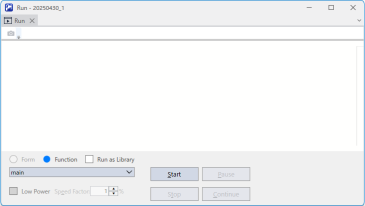
In Epson RC+ Premium Edition, the [Run as library] checkbox will be displayed in the command window.
When enabled, commands that can only be used in the library can be executed from a project. Use this to check the operation.
To provide a library tool, use [Tools] - [GUI Builder] to create a form to be displayed as the library tool and set it as the startup form.
For details about the library tools, refer to the following.For more information on how to use GUI Builder, refer to the following manual.
"Epson RC+ 8.0 Option, GUI Builder 8.0"
KEY POINTS
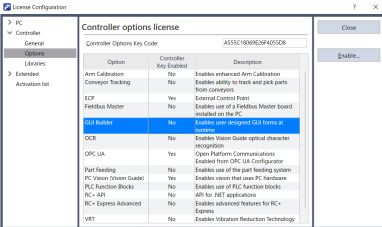
In RC+ Premium Edition, you can run forms and execute GUI Builder-related commands even if the GUI Builder option is disabled.
If necessary, create additional files such as PDF files to display as library manuals, image files to display as library tool icons, device settings and manuals, etc.
KEY POINTS
- In RC+ 8.0 Ver. 8.1.0.0, do not register other libraries in the library project. You cannot create library A that uses another library B inside it (library nesting is not allowed). This will cause an error when starting Library Builder.
- The settings used in the library can be saved as project data [arbitrary name].libcfg for the users who use the library.
For example, when providing a library tool, you can implement it so that the values set by the user in the GUI are saved in [arbitrary name].libcfg, and the previous setting values are then read from this file the next time the tool is started to restore the previous setting state.
Specify a name in [arbitrary name] that is not duplicated in other libraries.