Creating a Library
Open the library project.
Select Extensions | Library Builder.
The Library Builder dialog box appears if the project build is successful.
KEY POINTS
The following operations are performed according to the TP4 operation mode:
・In AUTO mode, you can use the Epson RC+. However, you cannot create a library in Epson RC+ 8.0 Ver8.1.0.0.
(Library Builder will not start)
・In TEACH and TEST mode, you cannot create a library because Epson RC+ cannot be used.
・Regardless of the TP4 operation mode, existing libraries can be used in projects.
In RC+ 8.0 Ver. 8.1.0.0, Library Builder cannot be used with TP4 (Operation Mode: AUTO).
For details about TP4 Operation Mode, refer to the following manual."Robot Controller Option, Teaching Pendant TP4 Manual - Operation Mode (TEACH, AUTO, TEST)"
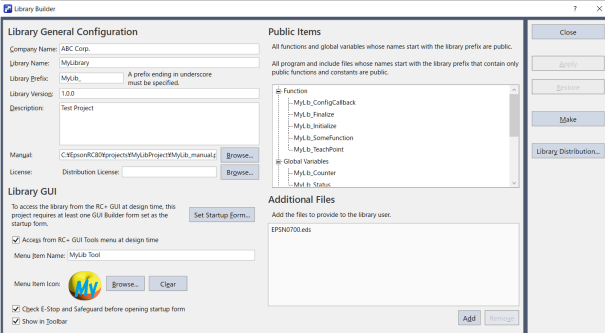
Item Description Company Name Enter the name of the company.
Up to 32 single-byte characters.Library Name Enter the name of the library.
Up to 32 single-byte characters.Library Prefix Enter the prefix.
Up to 10 single-byte characters but must end in an underscore.Library Version Enter the library version.
Up to 32 single-byte characters.Description Enter a description of the library.
Up to 255 characters.Manual Set the manual (PDF file) for the library you are creating. Distribution License Enter the Distribution License sent by Epson.
You can also use the Browse button to load a PDF file providing the license.Set Startup Form Displays the startup form setup screen. Set the form that will be used as the initial display screen of the library GUI (library tool) in the startup form. Access from RC+ GUI Tools menu at design time Forms created with GUI Builder can be incorporated into a library as library tools that can be launched from the Tools menu. This can be selected if the project contains a form set as the startup form.
Deselected by default.
For details about the library tools, refer to the following.
Using Library ToolsMenu Item Name Enter the name that will be displayed for the library tool in the Tools menu.
Up to 32 single-byte characters.Menu Item Icon Sets the icon that will be displayed for the library tool in the Tools menu. Check E-Stop and Safeguard before opening startup form Checks the status of emergency stops and safeguards when the startup form (library tool) is launched.
Selected by default.Show in Toolbar Displays an icon on the toolbar to launch the library tool. Public Items Displays functions, global variables, backup variables, program files, include files, and vision sequences with prefixes applied. Additional Files For devices used in the library, device setting files (such as fieldbus setting files (eds)) and manuals are added so that users can easily make settings and refer to the manuals.
They are copied to the AdditionalFiles folder in the corresponding library folder under theC:\EpsonRC80\Librariesfolder.Close Close the designer. Apply Saves the changes. Restore Reverts to the previous settings. Make Creates the library. Library Distribution Opens the library distribution wizard. Outputs the library and authentication key to distribute to users.
See the following chapter for details.
Creating a Library for DistributionSpecify the prefix. Functions, global variables, backup variables, program files, include files, and vision sequences that contain the specified prefix are automatically added to the public information area.
KEY POINTS
Even if a prefix is added to the file name of a program file or include file, the file will not be displayed as public items if the file contains functions or constants without a prefix.
Specify the company name, library name, version, comments, manual files, and additional files.
If you provide a library tool, select the [Access from RC+ GUI Tools menu at design time] check box and specify the menu item name and menu item icon to be displayed in the RC+ tools menu.
If the [Check E-Stop and Safeguard before opening startup form] check box is selected, a warning message is displayed if the controller is in the emergency stop state or the safeguard is open, and the library tool will not start until these conditions are resolved.Click the Apply button to save the changed settings.
Click the Make button to create the library.
The library file and zip file created are generated in theC:\EpsonRC80\Librariesfolder.