Activating a Library
If a library requires authentication, it must be activated. This section explains how to activate an imported library.
A library authentication key is required to activate a library.
A library cannot be used if it has not been activated. A library that does not require authentication can be used as is without activation.
KEY POINTS
The authentication key is issued by the library creator. If necessary, send one or both of the following pieces of information to the library creator.
PC hardware ID
On the Setup | License Settings screen, select PC | Libraries and click the Output Hardware ID button to save the information as a CSV file.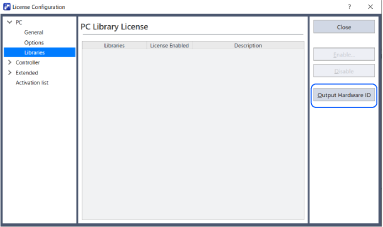
Controller serial number
On the Setup | License Settings screen, select Controller | Libraries and click the Output Serial Number button to output the serial number of the connected controller as a CSV file.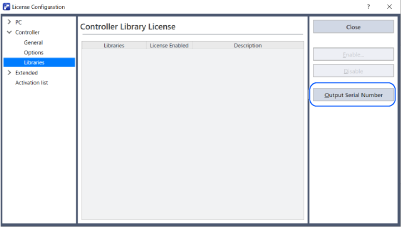
KEY POINTS
If a library is used without activating it, an error occurs when you build the project or start the library tool.
Click Setup | Licenses.
In the License Settings screen tree view, select PC | Libraries or Controller | Libraries.
KEY POINTS
The Controller | Libraries node is only displayed when connected to an actual controller.
Make sure that the target library is displayed and click the Enable button.
PC library license
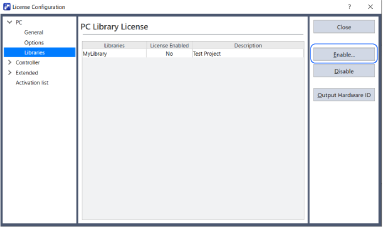
Controller library license
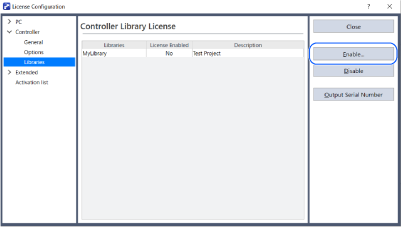
KEY POINTS
A list of all the libraries in the
C:\EpsonRC80\Librariesfolder is displayed.Enter the authentication key in the Library Activation dialog box that appears, or use the Load button to load a CSV file. If the authentication key is correct, the library activated by the authentication key is displayed.
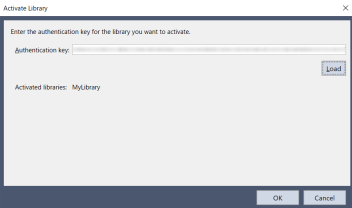
Click the OK button and make sure that the target library is activated.

KEY POINTS
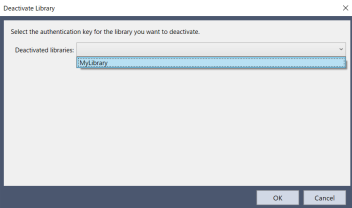
To deactivate a library, click the Disable button, select the library you want to deactivate from the drop-down list in the Deactivate Library dialog box, and click the OK button.