Run window
The Run window includes controls for running the programs in the current project.
To open the Run window
Select [Run Window] from the [Run] menu. Or from the tool bar, click the  [Run Window] button. If necessary, all changed open files will be saved and the project will be built. If the build is successful, the Run window will appear.
To close the Run window
Choose [Close] from the [File] menu or click on the [×] button in the upper right hand corner of the window.
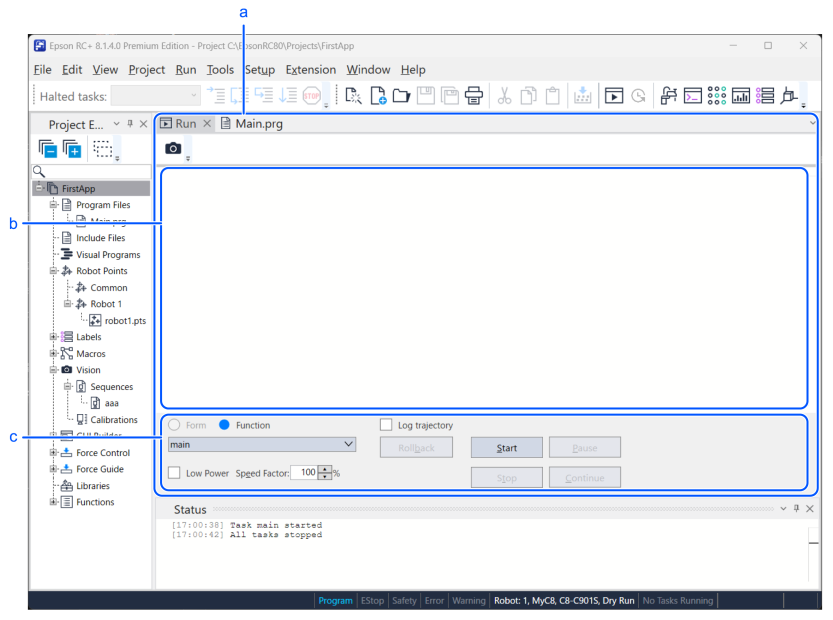
| Symbol | Item |
|---|---|
| a | Run window |
| b | Text area |
| c | Operation area |
| Item | Description |
|---|---|
| Text area | This is the area that takes up most of the run window. Output from your programs is displayed here. When your program uses an Input statement, you can type in the requested input from this text box. You can use the scroll bars to view the entire text buffer. If an error occurs while running a program, the error number, program file name, line number and function name will be displayed in this text area. You can double click on the line where the error is displayed to directly go to the source line that caused the problem. |
| Function | Select a function to start. Functions are sorted alphabetically. Function main is selected by default. Normal task type functions of encrypted program files will not be displayed. |
| Low Power | Operations are performed in Low Power mode, regardless of the execution status of the Power High command. |
| Speed Factor | Specifies the robot motion speed factor. The speed factor is a factor that applies to all robots and all movements set in the Controller. For example, if you program executes speed 80% and the speed factor is 50%, the robot will move at speed 40%. Changing the speed factor in the Run window will also change the SpeedFactor value. Similarly, changing the SpeedFactor value will change the speed factor in the Run window. |
| Log trajectory | When selected, the robot's motion trajectory is saved during program execution. This enables rollback using the [Rollback] button after program execution. However, the number of normal tasks that can run simultaneously during program execution is reduced by one. |
| Rollback | Performs robot rollback. See details below. |
| Start | Starts the function displayed in the [Function] list. If background tasks are enabled and BgMain exists, you can select whether to start running the background task with the function selected in the list to the right of the button.
|
| Stop | Stops all tasks. If the robot is executing a motion command when this button is pressed, the robot will decelerate to a stop. The shortcut key is [Ctrl] + [C]. When a background task is running, you can opt to stop all tasks, or stop only the normal tasks, using the list on the right of the button. |
| Pause | Pauses all tasks with pause enabled. Activates the [Continue] button. If the robot is executing a motion command when this button is pressed, the robot will decelerate to a stop. |
| Continue | Continues paused tasks. |