Troubleshooting VR Software Errors
VR Software starting error:
If you had the error below when starting VR software, your PC may be equipped with an AMD Ryzen processor. In that case, set the Windows system environment variables as shown in the steps below.
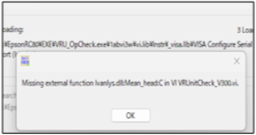
Open the environment variables window. (The steps are different for Windows 10 and 11.)
Windows 10:
Open the Control Panel.
Select [System and Security]-[System]-[About]-[Advanced system settings]-[Advanced]-[Environment Variables].
"Environment Variables" window will open.
Windows 11:
Open the Windows Settings.
Select [System]-[About]- [Advanced system settings]-[Advanced]-[Environment Variables].
"Environment Variables" window will open.
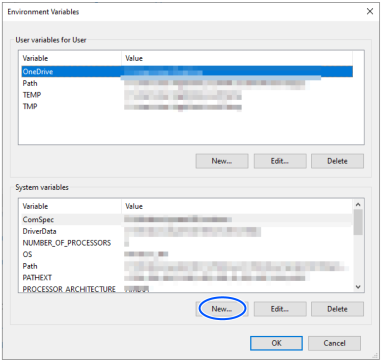
Click [New] of [Environment Variables] (the circle in the above figure). Following "New System Variable" window will open.
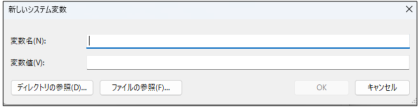
Enter as follows and click the [OK] button.
Variable name: MKL_DEBUG_CPU_TYPE
Variable value: 4
This section describes errors occurred in VR software and countermeasures.
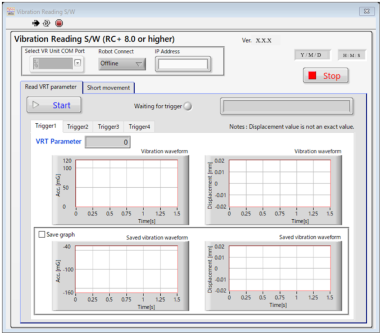
| Connection error of VR unit | ||
|---|---|---|
| Error display | 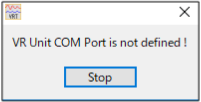 | VR Unit COM Port is not defined! Unit Sampling Mode Error |
| Countermeasure | Confirm that USB cable is connected properly. When the cable is connected properly, red lamp is lighted up in the back of USB connection part of VR unit. If there is no problem with the connection, execute VR software again. Select COM Port number of VR unit on VR software-[Select COM Port]. | |
| Connection error with Robot | ||
|---|---|---|
| Error display | 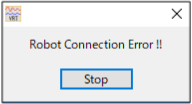 | Robot Connection Error!! Proxy initialization error! Check robot Connection. |
| Countermeasure | Make sure that the connection methods of VR software-[Robot Connect] and Epson RC+ - the robot are the same. When changing the settings, execute VR software again. | |
| Other error | |
|---|---|
| Error display | 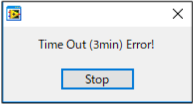 |
| Countermeasure | If VRT_Trigger command is not executed for 3 minutes by Epson RC+ with waiting for Trigger condition, “Time Out” error occurs. Execute VR software again. |