Executing a Program to Check for Problems
Once the program is ready, run it using [Rehearse] or [Start] to ensure there are no problems.
Rehearsal is a feature that allows programs to be executed more safely.
It is recommended to use [Rehearsal] when running the program for the first time after creating it.
KEY POINTS
How to check the program is running safely using [Start]:
To check the execution of a command at specific points, set an  (breakpoint) at the point where you want to pause.
To remove a breakpoint, pause the program and then tap the (breakpoint).
KEY POINTS
Tapping [Rehearsal] or [Start] will send the program you created to the robot (controller).
Ensure that the communication cable is properly connected.
If the connection is interrupted, the program may become corrupted.
The types of operation buttons are as follows.
| Icon | Description |
|---|---|
 | Tap to start debugging. You can set a speed limit at the start. |
 | Tap to pause when a program is running. |
 | Tap to resume a program when the program is in break or pause. |
 | Tap to stop the program. |
 | Tap to execute commands one by one from a break point. |
 | The robot's movements are forcibly restricted to low-power mode, and commands are only executed while the [Run] button is pressed. |
This section explains how to use [Rehearsal] to verify the operation.
Operation procedure
Tap the [Rehearsal] button.
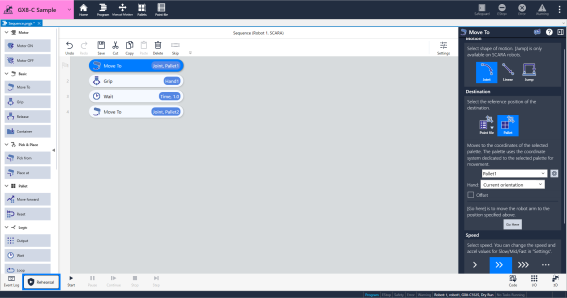
When the execution confirmation dialog appears, check your surroundings for safety and then tap the [Run] button.
The motor will be forced into low-power mode.
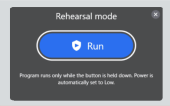
Press and hold the [Run] button.
The program will run while you hold down the [Run] button.
When you release the button, the program stops.
KEY POINTS
In virtual mode, tap the [3D View] button to display the simulator screen and check the robot's movements.
Refer to the manual below for instructions on how to interpret the screen.
“Epson RC+ 8.0 User’s Guide - [Robot Simulator] window layout“
KEY POINTS
- When connected to a virtual controller, the maximum continuous execution time for a program is one hour.
- You cannot switch screens or edit commands while the program is running.
- If an error occurs during program execution, an [×] mark will appear at the beginning of the command, and the command will flash red. Tap the Error icon to check the message and countermeasure.