Ethernet Connection of Development PC and Manipulator
This section describes Ethernet connection of the development PC and Manipulator.
Connect an Ethernet cable to the development PC and Manipulator.
Turn ON the Manipulator.
Start the Epson RC+ software.
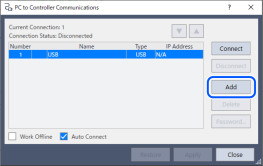
From the Epson RC+ menu, select [Setup] - [PC to Controller Communications] to display the [PC to Controller Communications] dialog.
Click the [Add] button.
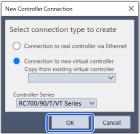
Perform the following settings and then click the [OK] button.
Connection method: Connection to Controller via Ethernet
Controller series: RC700/90/T/VT series
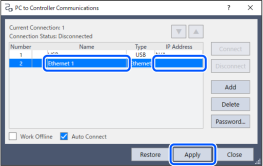
“No. 2” is added. Make the following settings, and click the [Apply] button.
Name: Valid value for identifying the Manipulator to be connected
IP Address: IP address of the Manipulator to be connected
The [Name] and [IP Address] set in Step 7 are displayed.
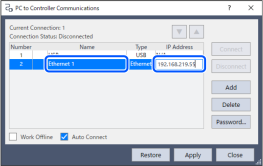
Confirm that "No.2" is selected and then click the [Connect] button.
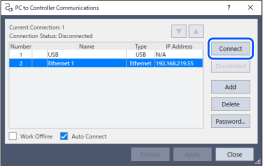
After connection of the development PC and the Manipulator is completed, "Connected" is displayed in [Connection Status]. Check that "Connected" is displayed, and click the [Close] button to close the [PC to Controller Communications] dialog box.
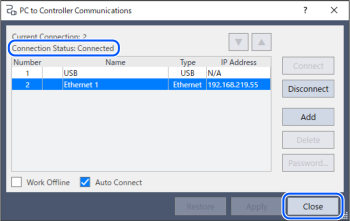
Connection of the development PC and the Manipulator is completed. The robot system can now be used from Epson RC+ over an Ethernet connection.