Gateway Manager
Gateway Manager must be installed on the remote connection terminal.
To view the system configuration diagram, refer to the prerequisite knowledge video in the following topic.
Overview
Prepare a PC that meets the following specifications.
Supported OS
- Windows 10 64-bit (version 20H2 or later)
- Windows 11 64-bit
(Excluding Windows 10 in S mode, Windows 10 IoT Core, and Windows 11 SE)
PC specifications (Recommended)
- CPU: Intel Core i5 or higher (released in 2017, 8th generation or later)
- Memory: 8 GB or more
Set up the PC as follows.
- Connect the PC and robot controller via Ethernet.
- Ensure that the PC can connect to both the robot controller and the Internet.
For the procedure for adding Gateway Manager, refer to the video below. (Playback starts at the relevant section.)
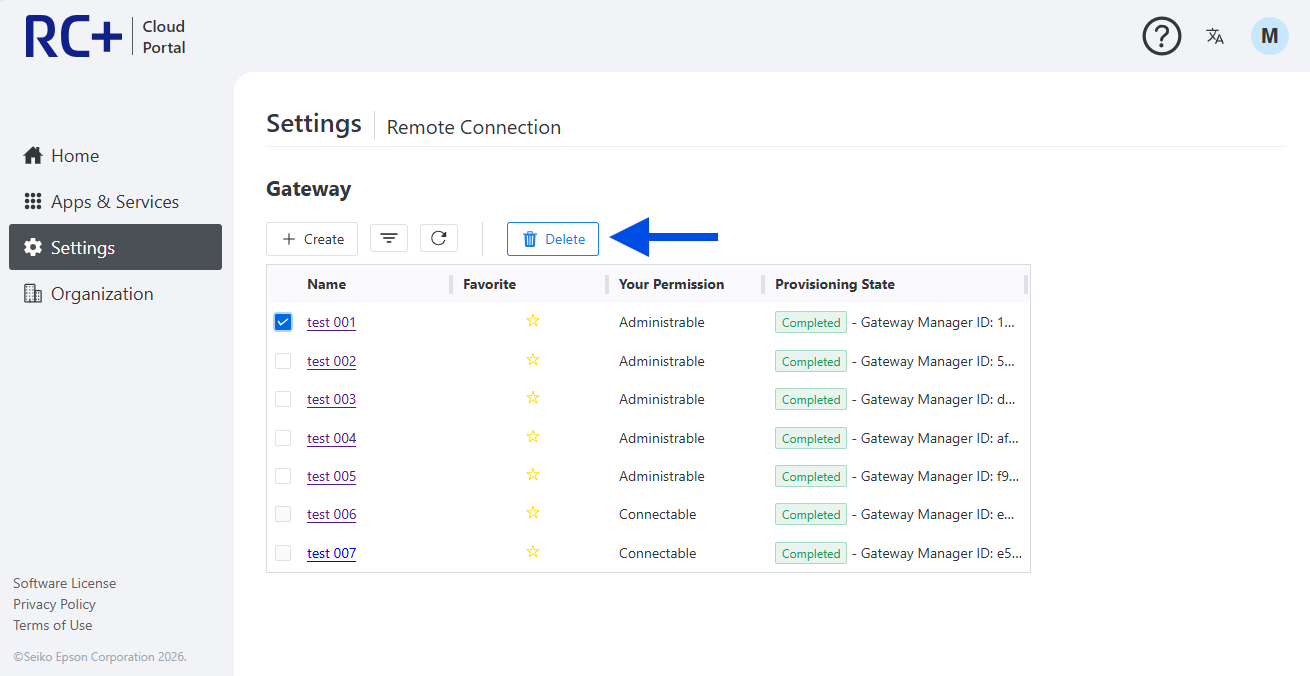
Deleting a Gateway from the Portal
- Open the portal screen.
- Select the gateway to delete.
- Click [Delete].
- The gateway can be deleted from the portal.
KEY POINTS
If you delete a gateway from the portal, also delete it in Gateway Manager. (Because the gateway in Gateway Manager is not automatically deleted)
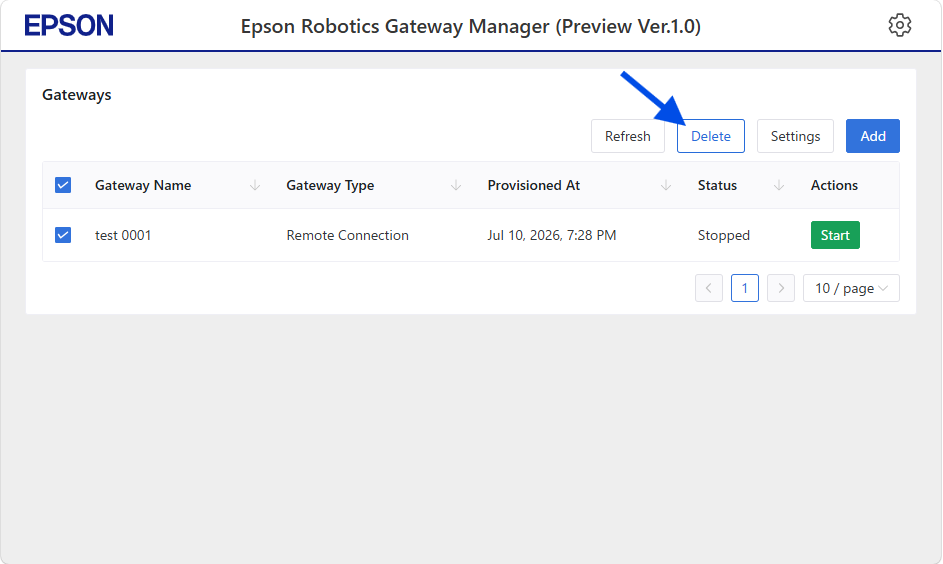
Delete a Gateway from Gateway Manager
- Open Gateway Manager.
- Select the gateway to delete.
- Click [Delete].
- The gateway can be deleted from Gateway Manager.
KEY POINTS
If you delete a gateway from Gateway Manager, also delete it from the Portal. (Because the gateway is not automatically deleted from the Portal)
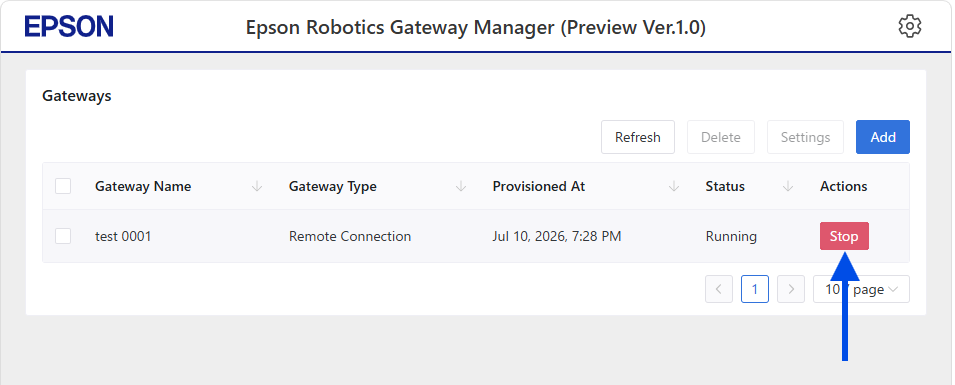
Stopping a Gateway
- Open Gateway Manager.
- Click [Stop] for the gateway you want to stop.
- The target gateway stops.
KEY POINTS
Stopping a gateway disconnects communication with remote controllers using that gateway. Before stopping the gateway, confirm that no remote connections are using it.
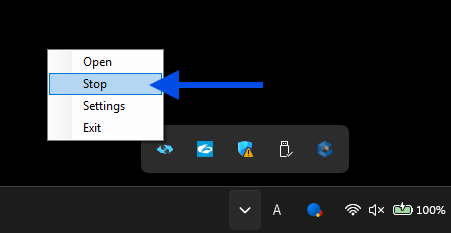
Stopping Gateway Manager
- Right-click the Gateway Manager Launcher icon in the system tray.
- Click [Stop].
- Gateway Manager stops.
KEY POINTS
Stopping Gateway Manager also stops the gateways running in that Gateway Manager. Because communication with remote controllers may be disconnected, confirm that no remote connections are communicating before stopping Gateway Manager.
Exiting Gateway Manager Launcher
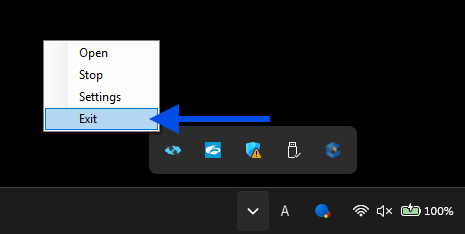
- Right-click the Gateway Manager Launcher icon in the system tray.
- Click [Exit].
- Gateway Manager Launcher exits.
KEY POINTS
If installed in user mode, exiting Gateway Manager Launcher also stops the gateways. Because communication with remote controllers may be disconnected, confirm that no remote connections are communicating before exiting. If installed in service mode, running gateways do not stop.
Upgrading Gateway Manager
- Obtain the installer for the new version of Gateway Manager.
- Launch the installer.
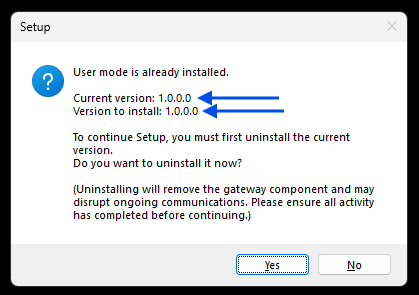
- If Gateway Manager is already installed, the current version and the version to be installed are displayed.
- If the displayed information is correct, click [Yes] to run the installation.
KEY POINTS
Uninstalling the installed Gateway Manager also stops the gateways. Because communication with remote controllers may be disconnected, confirm that no remote connections are communicating before uninstalling.
Running an installer for an older version allows you to downgrade Gateway Manager. On the version confirmation screen, confirm that the intended version of Gateway Manager will be installed.
Uninstalling Gateway Manager does not delete information for gateways that have been added. Information for gateways that have been added remains available after reinstallation or upgrade.
Uninstalling Gateway Manager
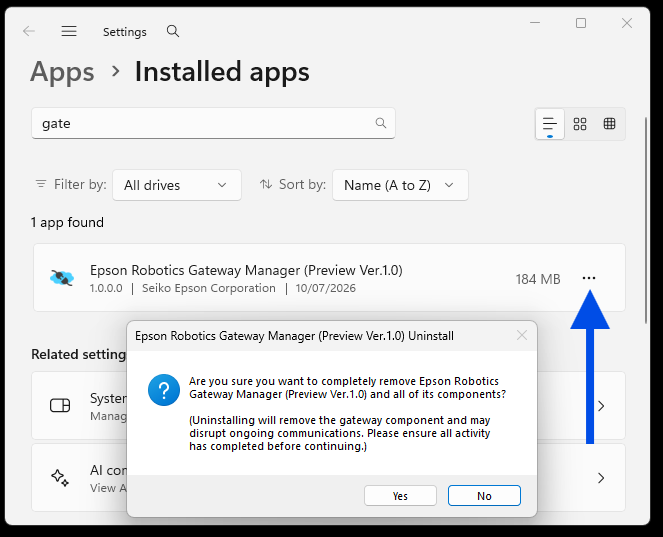
- Open the OS app list.
- Select Gateway Manager and click [Uninstall].
- Gateway Manager is uninstalled.
KEY POINTS
Uninstalling Gateway Manager also stops the gateways. Because communication with remote controllers may be disconnected, confirm that no remote connections are communicating before uninstalling.
Uninstalling Gateway Manager does not delete information for gateways that have been added. Information for gateways that have been added remains available after reinstallation or upgrade.
Open Source Software Licenses
This product includes open source software.
You can check the license terms and copyright notices for each software package from the Gateway Manager UI.
The license information is also stored as a NOTICE file in the installation destination.
Storage Locations by Installation Type
When Installed In User Mode
C:/Users/<UserName>/AppData/Local/Programs/EpsonRoboticsGatewayManager/Docs/NOTICE.txt
KEY POINTS
For a prerelease version, EpsonRoboticsGatewayManager is replaced with EpsonRoboticsGatewayManagerPreview.
When Installed In Service Mode
C:/ProgramData/EpsonRoboticsGatewayManager/Docs/NOTICE.txt
KEY POINTS
For a prerelease version, EpsonRoboticsGatewayManager is replaced with EpsonRoboticsGatewayManagerPreview.