安装软件
安装设备驱动程序
在将由Hilscher制造的EtherNet/IP主板添加到装有Epson RC+ 8.0的PC前,必须根据所使用的主板类型安装Hilscher SYCON .net应用程序和驱动程序。
将Communication-Solutions DVD插入装有Epson RC+ 8.0的PC中。
显示Communication-Solutions DVD中的[Communication-Solutions DVD \Driver_&_Toolkit\Device Driver (NXDRV-WIN)\Installation]文件夹。
运行cifX Device Driver Setup.exe 。出现[User Account Control]对话框。
单击[Yes]。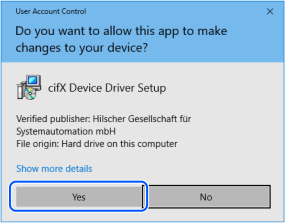
出现[Device Driver Setup]对话框。
选中[I accept the terms in the License Agreement]复选框。
单击[Install]。
出现[Windows Security]对话框。
单击[Install]。对话框切换后,再次单击[Install]。
出现[Completed the cifX Device Driver (x64) 2.6.1.0 Setup Wizard]对话框。
单击[Finish]。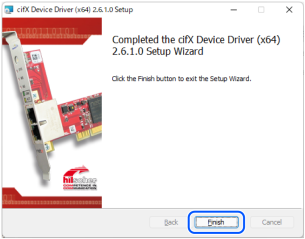
安装主应用程序软件
显示Communication-Solutions DVD中的[Communication-Solutions DVD\Software_&_Tools\Configuration_Software\SYCON .net]文件夹。
执行SYCONnet netX setup.exe。出现[Security Warning]对话框。
单击[Run]。出现[User Account Control]对话框。
单击[Yes]。
出现[Choose Setup Language]对话框。
选择“Englisch [USA]”并单击[OK]。
开始安装。

出现[InstallShield Wizard - Welcome]对话框。
单击[Next]。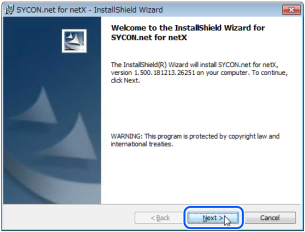
出现[InstallShield Wizard - Important Information]对话框。
选择[I read the information]。
单击[Next]。
出现[InstallShield Wizard - License Agreement]对话框。
选择[I accept the terms in the license agreement]。
单击[Next]。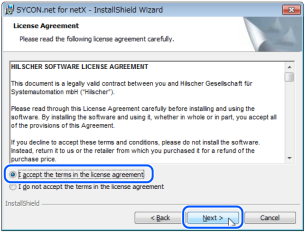
出现[InstallShield Wizard - Customer Information]对话框。
输入用户名 (User Name:)、公司名 (Organization:)。
单击[Next]。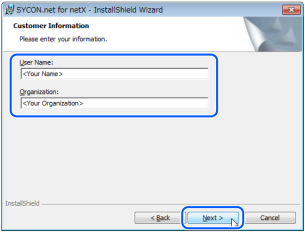
出现[InstallShield Wizard - Ready to Install the Program]对话框。
单击[Install]。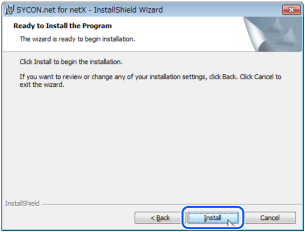
开始安装。
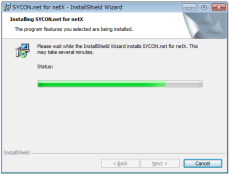
出现[InstallShield Wizard - InstallShield Wizard Completed]对话框。
单击[Finish]。
参考下一项“安装电路板”的内容,安装Hilscher 制造的PROFINET 板。