ソフトウェアのインストール
デバイスドライバーのインストール
Epson RC+ 8.0がインストールされたパソコンに、Hilscher製EtherNet/IP基板を追加する前に、必ずHilscher SYCON .netアプリケーションと、使用する基板に応じたドライバーをインストールしてください。
Epson RC+ 8.0がインストールされたパソコンにCommunication-Solutions DVDをセットします。
Communication-Solutions DVDの[Communication-Solutions DVD\Driver_&_Toolkit\Device Driver (NXDRV-WIN)\Installation] フォルダーを表示します。
cifX Device Driver Setup.exeをクリックします。[ユーザーアカウント制御]ダイアログが表示されます。
[はい(Y)]をクリックします。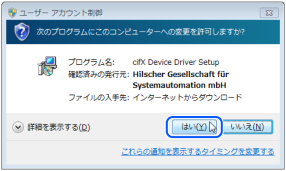
[Device Driver Setup]ダイアログが表示されます。
[I accept the terms in the License Agreement]をチェックします。
[Install]をクリックします。
[Windowsセキュリティ]ダイアログが表示されます。
[インストール]をクリックします。ダイアログが切替わったら、再度[インストール]をクリックします。
[Completed the cifX Device Driver (x64) 2.6.1.0 Setup Wizard]ダイアログが表示されます。
[Finish]をクリックします。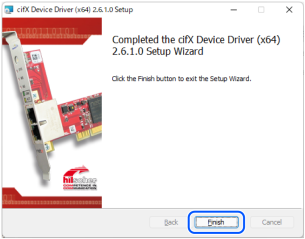
マスターアプリケーションソフトウェアのインストール
Communication-Solutions DVDの[Communication-Solutions DVD\Software_&_Tools\Configuration_Software\SYCON .net]フォルダーを表示します。
SYCONnet netX setup.exeを実行します。[セキュリティの警告]ダイアログが表示されます。
[実行(R)]をクリックします。[ユーザーアカウント制御] ダイアログが表示されます。
[はい(Y)]をクリックします。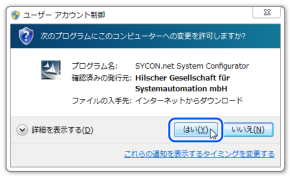
[Choose Setup Language] ダイアログが表示されます。
"英語[米国]"を選択し、[OK]をクリックします。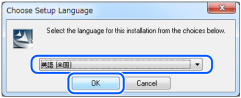
インストールが開始されます。

[InstallShield Wizard - Welcome]ダイアログが表示されます。
[Next]をクリックします。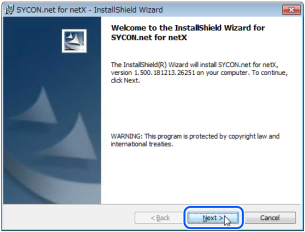
[InstallShield Wizard - Important Information]ダイアログが表示されます。
[I read the information]を選択します。
[Next]をクリックします。
[InstallShield Wizard - License Agreement]ダイアログが表示されます。
[I accept the terms in the license agreement]を選択します。
[Next]をクリックします。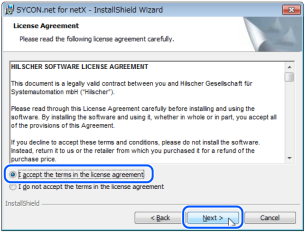
[InstallShield Wizard - Customer Information]ダイアログが表示されます。
ユーザー名(User Name:), 会社名(Organization:)を入力します。
[Next]をクリックします。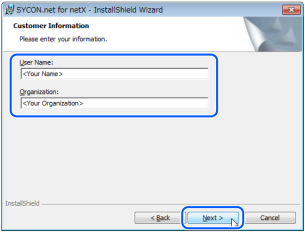
[InstallShield Wizard - Ready to Install the Program]ダイアログが表示されます。
[Install]をクリックします。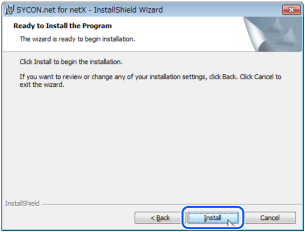
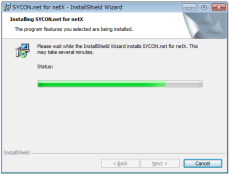
インストールが開始されます。
[InstallShield Wizard - InstallShield Wizard Completed]ダイアログが表示されます。
[Finish]をクリックします。
以下参照し、Hischer製EtherNet/IP基板を装着します。