Setting Connection Destination of Epson RC+
Importing registered Controller in Epson RC+ to the OPC UA Configurator.
Select Home display Menu - [Controller].
[Controller] dialog will be displayed.
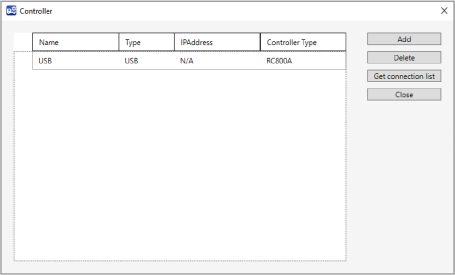
Click the [Get connection list] button.
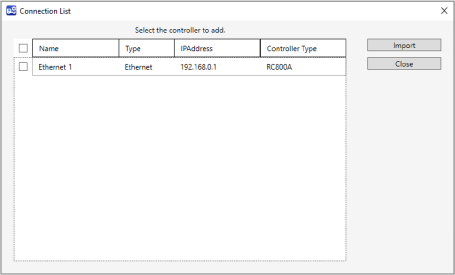
[Connection List] dialog will be displayed.
KEY POINTS
The registered connections in Epson RC+ will be displayed.
The connections that Type is USB or Virtual are not displayed.
IP addresses already in OPC UA Configurator’s list of connections, or connections matching those names, will not be displayed.
Check in the check box of the connection you want to import, and click the [Import] button.
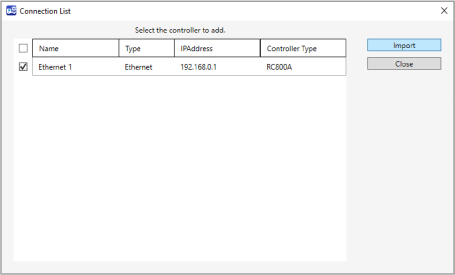
After the import is complete, the dialog will be displayed says the process is complete.
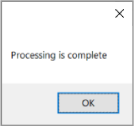
Click the [OK] button to go back to [Connection List] dialog.
Click the [Close] button.
It goes back to the [Controller] dialog.
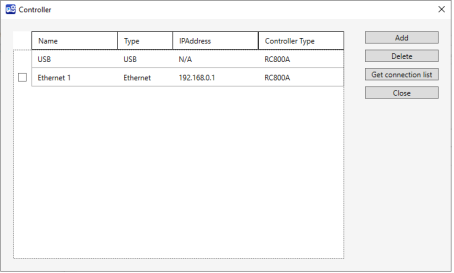
The imported controller is added to the connection list as shown below.