Import Settings (Firmware Versions 7.5.xx or Lower Only)
Import a PC’s activation key file and a server settings file to the Controller. For Controllers with firmware version 8.0.0.xx and later, it is recommended that you import the files using Epson RC+’s Backup function.
Select a Controller to configure from the check box of Controller Information List.
Select Home display Menu - [Server Setting] - [Import].
[Import] dialog will be displayed.
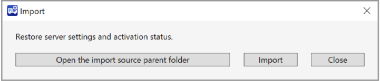
Set each item at import dialog.
Item Description Open the import source parent folder Displays the folder of export destination.
Click [Open the import source parent folder] button to open the parent folder of the import source.
Click [Import] button.
Import will be executed.
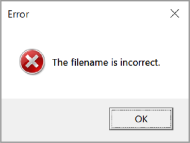
An error dialog will be displayed before executing import when:
File name to import is incorrect.
(Do not rename the exported file.)
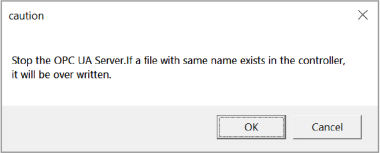
Click [Import] button. A dialog displayed says the server will be stopped and overwrite for import.
Click [OK] button to continue the process. The setting will be imported.
Click [Cancel] button to cancel the import setting.
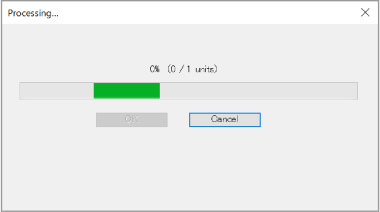
During the process of import, following dialog will be displayed. If you click [Cancel] button, a dialog displayed says the process will be canceled.
Then you click [OK] button, import will be canceled.
Processing that has already been completed cannot be undone.
After completing the import, following dialog will be displayed.
Click [OK] button.
