Activate OPC UA Server Function
This section describes how to activate OPC UA Server function.
Activate a Controller one by one
Select a Controller to configure from the check box of Controller Information List.
Select Home display Menu - [Server Setting] - [Activation].
[Activation] dialog to input setting will be displayed.
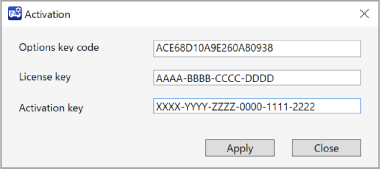
Set each item.
Items Descriptions License key Enter a license key of OPC UA for Robotics Part1. Activation key Enter an activation key. For information on how to obtain a license key and activation key, refer to the following.
Click [Apply] button. Activation process will be started using information of key you’ve entered.
[Apply] button is not enabled when:
- Some items are not entered.
- Number of letters are not enough.
- Other than half-width alphanumeric character was entered.
A dialog displayed says the Server will be stopped for activation.
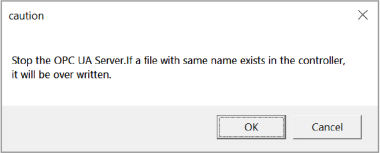
If you continue processing, click [OK] button. The Controller will be activated.
If [Cancel] button clicked, activation will be canceled.
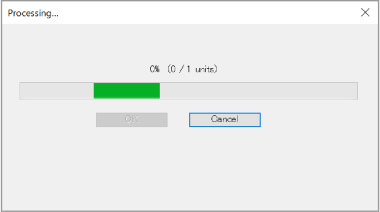
During the process of activation, following dialog will be displayed.
If you click [Cancel] button, a dialog displayed says the process will be canceled. To stop the process of activation, click [OK] button.
Processing that has already been completed cannot be undone.
After the process complete, following dialog will be displayed.
Click [OK] button.

Activate Multiple Controllers at Once
Select multiple Controllers to configure from the check box of Controller Information List.
Select Home display Menu - [Server Setting] - [Activation].
[Activation] dialog will be displayed. Click [File selection] button.
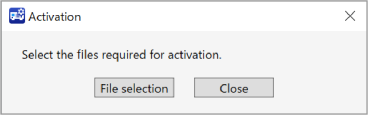
A dialog to select a file will be displayed.
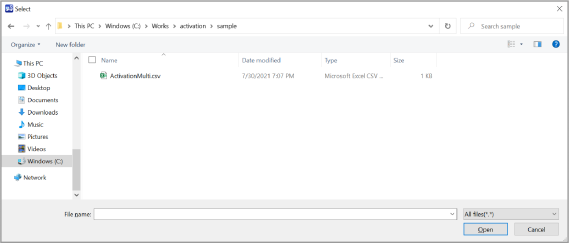
Select a file listed information for activation.
Input following contents in the file.
- Controller serial No.
- License key
- Activation key
See below for file format.
Click [Apply] button of file setting dialog.
A dialog will be displayed says the Server will be stopped for activation.
If you continue processing, click [OK] button. The Controller will be activated.
If [Cancel] button clicked, the process of activation will be canceled.
During the process of activation, following dialog will be displayed.
If you click [Cancel] button, it is possible to cancel the process. Processing that has already been completed cannot be undone.
An error message will be displayed in processing dialog when:
- The information of the Controller selected in the check box is not listed in the file selected in the file setting dialog.