Adding User
Adding a user who are allowed to connect to OPC UA Server.
Select one Controller to configure from the check box of Controller Information List.
Select Home display Menu - [Server Setting] - [User].
[UserList] dialog will be displayed.
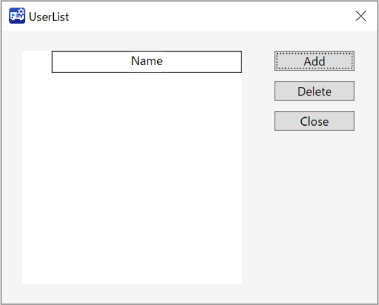
(2) [UserList] dialog will not be displayed, (3) [AddUser] dialog will be displayed instead when:
- selecting multiple Controllers at check box of Controller Information List
Click [Add] button.
[Add user] dialog will be displayed.
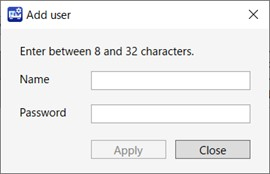
[Add] button is not enabled when:
- already 10 users are registered
Set each item.
Items Descriptions Name Enter a username. Enter 8 letters or more and 32 letters or less with half-width alphanumeric characters. (no symbols) Password Enter a password. Enter 8 letters or more and 32 letters with half-width alphanumeric characters. (no symbols) Click [Apply] button.
A dialog will be displayed says the Server will be stopped for server processing.
If you continue processing, click [OK] button. A user will be added.
If [Cancel] button clicked, user will not be added.
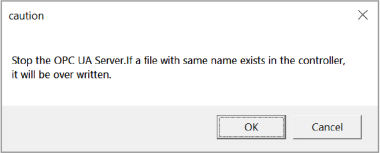
During the process of user adding, [Processing] dialog will be displayed.
If you click [Cancel] button, a dialog displayed says the process will be stopped. To stop user adding process, click [OK] button. Processing that has already been completed cannot be undone.
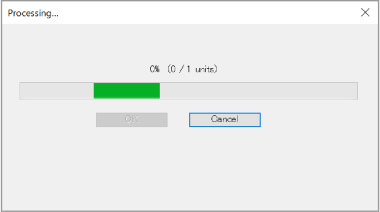
After the process complete, a massage will be sent says process complete in the dialog. Click [OK] button.
