Confirmation of Vibration Reduction Effect
You can confirm the VRT effect by using VR software.
Measure the same motion with enabling VRT and disabling VRT, then compare the results.
Refer to following for more information on enabling/disabling VRT.
Change the [VRT] of [Robot Manager]to “0”.
VRT function will be disabled.

Read parameters.
For details, refer to “Read VRT Parameters”.
Place a checkmark on the [Save graph] checkbox ①.
Upper graph is copied to the lower one.
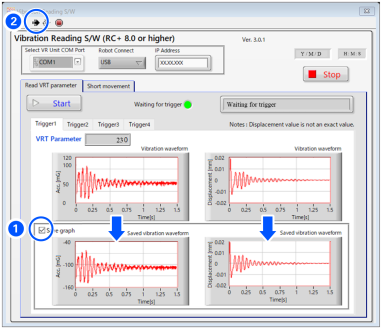
Confirm that the graph is copied to the lower graph.
Remove the checkmark on the [Save graph] checkbox.
Change the [VRT] of [Robot Manager]to “1”.
VRT function will be enabled.
Click an arrow icon ② on upper left and click the [Start] button. Condition will be the trigger start condition and measurement will start again.
Vibration results of enabling VRT are displayed on upper stage.
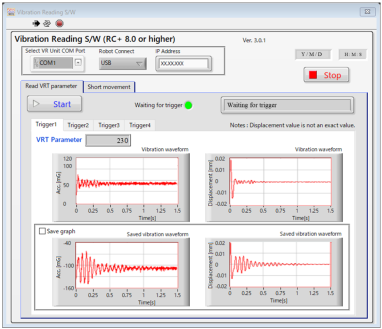
From the above operation steps, you can check the improvement effects of vibration when enabling VRT.
Displacement on the graph is calculated by values measured in acceleration. It is not precise value
To measure precise value, use dedicated measurement equipment.
Use displacement value output from this function as rough guide to check VRT function.
If the improvement is not enough, add the values of read VRT parameter to Epson RC+ menu- [Robot Manager] – [VRT] tab – [Param 2] and click the [Apply] button. Then check the improvement again.
You can set two VRT parameters simultaneously.