Steps to read VRT parameters when wiring is difficult
If it is difficult to wire the USB cable between VR unit and PC due to reasons such as equipment layout, you can read parameters by shortening the robot moving distance.
As shown below, you can change the path P1 → P2 to P3 → P2 to measure.
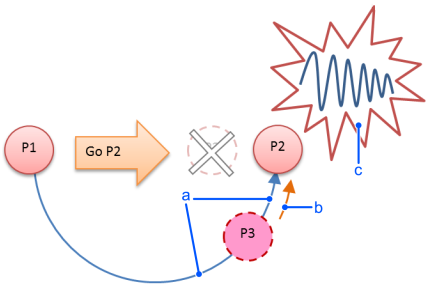
| Symbol | Description |
|---|---|
| a | Distance that the robot actually move |
| b | Distance that the robot move at measurement |
| c | Residual vibration is generated |
Program that shortened the robot moving distance for reading parameters can be create by VR software.
Start Epson RC+ and connect to the robot.
Activate the VR software by either way.
- With Epson RC+ 8.0, click the [Robot Manager]-[VRT]- [VRT Parameter reading] button.
- Activate "
C: \EpsonRC80\exe\VR_SW.exe"
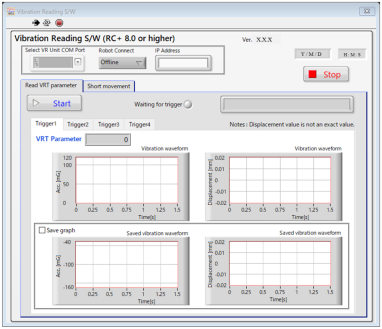
Select the [Short movement] tab.
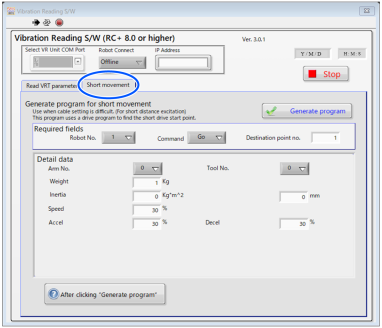
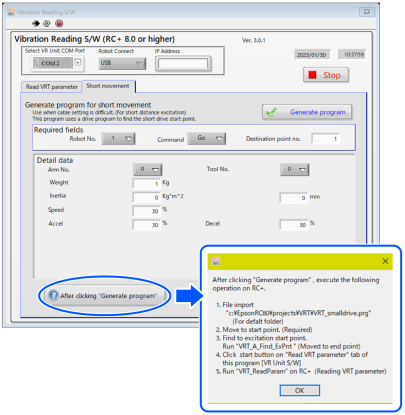
Input point number, motion command, speed, and acceleration of the destination point of vibration generated motion to all items of [Require fields] and [Detail data].
Click the [Generate program] button.
Program that shortened the robot moving distance is created.
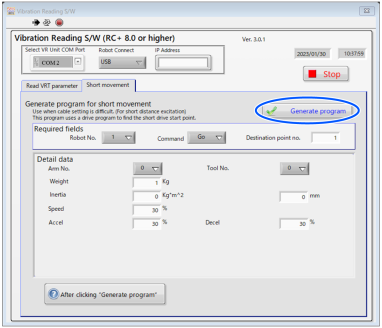
At this time, do not install VR unit. Also, do not wire by USB cable.
Click the [After clicking “Generate program”] button to check the steps to create a program.
Click Epson RC+ menu- [File] - [Import..] to import the program file created in step 5.
C:\EpsonRC80\projects\VRT \VRT_smalldrive.prg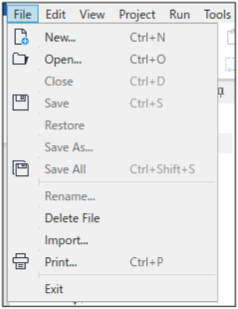
After do the [Project]-[Build], Select “VRT_A_Find_ExPnt” on the [Run] window and click the [Start] button.
Search the start position of motion that read parameters (motion that generates vibrations).
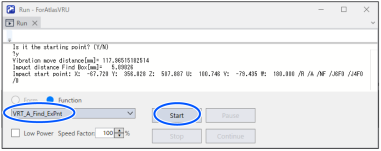
After confirming that the robot moves to the start position (P1 on the first figure of this section), click the [Start] button.
When clicking the [Start] button, a question whether the robot is at the start position is asked.
If the robot is at the start position, click [Y]. If the robot is not at the start position, click [N].
The program is halted if the robot is not at the start position. Move the robot to the start position and perform the step 8.
Search a point that is 5% from the destination point for the motion distance when vibration is generated. When the motion distance is 1mm or less, the point is 1mm position.
When the program ends, the setting has completed.
Refer to the following and install VR unit. Then, connect it to PC with USB cable.
Click the [Stop] button to be the waiting for Trigger condition.
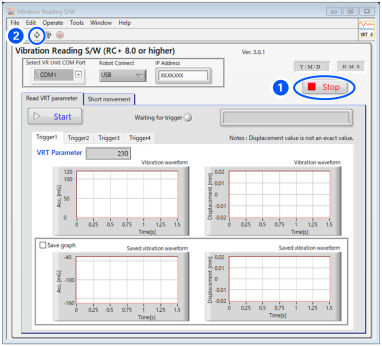
Click an arrow icon ② on upper left and execute software again.
Set the [Select VRU COM Port], [Robot Connect], and [IP Address].
Refer to following for more information.
Select the [Read VRT parameter] tab.
Click the [Start] button and set to be waiting for trigger condition.
The [Waiting for trigger] is lighted up in green.
The robot is at end position (P2) since VRT_A_Find_ExPnt is executed.
Select “VRT_ReadParam” on the [Run] window. After confirming that the robot is at the end position (P2), click the [Start] button. Read parameters.