Jog Mode (Easy, Joint, World, Tool)
Choose how to move the arm from the following options.

The following features are common to all modes.
| Icon | Description |
|---|---|
 | Move the direction of the end effector in the specified direction. Tap the icon and follow the on-screen instructions to change the orientation. |
 | Moves the robot arm to the user defined home position. (Home statement executed) |
 | Tap or long-press to make the robot's end effector rotate clockwise or counterclockwise. |
 | Tap or long-press to move the end effector forward or backward. |
 | You can match the direction of the arrows displayed on the simulator screen with the direction of X, Y, Z, U on the Jog panel. Change the orientation according to the instructions on the screen. |
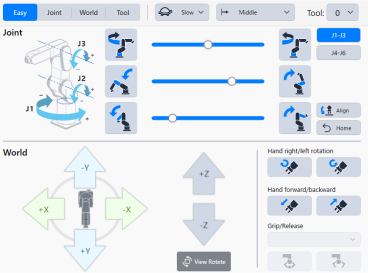
- Easy
This mode allows you to operate Joint, World, and Tool on a single screen. Recommended for beginners.
The Easy jog screen consists of two sections: [Joint] and [World].
[Joint] allows you to roughly move the arm.
Select the mode for the axis you want to move from the options below.
- J1-J3: Modes that operate each of the J1/J2/J3 axes.
- J4-J6: Modes that operate each of the J4/J5/J6 axes.
Check the + and - directions, then tap or long-press the icon.
Refer to the icons for the location of each joint.
In [World] mode, you can fine-tune the position of the arm.
Check the + and - directions for the X, Y, and Z coordinate axes, then tap or long-press the icon.
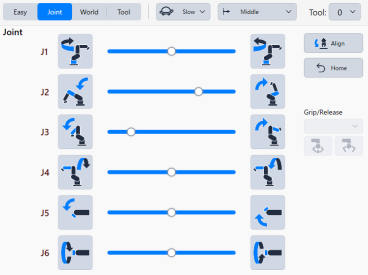
- Joint
A mode to operate arm by specifying joints. Useful to move the robot to the rough point.
To move each joint of the robot (J1 to J6), check the + and - directions, then tap or long-press the icon.
Refer to the following icons for the location of each joint.
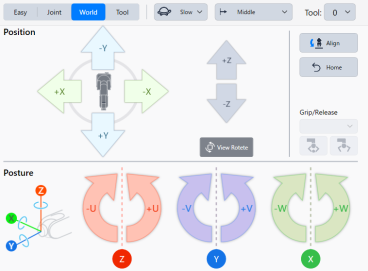
- World
This mode allows you to specify the X, Y, and Z coordinate axes to move the arm. Useful to move the robot to accurate position.
The World jog screen consists of two parts: [Position] and [Posture].
In [Position], check the + and - directions for the X, Y, and Z coordinate axes, and then tap or long-press the icon.
In [Posture], check the + and - directions for the U, V, and W coordinate axes, and then tap or long-press the icon.
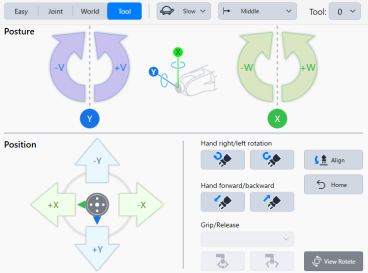
- Tool
This mode uses the end of the hand as the coordinate reference point to move the arm. This is useful when working on angled surfaces.
The Tool's jog screen consists of two parts: [Posture] and [Position].
In [Posture], check the + and - directions for the V and W coordinate axes, then tap or long-press the icon.
In [Position], you can move the position of your fingertips.
Check the + and - directions for the X and Y coordinate axes, then tap or long-press the icon.
To move your hand back and forth or rotate it, tap or long-press the following icons.