[Read VRT Parameter] Tab
Receive signals from VRT_Trigger command and calculate VRT parameter by results of vibration measurement by VR unit.
| Items | Descriptions |
|---|---|
Start
| Start the waiting for trigger condition. |
VRT Parameter
| Show VRT parameter values. Parameters are calculated by vibration measurement. |
Trigger * tab
| Show the measurement result. * Support the value (1 to 4) specified by “VRT_Trigger” command. |
Trigger condition display
| Show the trigger condition. Display is lighted up in green while waiting for trigger. Execute the robot motion program that added VRT_Trigger while the display is lighted up. |
Condition display
| Show the execution condition of VR software. ・ In preparation ・Waiting for trigger ・Reading the vibration data.. ・Calculating VRT parameter.. ・Reading parameter was completed !! ・Stop program! ・Stop clicked |
Save graph
| Place a checkmark: Display, save, and output the graph of vibration measurement result on [Saved vibration waveform]. Latest measurement result is overwritten. Do not place a checkmark: Measured results are not displayed, saved, and overwritten. |



Graph
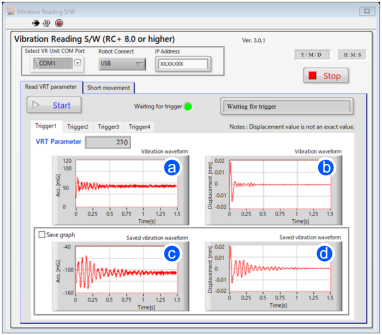
Show history of the measured values.
| Symbol | Descriptions |
|---|---|
| a | Acceleration after reaching the destination point. (Vertical axis: Accel mG , Horizontal axis: Time sec) |
| b | Displacement after reaching the destination point. (Vertical axis: Displacement mm , Horizontal axis: Time sec) |
| c | Acceleration history that measured after placing a checkmark on [Save graph] |
| d | Displacement history that measured after placing a checkmark on [Save graph] |
Displacement on the graph is calculated by values measured in acceleration. It is not precise value
To measure precise value, use dedicated measurement equipment.
Use displacement value output from this function as rough guide to check VRT function.
Graph extension function:
Right-click inside the graph to display the menu as shown below:
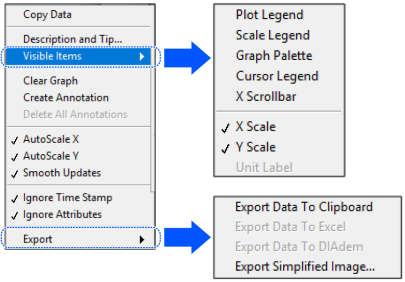
To use the graph data, select [Export]-[Export Data to Excel]. You can use the data in Excel etc.,.
| Items | Descriptions | |
|---|---|---|
| Copy data | Copy the image(s) of selected graph | |
| Description and Tip… | Graph descriptions | |
| Visible Items | Plot Legend | Show the plot name |
| Scale Legend | Show legend of each axis scale. | |
| Graph Palette | Show the palette for operating graph. | |
| Cursor Legend | Show cursor legend. | |
| X Scrollbar | Show scroll bar of X-axis | |
| X Scale | Show X-axis values | |
| Y Scale | Show Y-axis values | |
| Unit Label | Show unit | |
| Clear Graph | Clear the displayed graph | |
| Create Annotation | Create annotations in the graph. | |
| Delete All Annotations | Delete all annotations created in [Create Annotation]. | |
| AutoScale X | Auto scaling X value | |
| AutoScale Y | Auto scaling Y value | |
| Smooth Updates | Reduce to generate flicker when plotting a graph (Speed will be slow.) | |
| Ignore Time Stamp | Ignore time stamp of X value | |
| Ignore Attributes | Ignore the attributes of plot name and graph scale. | |
| Export | Export Data to Clipboard | Copy the data to clipboard. Use “Paste” to output the data. |
| Export Data to Excel | Copy the data to Excel. Excel is started automatically. | |
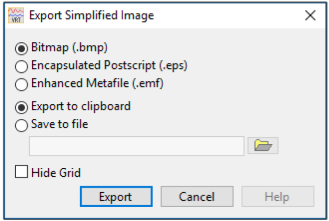
| Export Simplified image.. | Export the image in the following format.
| |
How to change the Y-axis scale:
Y-axis scale can be changed by either of the following ways:
- Right-click on the graph and remove a checkmark on [AutoScale Y].
- Double-click the values on the graph and change it directly.