Epson RC+ GUI (VRT Tab)
Select Epson RC+ menu-[Tools]-[Robot Manager]-[VRT] tab to display the following window. Set VRT parameters.
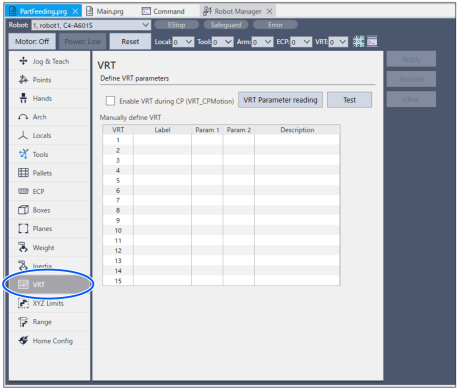
When selecting the [VRT] tab, all VRT parameter values that user can define are displayed.
If the [VRT] tab is not displayed, the VRT option’s key is not set. Refer to the following section to set the option’s key.
Values set by Robot Manager are saved if the controller is turned OFF.
| Items | Descriptions |
|---|---|
Enable VRT during CP (VRT_CPMotion) | Set enable/disable of VRT function. (During CP motion) Default: disable |
| Label | Set labels of the selected VRT number. (optional) The label can be up to 32 half-width letters or 16 full-width letters. Characters that can be used are alphanumeric characters, Japanese syllabary symbols, kanji, and underscores (_). Numbers and underscores cannot be used as the first letter. An error will occur if you specify a label that has already been set (a label that is the same as another VRT number). |
| Param1 | Set value of VRTParam1. Setting range: 100 to 500 |
| Param2 | Set value of VRTParam2. Setting range: 100 to 500 VRTParam2 value should be ±10% or more than VRTParam1. |
| Description | Set descriptions of the selected VRT number (optional) |
| Apply | Set the current value. Processes take a few seconds. |
| Restore | Restore to previous value. |
| Clear | Delete all selected values. |
Select VRT number
| When selecting the number set VRT parameter, VRT function of the number is applied to subsequent robot motion. However, if VRT command is executed during the motion, the setting takes priority 0: VRT OFF |
VRT Parameter reading
| Start the VR software. Installing the VR software is necessary. |
Test
| Start the VR Unit Check (Software). You can check if VR unit is not malfunctioning with VR Unit Check. Refer to following for more information. Installing the VR software is necessary. |


