Updating Firmware
The firmware of the feeder unit may be updated to fix bugs or add new features. You can update to the latest firmware using the firmware update function.
KEY POINTS
- The currently installed firmware version is displayed in the [System Settings] section of the Epson Feeder Configurator. See below for more details.
System Setting - Confirm Mode - The update wizard will always be displayed in English, regardless of the language setting in Epson Feeder Configurator.
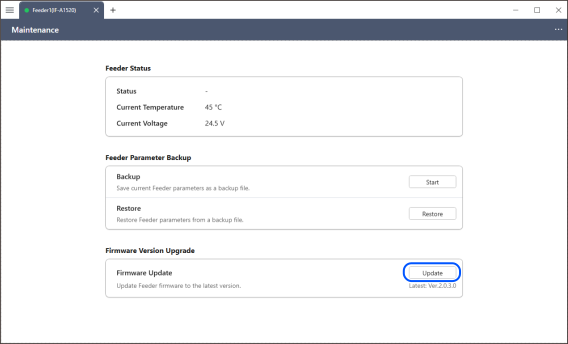
Open Epson Feeder Configurator and open [Maintenance].
Click the [Update] button next to the firmware version.
KEY POINTS
- If there are unsaved parameters, a dialog box will appear asking if you want to save them. If there are no problems, select [Yes] to save the parameters in the feeder unit. Saving may take several seconds to several tens of seconds.
- It may take about 10 seconds for the Update Wizard to start.
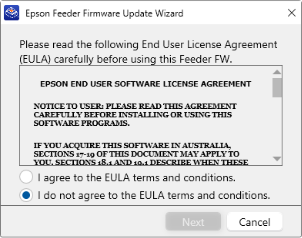
The Update Wizard opens. Review the content, and only select [I agree to the EULA terms and conditions] if you agree, then click [Next].
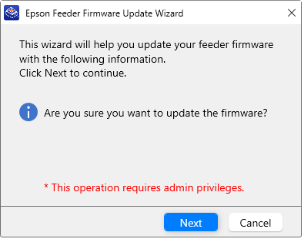
Click [Next] to start the firmware update.
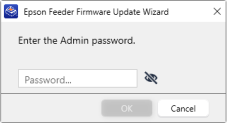
Enter your password in the password entry screen and click [OK].
KEY POINTS
The default password is "12345678".
When the default password is entered, a dialog box to change the password appears. Enter a new password 2 times.
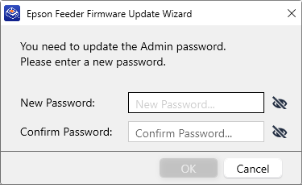
The password must be 1 to 16 alphanumeric characters. You cannot use the same password as the default password.
Be sure to write down the changed password so you don't forget it.
Select the items to update and click [Next]. By default, all items are selected.
- Firmware: Updates the feeder's firmware (executable file).
- Vibration parameters: Resets the vibration/sequence parameters stored in the feeder to their default values.
- Global setting parameters: Resets the internal parameters to their default values. Default values may change after the firmware update.
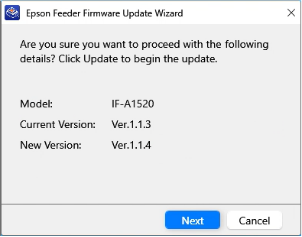
The update details are displayed. If there are no problems, click [Next].
KEY POINTS
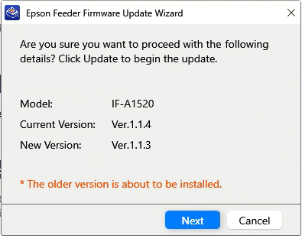
If you attempt to install an older version of firmware than is already installed, a warning message "* The older version is about to be installed." appears.
The firmware is loaded.
It takes about 10 seconds to load the firmware.
CAUTION
Do not turn off the power to the feeder unit under any circumstances while the following screen is displayed. Also, if the connection with the PC is lost, writing the firmware may fail and the feeder may not subsequently start up.
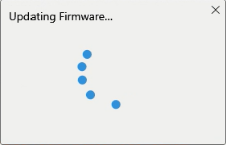
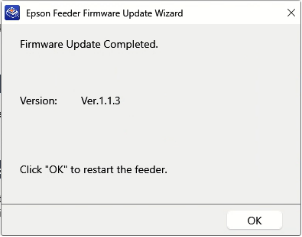
The Update Wizard completion screen appears. Click [OK] to automatically restart the feeder unit.