Verifying the PROFIBUS DP Network Condition
The applicomIO Console application has the following functions:
- Network Monitor function: Monitoring error condition detected on the network
- Diagnostic function: Network diagnosis
Select the [Network Detection] tab in the left center of the applicomIO Console application.
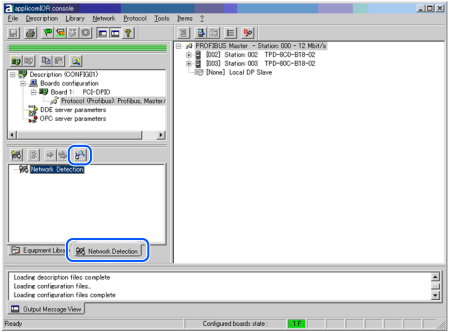
Click the [Online Action] icon. The [Network Monitor] dialog box appears.
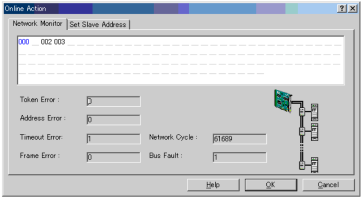
You can check the conditions of the following errors on this dialog box.
- Token Error
- Address Error
- Timeout Error
- Frame Errors
- Network Cycle
- Bus Fault
When an error occurs on the network, it is added to the corresponding error counter.
Select [Protocol] - [Diagnostic] from the applicomIO Console application menu.
Click the magnifying grass icon on the [Diagnostic] dialog box. Then, select the slave you want from the device tree in the left side of the window. The window changes as shown below.
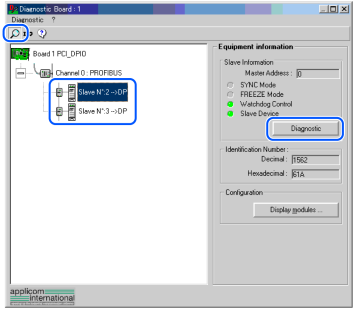
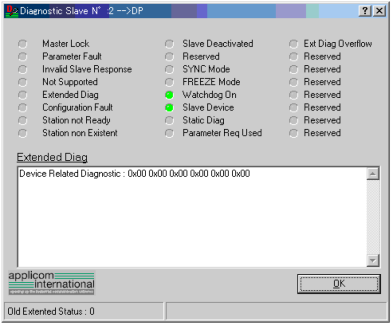
To check the device condition in detail, click [Diagnostic] in [Equipment information] in the right side of the window. If an error occurs, the information is displayed in red.
When you click the [I/O] icon, the window changes as shown below.
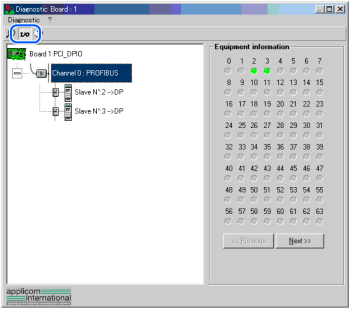
Each slave device status is shown in the right side of the window.
A green circle indicates that the communication of the corresponding device is normal, and a red circle indicates that there is a communication error. A gray circle indicates that the corresponding device does not exist.When you select the slave from the device tree in the left side of the window, the window changes as shown below.
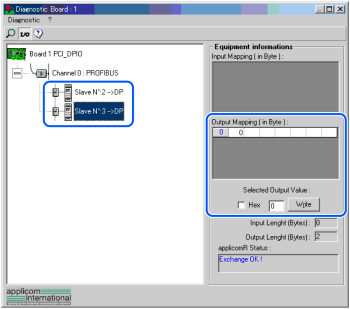
The input and output statuses of the selected device are shown in the right side of the window.
If you want to change output data, click the bite number you want to change in [Output Mapping]. Then, enter a value in the [Selected Output Value] and click [Write].