Acquiring the Teaching Point to Be Used for Zero Position Adjustment (SCARA Robots Only)
When the robot has been used for a while, some parts will need to be repaired. Depending on the parts to replace, zero position adjustment*1 is needed after parts have been replaced which can cause the robot to take a while to restart. In order to perform zero position adjustment with ease, make sure to acquire the teaching point after you have purchased the robot.
*1: For details on zero position adjustment, refer to the following section:
“Maintenance Manual/Service Manual of the Manipulator - Calibration”
Types of teaching points that can be used for zero position adjustment and necessary measures
A teaching point (hereinafter referred to as point) is acquired to position the Manipulator in the same pose as it was before and after parts are replaced. The following two are examples of points that can be used for zero position adjustment:
- Point 1: A temporary point that determines the location of the Manipulator on the device
- Point 2: A point acquired at the pose where mechanical stop*2 was applied to the Manipulator
*2: A mechanical stop is the part that limits the robot’s motion range.
Point 1 refers to a point where the Manipulator grasps the workpiece on the device or one that the user voluntarily prepared to use for calibration.
To minimize deviance from the zero position after adjustment, it is desirable that measures to determine the position of specific poses of the Manipulator is prepared when the device is being designed (Example: Preparing pins on the device or holes on the Manipulator’s hand side to determine the position).
By teaching this pose beforehand, the point data can be used during zero position adjustment to minimize deviation from the zero position after adjustment. For the procedure to perform zero position adjustment using points on the device, refer to the following:
“Maintenance Manual/Service Manual of the Manipulator - Calibration - More accurate positioning”
Point 2 is a point acquired at the pose where mechanical stop was applied to the Manipulator.
Any model and axis that has the mechanical stop can acquire point 2. However, it cannot be used for axes that do not have a mechanical stop, such as the J4 axis of a SCARA robot. For details on models and axes with/without mechanical stop, refer to the following.
"Manipulator Manual - Setting the Operation Area by the Z-axis Mechanical Stopper"
KEY POINTS
In addition to deviation from the zero position, the following two elements can also cause points to deviate:
- Manipulator installation error relative to the device
- Manipulator end effector installation error
The device can be restored faster if measurements are taken on the device and hand side to achieve accuracy before and after attachment/removal.
Procedure to acquire point data at the mechanical stop position
Points can be acquired at the mechanical stop position using Epson RC+. After the robot has been unpacked and the Manipulator is ready to move, we recommend you acquire the point at the mechanical stop. For basic operation methods of the Epson RC+, refer to the following:
"Epson RC+ 8.0 User's Guide"
KEY POINTS
Due to the fact that the position of the mechanical stop is outside of the Manipulator’s motion range, the Manipulator cannot be moved using the jog command of the robot manager or motion commands.
Also, for the same reason, commands are used because teaching cannot be done through robot manager.
Turn on the controller and turn off the motor.
Follow the procedure below to manually move each axis until it hits the mechanical stop.
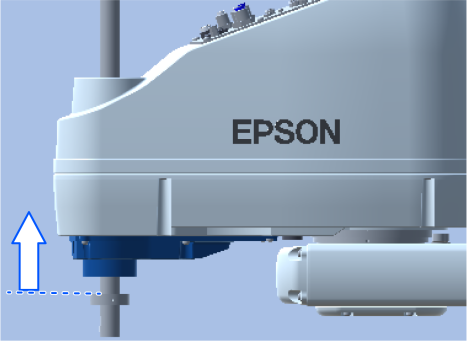
Move the J3 axis to its upper limit.
While pressing the brake release switch on the Manipulator, raise the shaft until the lower limit mechanical stop hits the bottom of the arm.
While the brake release switch is being pressed, be careful of the hand dropping or rotating due to its own weight.
Figure of GX-C series
Move J4 axis.
Due to the fact that J4 does not have a mechanical stop, press the brake release switch and adjust to the 0 pulse position on your own. While the brake release switch is being pressed, be careful of the hand dropping or rotating due to its own weight.
For the 0 pulse position of J4 axis, refer to the following.
“Maintenance Manual/Service Manual of the Manipulator - Calibration”Move J1 axis.
Rotate J1 axis until it hits either the left or right mechanical stop.
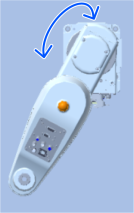
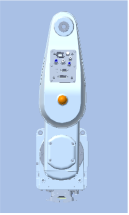
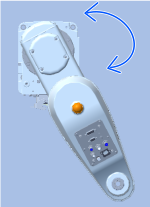
When J1 axis is rotated to the left Standard position When J1 axis is rotated to the right - Move J2 axis.
Rotate J2 axis until it hits either the left or right mechanical stop.
Here, J2 axis is rotated to the opposite direction of J1 so as to make the arm fold.
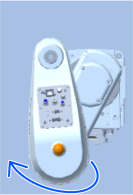
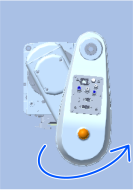
When J2 axis is rotated to the left When J2 axis is rotated to the right Acquire the point data of the mechanical stop position
- Connect the Epson RC+ and controller.
- Acquire point data (Pulse value).
Point data is acquire at Point: P0 as an example.
Enter the following commands in the command window.>P0=Here
Save the point file.
Commands to save to the point file “robot1.PTS” are described as an example.
Enter the following commands in the command window.SavePoints "robot1.PTS“Confirm that the points are saved.
Select Menu>Tool>Robot Manager>Point Data and confirm that the points are saved.
Here, make sure to edit the labels and comments to identify the point data, as the one in the mechanical stop position, and the pose (whether it is a right or left arm pose).
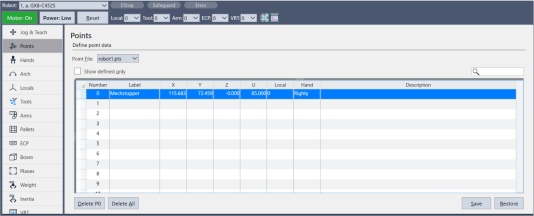
KEY POINTS
There are Manipulator models that can change the position of the mechanical stop. If the mechanical stop is removed/attached after performing the procedures described above, reacquire the point data.
After acquiring the point at the mechanical stop position, manually return the robot’s pose within the motion range before starting the work for regular teaching and robot operation. An error will occur when you attempt to operate the robot from the mechanical stop position, or perform teaching through the robot manager.
Calibration procedure using the point data at the mechanical stop position
For details on the calibration procedure, refer to the following section.
“Maintenance Manual/Service Manual of the Manipulator - Calibration Procedures Using Mechanical Stoppers”